
How to Add Social and Messaging Channels to GBP for Greater Reach

Your Google Business Page is often the first contact customers have with your business. Connecting your social media and messaging channels to your GBP through the CRM is an easy way to increase interest, drive traffic, and keep your profile fresh. Here’s how to set it up and why it matters.
Table of Contents
- Why connect social and messaging channels to GBP
- How to add and manage channels in the CRM
- Best practices when connecting channels
- What to expect after connecting channels
- Quick checklist before you start
- FAQ
- Final notes
Why connect social and messaging channels to GBP
Connecting channels gives potential customers quick ways to learn more and engage. When we link our social profiles and messaging apps to GBP, we:
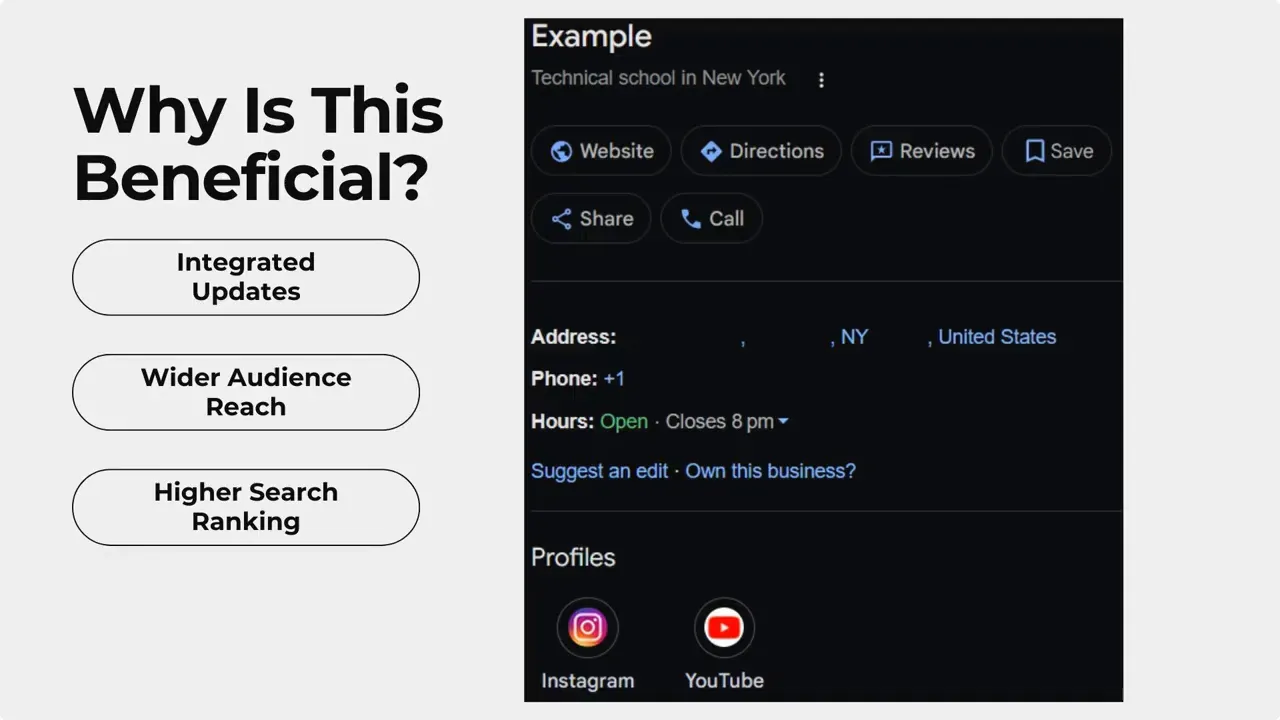
- Reach a wider audience by sending visitors from GBP to our social channels
- Keep GBP up to date with recent posts and activity
- Improve local search ranking by showing active engagement and up-to-date information
- Centralize management so handling channels is faster and simpler
- Increase leads and revenue by making contact options clear and available
How to add and manage channels in the CRM
Here’s a short step by step for connecting channels from inside the CRM.
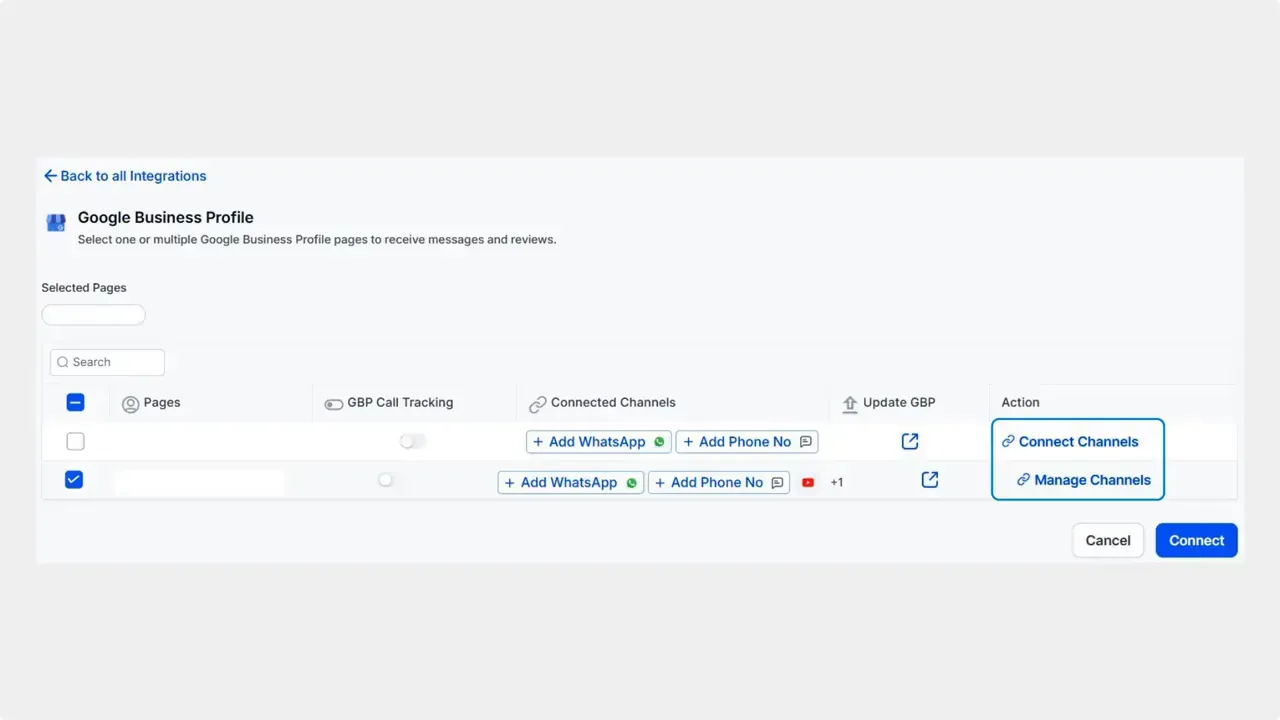
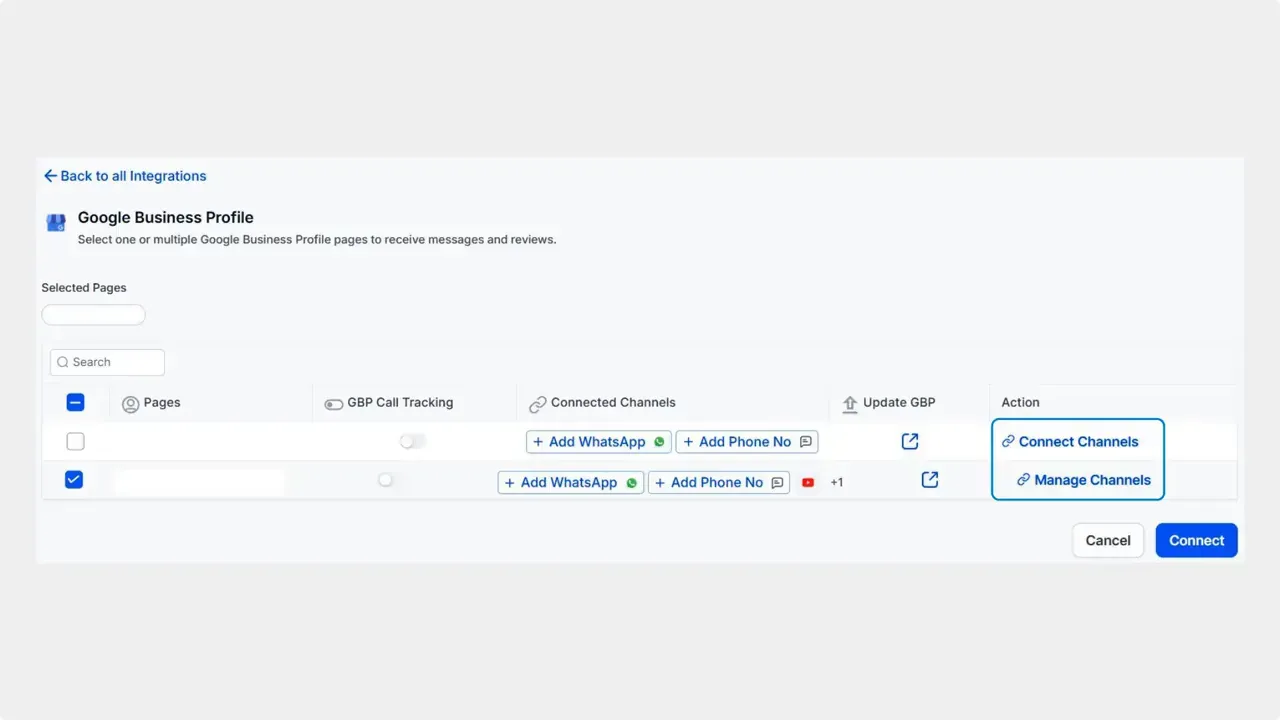
Save your changesClick Save in the bottom right corner after you add your desired channels. This finalizes the connection.
Select channelsEither select channels from the list or type your username for a channel to add it to your GBP.
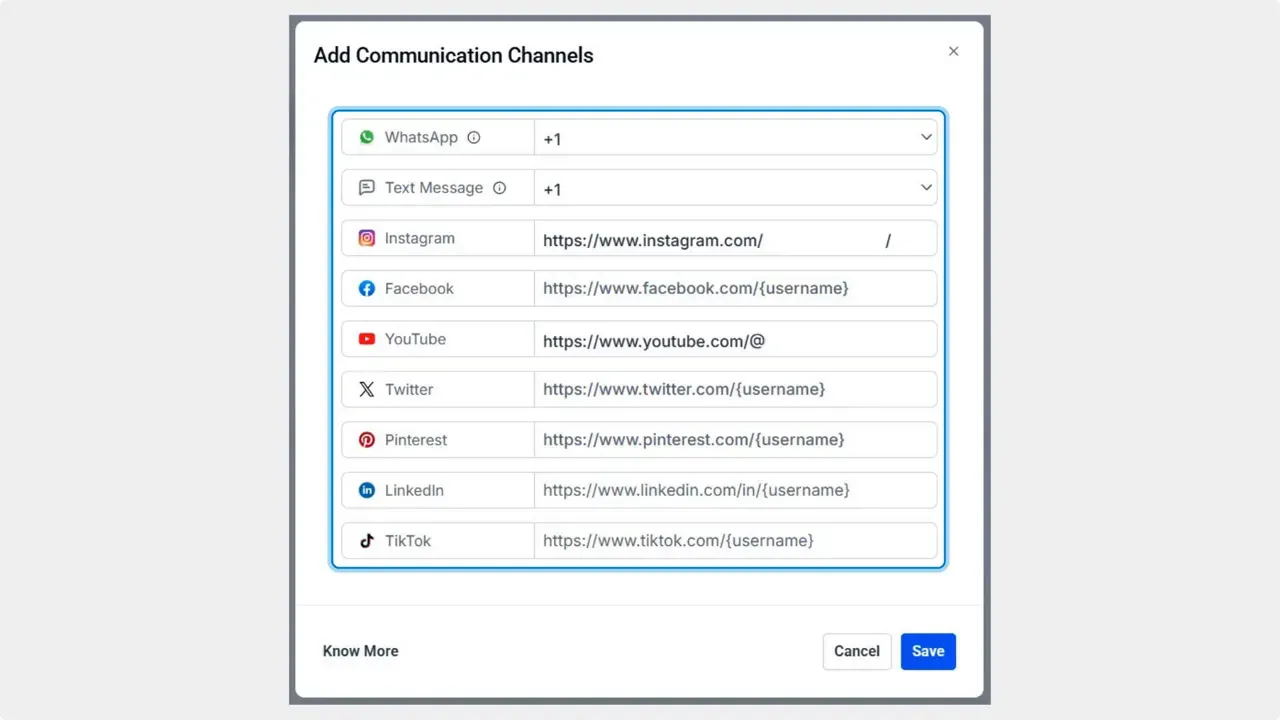
Connect or Manage ChannelsClick Connect or Manage Channels to open the list of available channels.
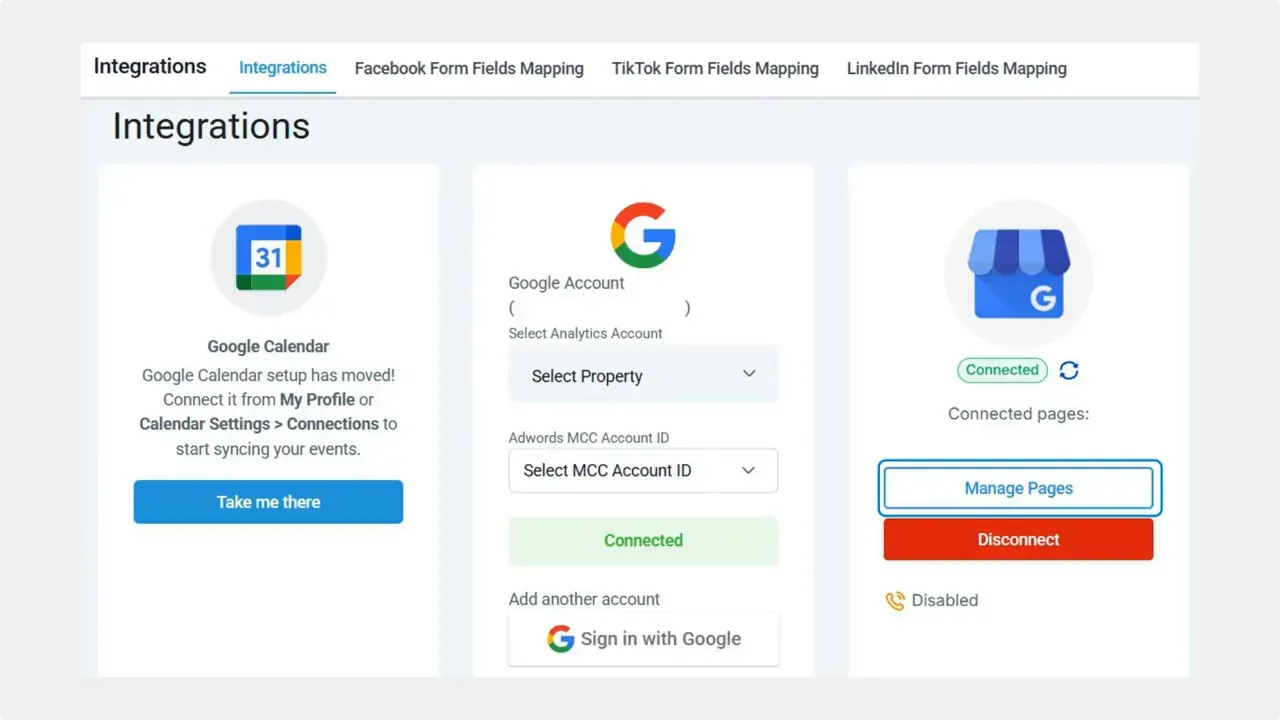
Manage pagesClick Manage Pages to view your connected Google Business Pages and options.
Open account settingsNavigate to the Integrations tab inside your account settings.
Best practices when connecting channels
- Choose the channels your customers actually use. Focus on a few strong, active profiles rather than many unused ones.
- Keep profiles updated. Fresh posts and accurate contact info reinforce relevance with search engines.
- Use consistent usernames and branding across channels so visitors recognize your business quickly.
- Monitor incoming messages and comments so enquiries convert into leads.
- Review connections periodically and remove channels you no longer use.
What to expect after connecting channels
Once channels are connected, GBP can show recent social posts and provide direct links to messaging apps. This helps funnel attention from searchers to the places where we communicate and capture leads. Over time, an active and connected GBP signals relevance to Google, which can improve local search ranking and visibility.
Quick checklist before you start
- Have admin access to the Google Business Page and the social profiles you plan to connect.
- Confirm the usernames and profile URLs you will enter.
- Decide who on your team will monitor messages coming from GBP and social channels.
FAQ
Which channels can we connect to GBP?
Common social networks and messaging platforms are usually supported. In the Connect or Manage Channels screen, you can select available channels or type the username for the channel you want to add.
Will connecting channels post automatically to GBP?
Connecting channels enables GBP to display recent social posts and provide links. Post behavior depends on how the CRM integration is set up. Check the integration settings to confirm whether posts are shown automatically or require manual approval.
Can we edit or remove channels after connecting?
Yes. Go back to Integrations then Manage Pages and choose Connect or Manage Channels to update or remove connected channels. Be sure to save changes.
How does this help local search ranking?
An active and connected GBP shows recent activity and engagement. That signals relevance and freshness to Google, which can positively influence local search placement over time.
Who should manage the connected channels?
Assign team members to monitor messages and social interactions. Quick responses improve conversion rates and customer experience.
Final notes
Connecting social and messaging channels to your Google Business Page is a small setup with clear benefits. It expands reach, centralizes management, and helps turn search traffic into real interactions. At Pinnacle, we want this to be easy and effective for your business. Follow the steps above to connect channels through the CRM and keep your GBP working for you.



