
How to Add Social and Messaging Channels to Google Business Profile - Boost Local Reach

Your Google Business Profile will be the first point of contact for most customers when they look for your business. Keeping social media and messaging channels connected to that profile is an effective way to increase interest and drive action. Here is a quick, clear guide on how to connect and manage those channels inside Pinnacle.
Table of Contents
- What this feature does
- How to connect your channels
- Why connect social and messaging channels
- Tips for best results
- Frequently asked questions
- Closing
What this feature does
Connecting social and messaging channels to your Google Business Profile links those accounts directly to your public listing. That lets visitors see recent posts and reach out through the messaging channels you choose. In short, it helps turn profile views into website visits, social follows, conversations, and leads.
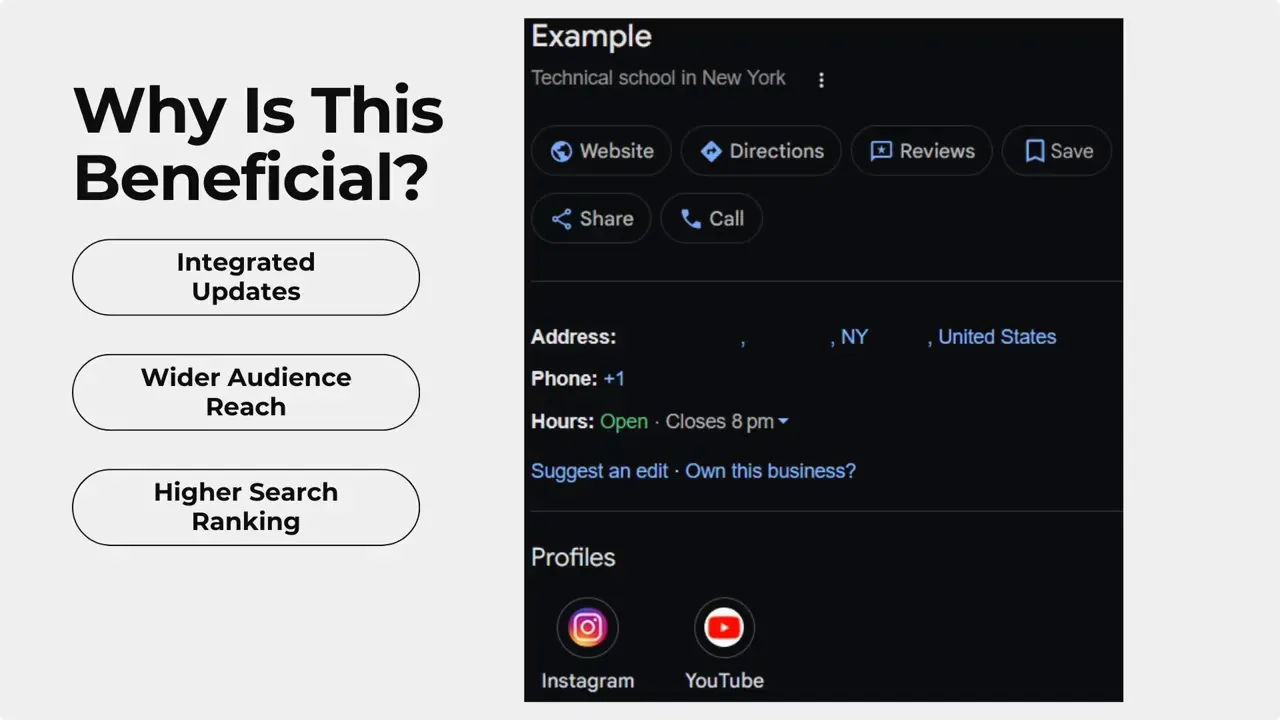
"Using this feature to connect your GBP to your social media and messaging channels helps you reach a wider audience."
How to connect your channels
Follow these simple steps inside your Pinnacle account to add channels to your Google Business Profile.
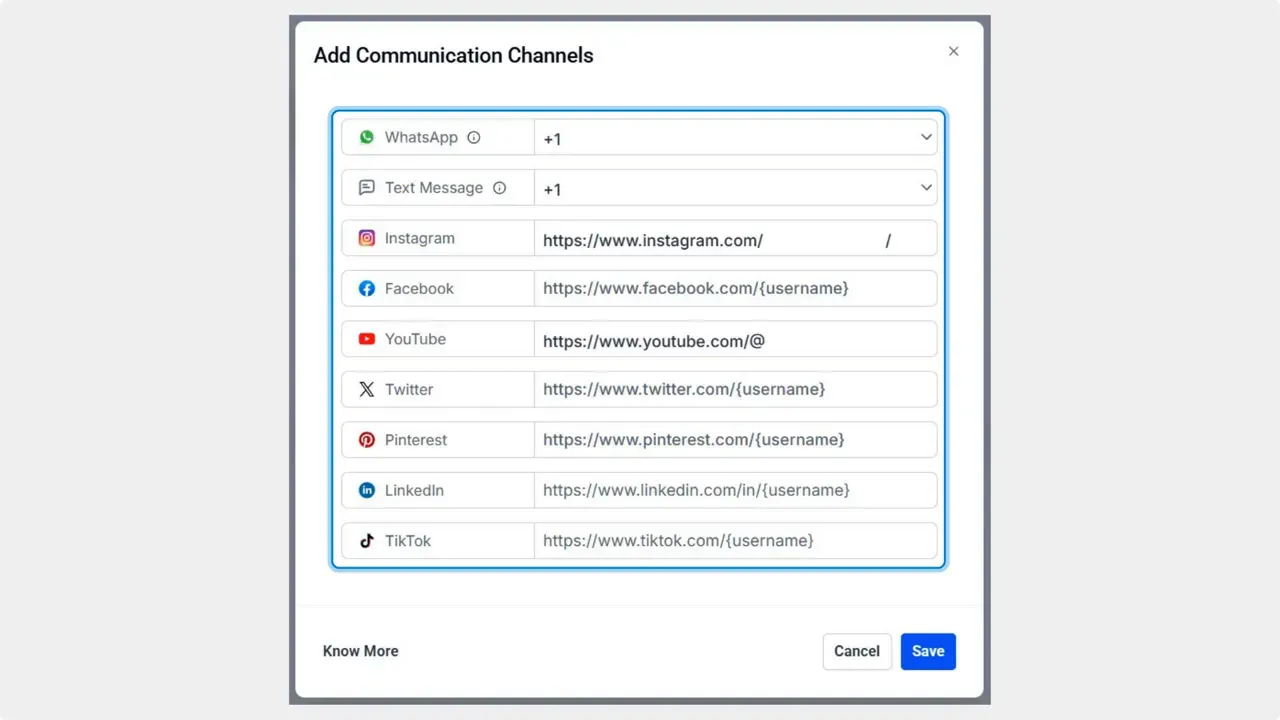
Click Save in the bottom right corner once you have entered your desired channels.
From the list that appears, select the channels you want to link or type your usernames directly.
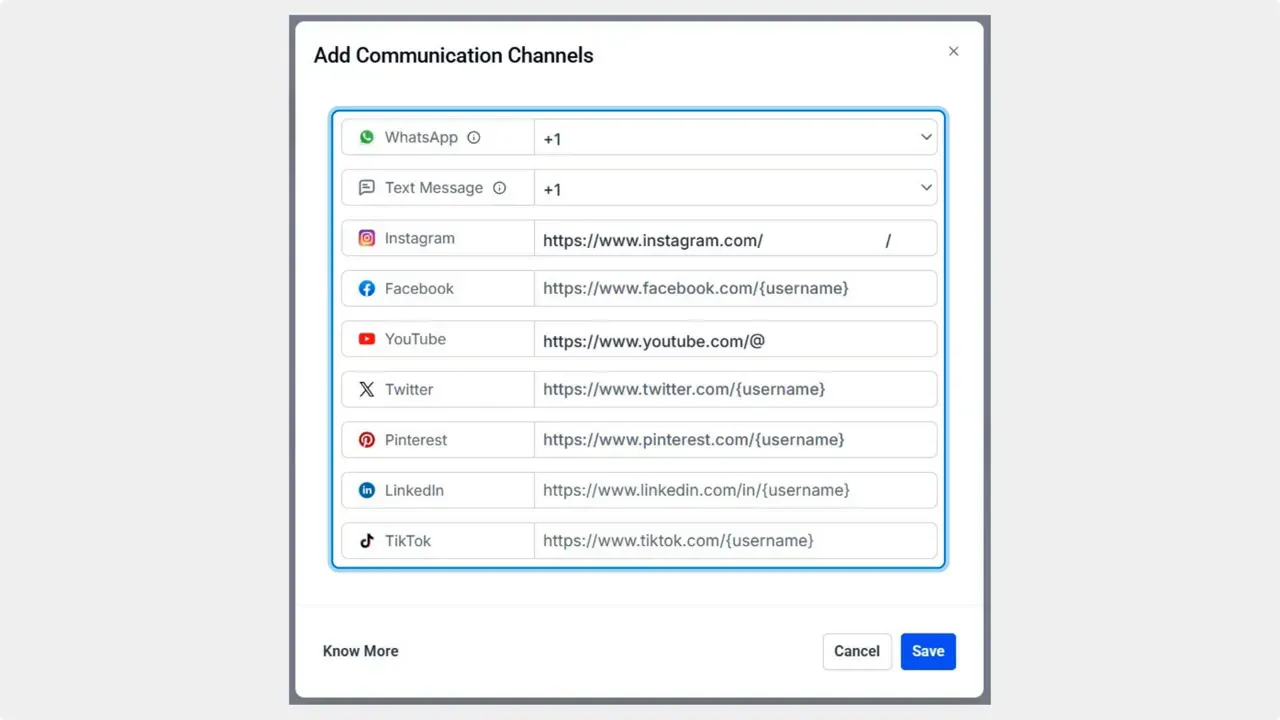
Choose Connect or Manage Channels.
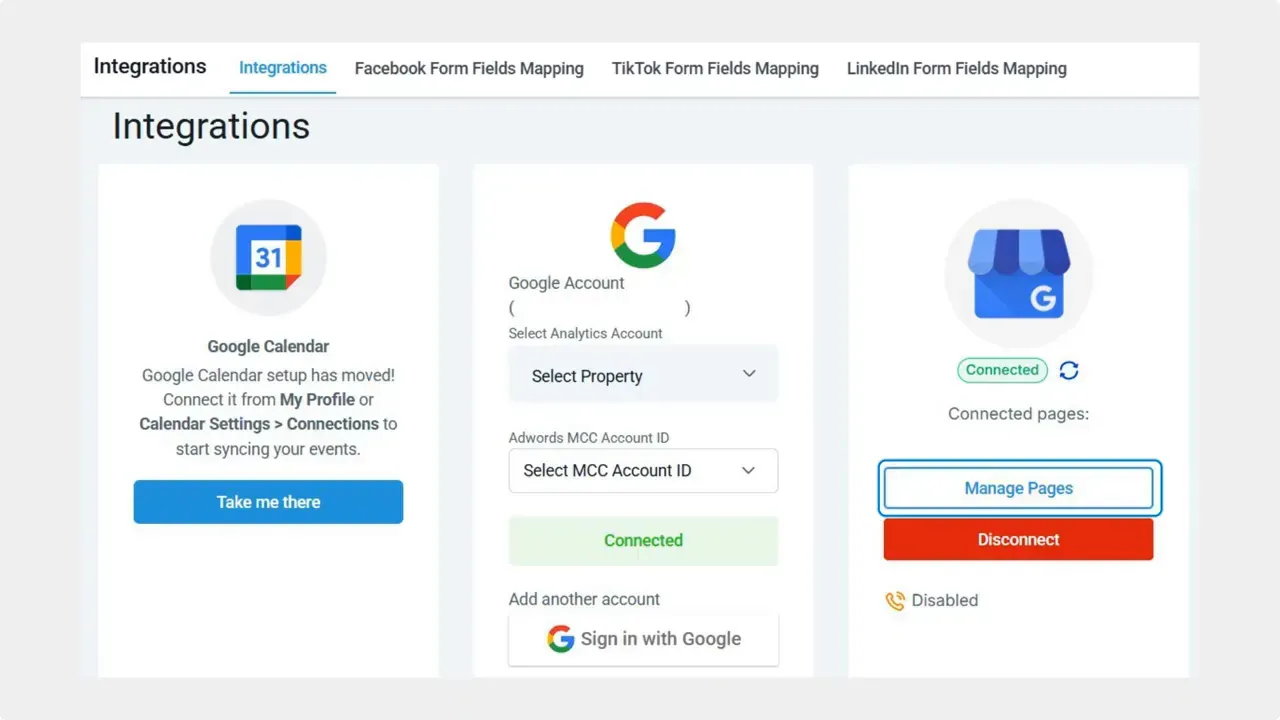
Click Manage Pages.
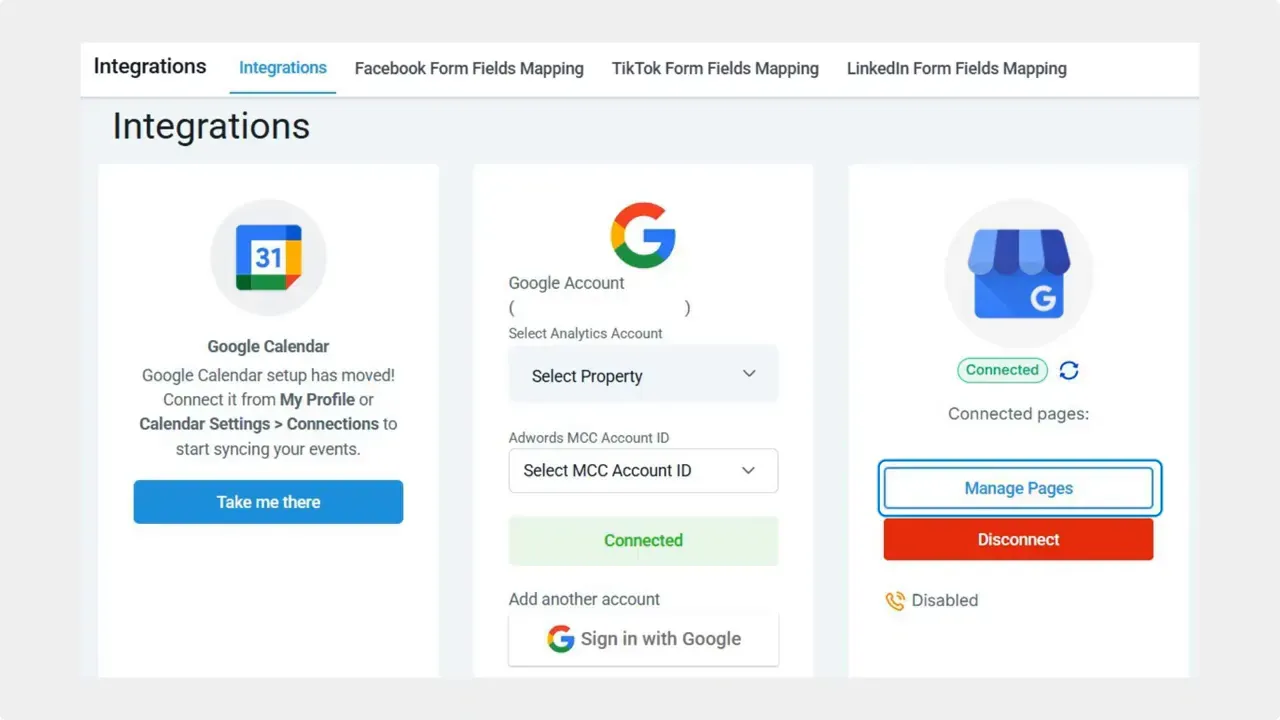
Open your account settings and go to the Integrations tab.
Why connect social and messaging channels
- Drive more traffic from your profile to social pages and messaging platforms.
- Improve local search ranking with an active, updated profile.
- Display recent social media posts directly on your Google Business Profile to keep content fresh and engaging.
- Centralize channel management to save time and capture more leads and revenue.
Reach a wider audience by making social links visible on your Google Business Profile.
Tips for best results
- Link only active channels where you post regularly. An active feed looks better to visitors and search engines.
- Use consistent usernames across platforms to make it easy for customers to find you.
- Keep messaging channels monitored so incoming leads get timely responses.
- Update posts and promotions regularly so your Google Business Profile shows current content.
Frequently asked questions
Which social and messaging channels can we connect to our Google Business Profile?
You can select from the list shown in the channel manager inside Integrations or type your username for supported platforms. The exact options depend on integrations available in your Pinnacle account.
How do connected posts appear on the Google Business Profile?
Recent social posts can display on your profile, helping visitors see current updates and promotions. The profile shows a feed or links depending on Google handling and the connected channel type.
Will connecting channels improve my local search ranking?
An active and complete profile can help local visibility. Connecting channels makes the profile more engaging and can contribute to better local search performance, along with other best practices like reviews and up-to-date information.
How do we remove or change a connected channel?
Go back to Integrations > Manage Pages > Connect or Manage Channels, deselect or edit the username, and click Save to update the connected channels.
Closing
Connecting social and messaging channels to your Google Business Profile is a simple step that centralizes management and increases the chances that profile visitors turn into customers. Use the Integrations tab in Pinnacle to manage channels quickly and keep your profile fresh. We hope this increases your visibility to the max.



