
New Feature: Color-Coded Opportunity Pipelines for Faster Prioritization



Managing many opportunities can get chaotic. We built a simple tool that lets you color code opportunities so you can see what matters at a glance. This reduces errors, speeds up prioritization, and helps teams focus on deals that move the needle.
Table of Contents
- What this feature does
- Quick setup: step by step
- Why color coding helps
- Best practices
- Common scenarios to color code
- Frequently asked questions
- Wrap up
What this feature does
Color coding lets us create an intuitive link between color and meaning. We assign colors to opportunities that meet specific conditions. That makes it fast to spot high priority deals, special offers, or any segment we care about.
Quick setup: step by step
Here are the exact steps to create a smart, color coded tag for your pipeline.
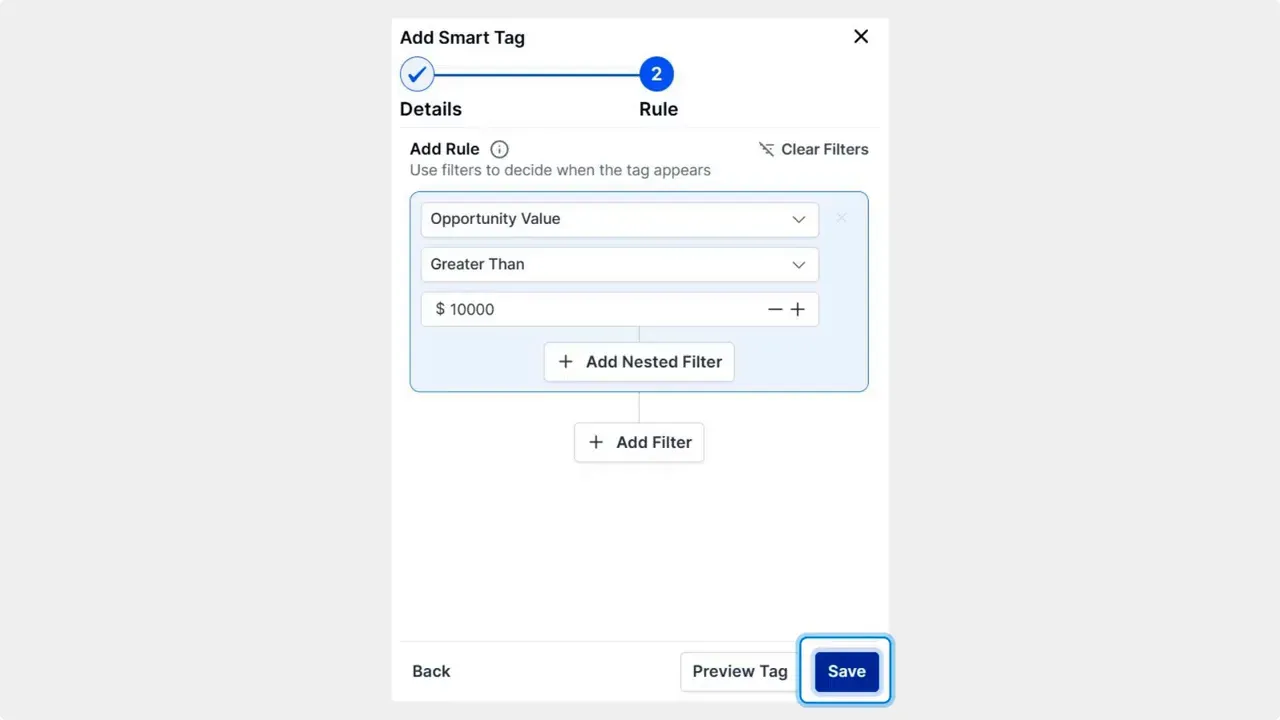
Save the smart tagClick Save to activate the smart tag. Opportunities that meet the rule will automatically display your chosen color.
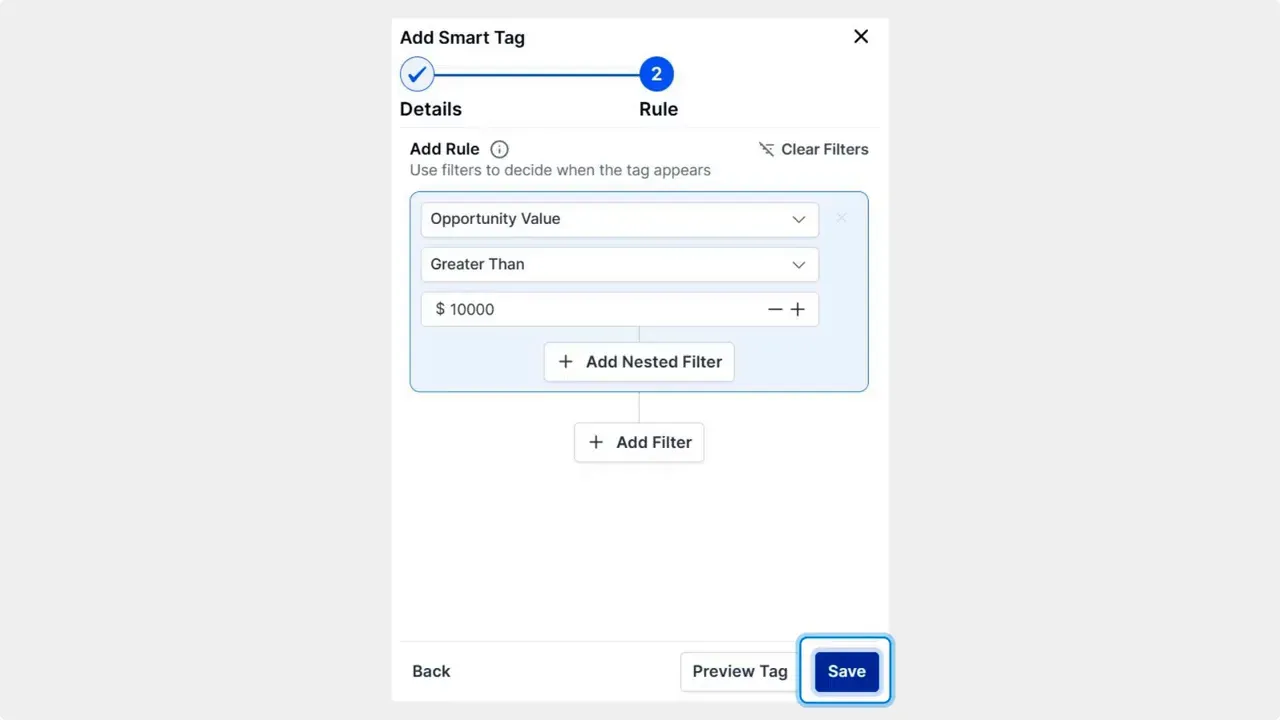
Define the rule that applies the tagClick Next: Add Rule and set the conditions for when the tag should be assigned to an opportunity. Rules can be based on fields, stages, amounts, dates, or any criteria your workflow uses.
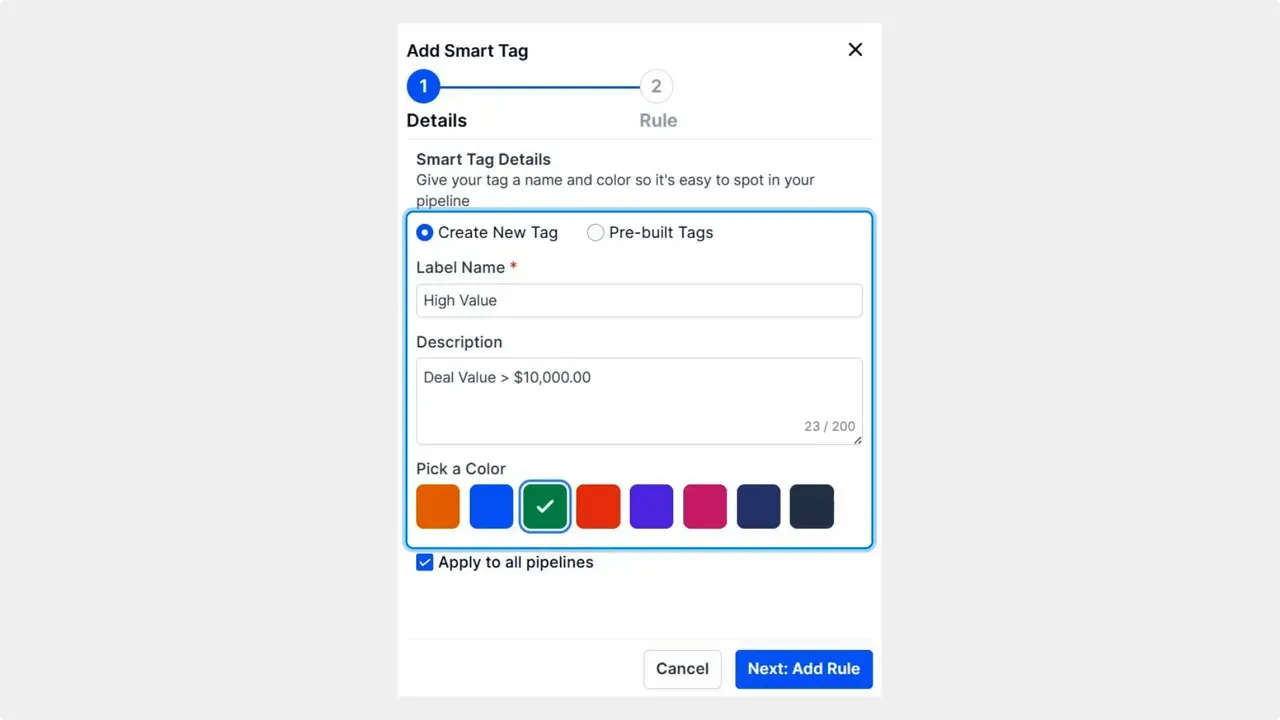
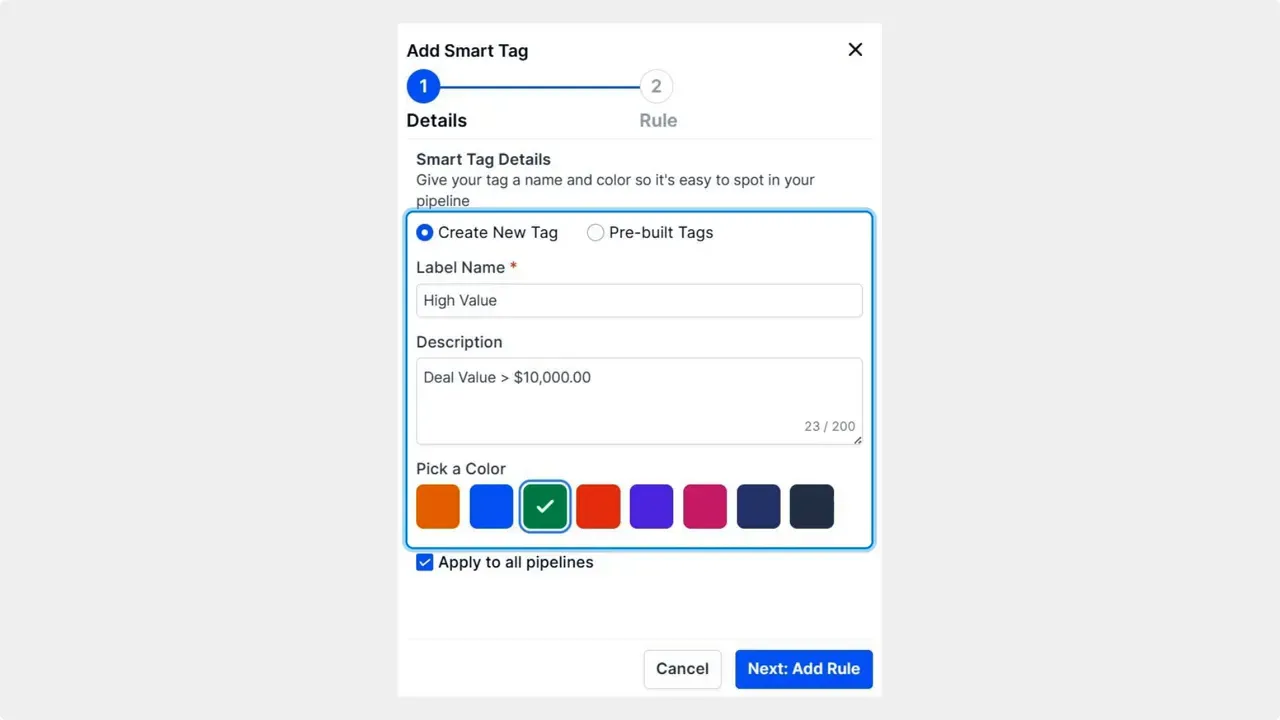
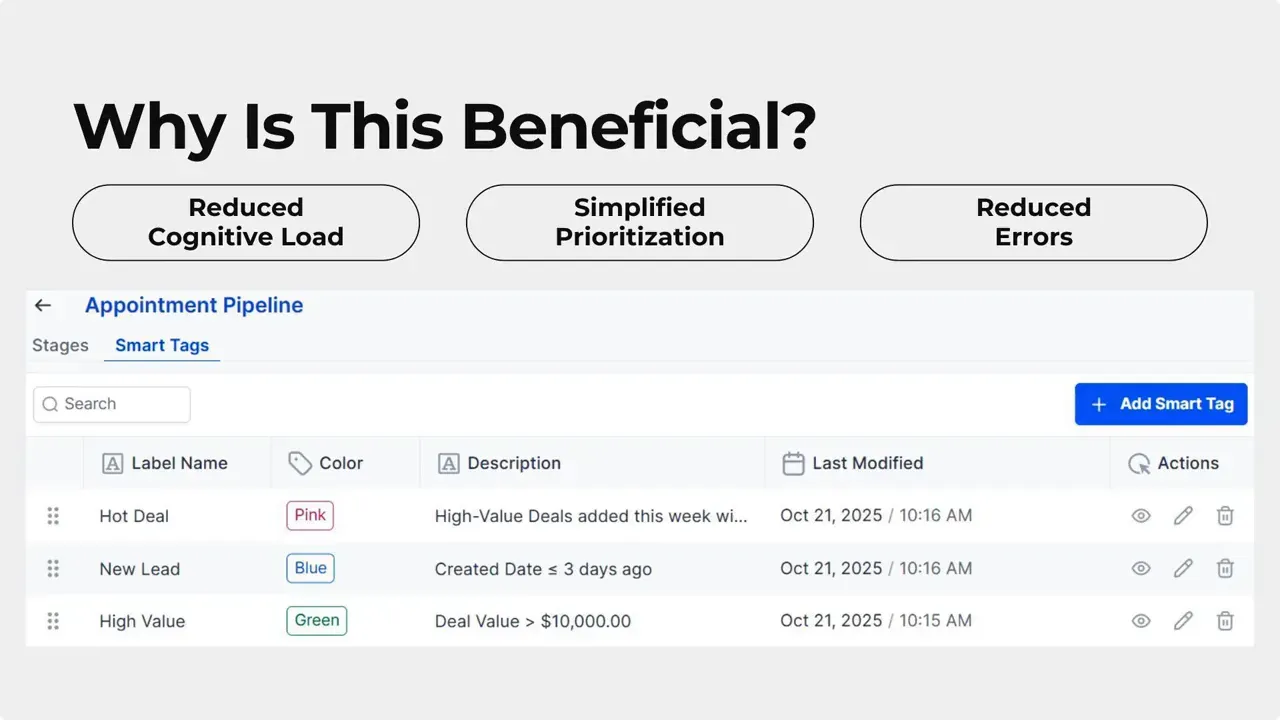
Name the tag and pick a colorGive your tag a clear name and select a color that matches the meaning you want—for example red for urgent or green for high value.
Switch to Smart Tags and add a tagChoose the Smart Tags option and click Add Smart Tag to start creating a colored tag.
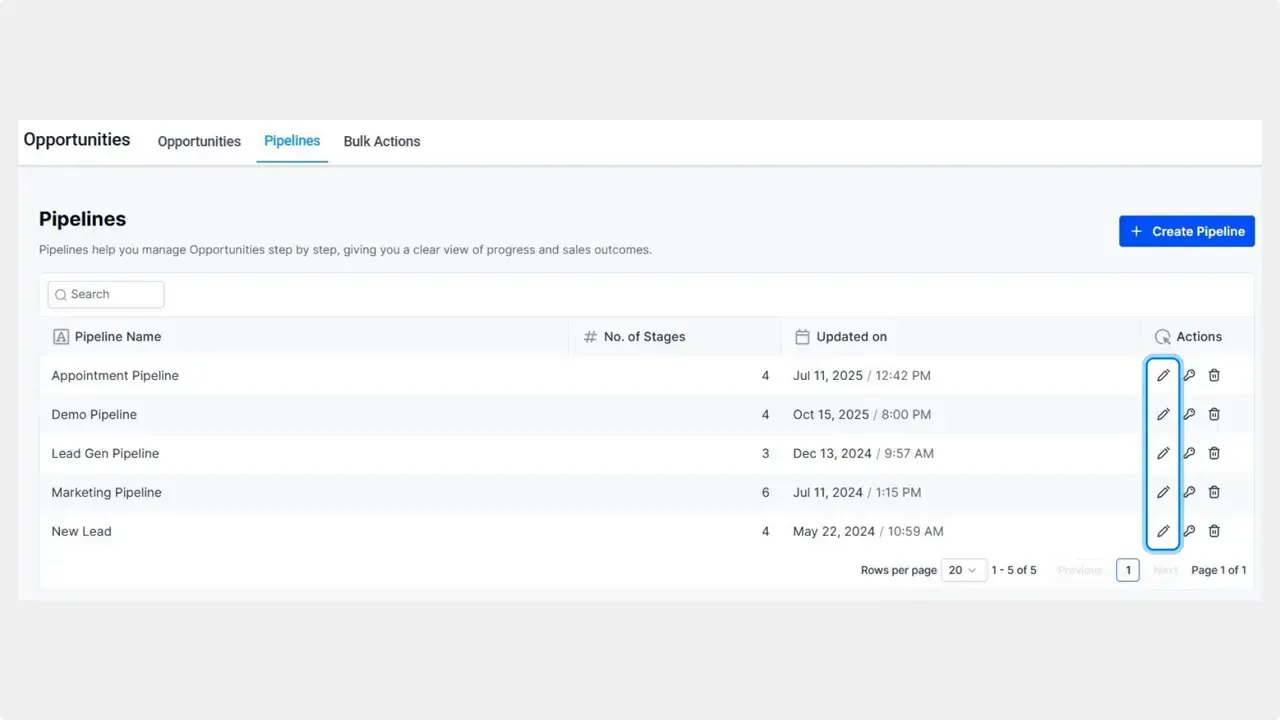
Open the Pipelines tabGo to the Opportunities section and open the Pipelines tab. Then click the pencil icon to edit the pipeline.
Why color coding helps
- Reduce cognitive load: Colors let us classify complex data quickly.
- Simplify prioritization: We can see priority deals without opening each record.
- Lower error rates: Visual cues cut down mistakes when managing opportunities.
- Improve focus and productivity: Teams spend less time searching and more time closing.
Best practices
- Keep the color scheme consistent across teams. Use the same color for the same meaning.
- Limit the number of colors. Too many colors reduce clarity.
- Choose clear names for tags so rules and colors are easy to understand.
- Review rules periodically to ensure tags match current priorities.
Common scenarios to color code
- High value deals above a set amount.
- Opportunities stuck in a stage beyond a target number of days.
- Deals from a preferred client or referral source.
- Promotional or time-limited offers that need quick action.
Frequently asked questions
How do Smart Tags get applied to opportunities?
Smart Tags are applied automatically when an opportunity meets the rules you set. Define the criteria in Add Rule, save the tag, and matching opportunities will display the chosen color.
Can we use multiple Smart Tags at once?
Yes. Opportunities can receive multiple tags if they meet several rule sets. Use distinct colors and clear naming to avoid confusion.
Where do we edit or remove a Smart Tag?
Open the Pipelines tab in Opportunities, click the pencil icon, choose Smart Tags, and edit or delete tags from the list. Changes take effect immediately.
What are good rules to start with for a small sales team?
Start with a few high-impact rules: large deal size, deals older than X days, and high probability stage. Keep it simple and adjust as you learn what helps your workflow.
Wrap up
Color coding pipelines is a small change that delivers clear value. It makes our dashboards easier to read, prioritization faster, and mistakes rarer. Use smart tags to align visual signals with your sales priorities and keep the team focused.
We hope you enjoy this feature and that it makes your work more productive.



