
Chat Widget Flow Update: Why the Chat Widget Wins and How to Avoid Denials
Learn why the chat widget flow outperforms traditional forms for lead capture and SMS compliance. This guide covers how to avoid common triggers for denials, set up automated workflows, and ensure your HighLevel pages meet strict regulatory standards.

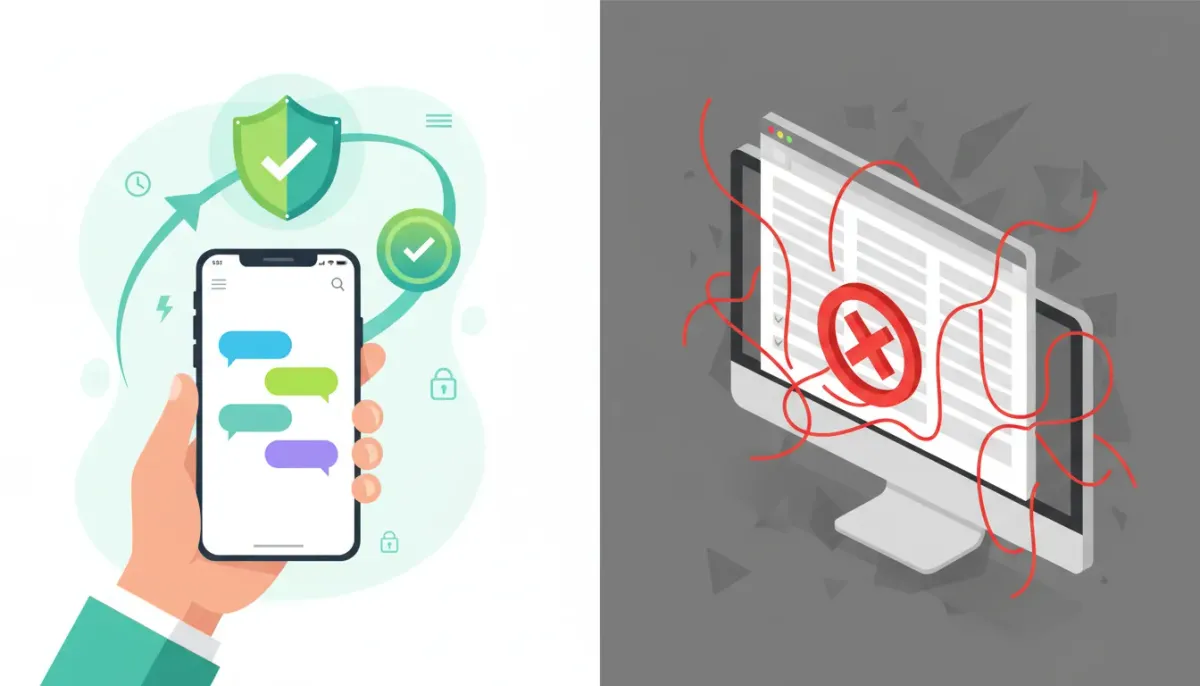
If you use HighLevel for lead capture, you might have noticed a surge in approvals when you stick to the chat widget flow. The chat widget is streamlined, compliant, and—when implemented correctly—dramatically improves first-day approvals. But there’s a common mistake that triggers denials: mixing the chat widget with traditional, required forms that force text consent or required phone fields. This conflict almost always causes the non-compliant element to win out and the whole submission to be denied.
The Complete Operating System for Growth
Join over 60,000+ agencies and businesses using HighLevel to capture more leads and close more deals. Start your trial today and get instant access to the Nexus Hub resources.
Claim Your Free Trial & BonusesWhat’s actually happening
The chat widget flow was built to be a self-contained, compliant path for capturing leads and getting SMS opt-ins. It handles consent fields, timing, and the required language so the submission gets approved quickly. When you add a separate form on the same page that requires a phone number and a pre-checked or required SMS consent checkbox, you create two competing flows.
In those cases the platform or reviewer sees the non-compliant form and rejects the whole experience—even if the chat widget itself is compliant. The practical result is denials, frustrated agencies, and wasted time troubleshooting the wrong area.
Why the chat widget flow is outperforming forms
- Simplified compliance – The chat widget collects consent in a way that aligns with common regulatory expectations and reviewer checklists.
- Higher approval rates – We’re seeing strong first-day and second-day approvals when only the chat widget is used, often in the 70 to 80 percent range.
- Better user experience – Conversations feel natural and dynamic, which improves lead quality and conversion.
- Easier automation – Once the chat widget captures a lead, workflows inside HighLevel can take over—route the lead, trigger SMS and email, score the contact, and assign tasks.
The common mistake: required form fields and checkboxes
The typical problem shows up like this: a chat widget is active on the right side of the page while a conventional form sits on the left. The form requires a phone number and forces the user to check an SMS consent box to submit. That required checkbox or required phone field makes the form non-compliant by default. Because it’s on the same page and visible to reviewers, the non-compliant element kills approval for the entire page.
If your workflow involves multiple use cases on a single page—signups, downloads, consultations—adding multiple consent boxes and required fields quickly becomes a compliance minefield. The rules exist to protect consumers and to maintain good deliverability for SMS. They are strict and specific. When you mix different UX patterns you increase the chance that something will be set up incorrectly.
Clear guidelines: What to do and what not to do
Do this
- Use the chat widget flow as your primary capture tool and go live with it first. Keep the page clean while you verify approvals.
- Make consent optional on separate forms if you must keep them—do not require SMS opt-in checkboxes for form submission unless you strictly follow compliance wording and rules.
- Test thoroughly—simulate lead submissions, check how the reviewer sees the page, and confirm workflows are triggered correctly.
- Leverage HighLevel workflows to handle routing, scoring, and follow-up instead of relying on complex multi-form setups.
Don’t do this
- Do not have a required phone field and a required SMS consent checkbox on a visible form while the chat widget is live on the same page.
- Do not mix multiple capture flows on the same page unless you are 100 percent confident each path is compliant and the reviewer cannot view conflicting elements.
- Do not assume “it works” just because one part looks compliant—the non-compliant part is what the reviewer will act on.
Step-by-step: How to migrate to the chat widget flow safely
- Audit the page – Remove or hide any visible forms that contain required phone fields or forced SMS consent checkboxes.
- Enable the chat widget flow in HighLevel and configure consent messaging using the platform’s recommended language and settings.
- Test submissions from different devices and IPs. Ensure the chat widget prompts for consent at the right time and that the contact is created in your CRM as expected.
- Monitor approvals for day one and day two. If you see approvals trending high, keep the page live without extra forms and scale from there.
- Gradually reintroduce forms only if absolutely necessary, and only after you’ve mapped out the exact compliance requirements. Make sure consent checkboxes are optional or follow the required verified language and timing.
How to test for compliance and avoid hidden pitfalls
Testing is not optional. The difference between a compliant setup and a rejected one can be small. Here’s a practical testing checklist you can run through before going live or after making changes.
- Manual walkthrough – Open the page in an incognito window. Interact with the chat widget and any forms. Note any mandatory fields and whether any checkboxes are forced.
- Reviewer view – Think like a reviewer. If you saw the page for the first time, which elements would look non-compliant? If a visible required checkbox appears anywhere, that’s a red flag.
- Automated test submissions – Submit test leads with different numbers and emails. Confirm the contact record in HighLevel and ensure the opt-in flags are set correctly.
- Integration checks – If you trigger workflows, confirm each automation step completes successfully. Emails, SMS, lead routing, and calendar invites should all behave as expected.
- Deliverability and throttling – Monitor SMS deliverability and review any soft bounces or messages flagged for compliance issues.
HighLevel workflows: How the chat widget plugs into your automation stack
One of the major advantages of using the chat widget is how cleanly it plugs into HighLevel workflows. When a lead comes through the chat, you can:
- Create or update a contact in your CRM automatically
- Trigger a sequence of SMS and email follow-ups
- Assign tasks and notifications to sales reps
- Use lead scoring to prioritize outreach
- Route leads to different teams by location, service, or campaign
That frictionless handoff is where agencies scale. You don’t need separate forms and separate systems—the chat widget captures the lead and the workflows do the heavy lifting.
Scaling agencies: Implementation strategies and best practices
For agencies managing multiple clients, consistency is the friend of scale. Create standardized templates and workflows for common use cases such as appointment scheduling, lead qualification, and product demo requests. Use HighLevel’s agency setup features to replicate winning stacks rapidly across client accounts.
- Build a template library for chat widgets and workflows so you can roll out consistent, compliant experiences across clients.
- Document compliance checks for each client site and maintain a lightweight QA process before publishing changes.
- Train your implementation team on common compliance pitfalls so the same issue doesn’t appear repeatedly.
- Use dashboards to monitor approvals, deliverability, and automation health in real time.
What to do if you must support mixed use cases
Sometimes the business needs demand both a chat widget and a traditional form on the same product or landing page. If that’s the case, you can make it work, but you must be meticulous.
- Isolate paths – If possible, separate the chat experience and the form experience onto different pages or modals. That way a reviewer only sees one flow at a time.
- Make consent optional on forms unless the form is specifically used to opt a user into SMS. If a user wants SMS, provide a non-required checkbox with clear language and make sure it’s not pre-checked.
- Follow exact consent language – When consent is required, use the exact phrasing that reviewers expect and ensure the timing of consent collection is correct.
- Document the user journey – Create a short flow diagram showing how the chat widget and form each collect consent and what automation triggers each path. This helps reviewers and internal QA.
Real-world example: Clean chat widget rollout
Imagine a dental clinic landing page. The chat widget sits in the corner. A potential patient opens the widget, answers a few qualifying questions, and consents to receive appointment reminders via SMS when prompted. The chat widget captures the phone number and consent at the right time, creates a contact in the CRM, and triggers a workflow that sends a confirmation SMS and an email with the new appointment details. The experience is compliant, the workflow completes, and the clinic receives the appointment with minimal manual work.
Now imagine the same page also had a visible consultation form that required the phone number and had a pre-checked "I consent" box. That form would likely trigger a denial because the reviewer sees forced consent. The clean chat widget approach avoids that pitfall.
The Complete Operating System for Growth
Join over 60,000+ agencies and businesses using HighLevel to capture more leads and close more deals. Start your trial today and get instant access to the Nexus Hub resources.
Claim Your Free Trial & BonusesChecklist before going live
- Remove or hide any visible forms with required SMS consent
- Verify the chat widget prompts for consent in the correct spot
- Submit test leads and confirm contact records and opt-in flags
- Ensure workflows trigger correctly - SMS, email, task assignments
- Monitor approvals closely the first 48 hours
When you should consider reintroducing forms
Reintroduce forms only after the chat widget flow is approved and producing results. If you must add a form for a specific use case, do so on a separate page, make consent optional, and follow the compliance language closely. Your primary goal is to avoid any visible, required consent elements that a reviewer could flag.
Where HighLevel fits in
HighLevel provides the chat widget, the CRM, and robust workflows to automate follow-ups and lead routing. For agencies and SaaS operations focused on growth and compliance, sticking to the chat widget-first approach simplifies operations and boosts approvals. Use HighLevel’s templates and agency features to push these best practices across client accounts fast.
If you want a jumpstart, consider starting a HighLevel free trial to test the chat widget in your environment. For templates, scripts, and implementation support, the Nexus Hub community has a growing library of resources and proven workflows to copy and customize.
Summary - Keep it simple and compliant
The takeaway is straightforward: the chat widget flow works. It’s driving strong approvals and makes automation simpler. The problem arises when you mix in traditional forms that force phone fields and required SMS consent checkboxes. That conflict will likely cause denials.
Pull the form off the page, get the chat widget live and proven, and then only reintroduce additional elements after careful testing and compliance verification. Follow the step-by-step approach in this article, use HighLevel workflows to automate the heavy lifting, and lean on standardized templates to scale across clients.
FAQ
Why is the chat widget getting higher approval rates than forms?
The chat widget collects consent and phone numbers in a way that aligns with reviewer expectations. It avoids visible required checkboxes or pre-checked consent boxes on a page, which are common triggers for denials. Simplicity and correct timing of consent capture translate to higher approval rates.
Can I keep a form on the same page as the chat widget?
Technically yes, but it introduces risk. If the form contains a required phone field and a required SMS consent checkbox, it will likely cause a denial that affects the entire page. If you must keep both on the same page, make consent optional on the form and verify the reviewer cannot see conflicting elements.
What should I do if my page was denied?
Remove or hide any forms that include required consent boxes or required phone fields. Re-enable the chat widget flow and re-submit after thorough testing. Document the changes and confirm the chat widget is the primary capture method before going live again.
How do chat widget leads integrate into HighLevel workflows?
Chat widget submissions create or update contacts in the CRM and can trigger sequences for SMS and email, assign tasks, apply tags, and route leads. Use workflows to automate qualification, scheduling, and follow-up to reduce manual handling.
Where can I find templates and support for implementing the chat widget flow?
Start a HighLevel free trial to explore built-in templates and workflow builders. For ready-made templates, scripts, and implementation support, Nexus Hub offers curated resources that help agencies implement compliant chat widget flows quickly.
The Complete Operating System for Growth
Join over 60,000+ agencies and businesses using HighLevel to capture more leads and close more deals. Start your trial today and get instant access to the Nexus Hub resources.
Claim Your Free Trial & Bonuses


