
Customizable Contact Form Messages in Chat Widget: Branding and Timing

Photo by Sanket Mishra on Unsplash
Requesting contact details is a key step in moving people from a website into our system. Controlling how and when we ask makes interactions feel more human, protects customer trust, and keeps our brand voice consistent across touchpoints. Here’s a clear, practical guide to customizing contact form messages in the chat widget.
Why customize contact form messages?
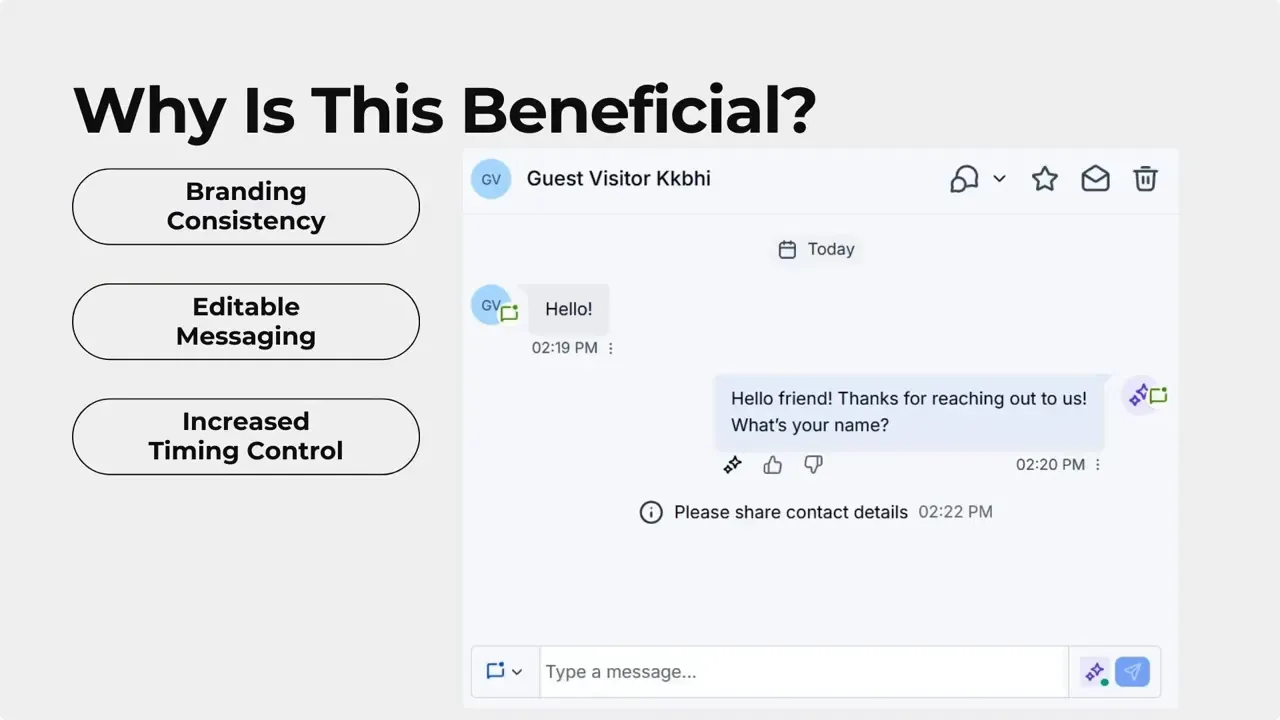
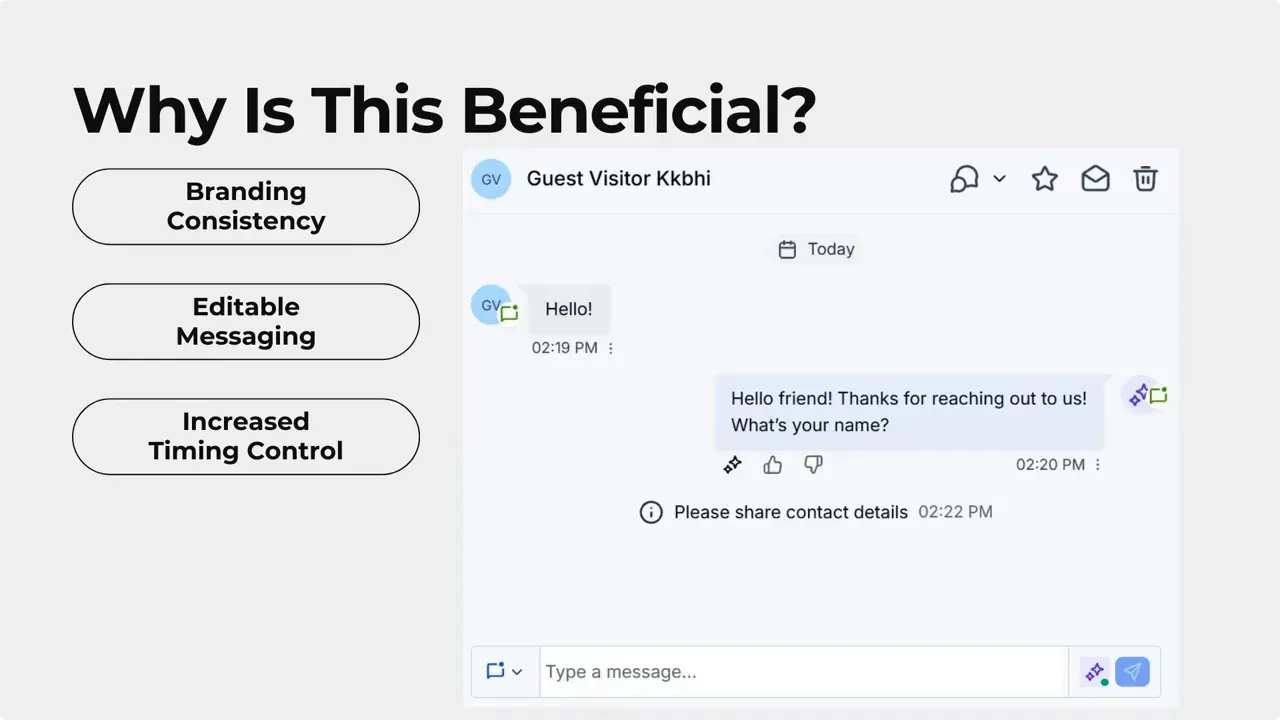
- Branding consistency: Replace hard-coded prompts with language that matches our tone and personality.
- Better customer trust: Clear, friendly requests reduce friction and make people more willing to share details.
- Timing control: Choose when to ask for contact information—automatically or manually—so the request feels natural.
- Editable messaging: Tailor prompts for different widgets or pages to match context and intent.
Step-by-step: Set up custom contact form messaging
Customize the text that accompanies the contact form. Use short, polite language that aligns with our brand, and decide whether the form sends automatically or waits for manual approval.
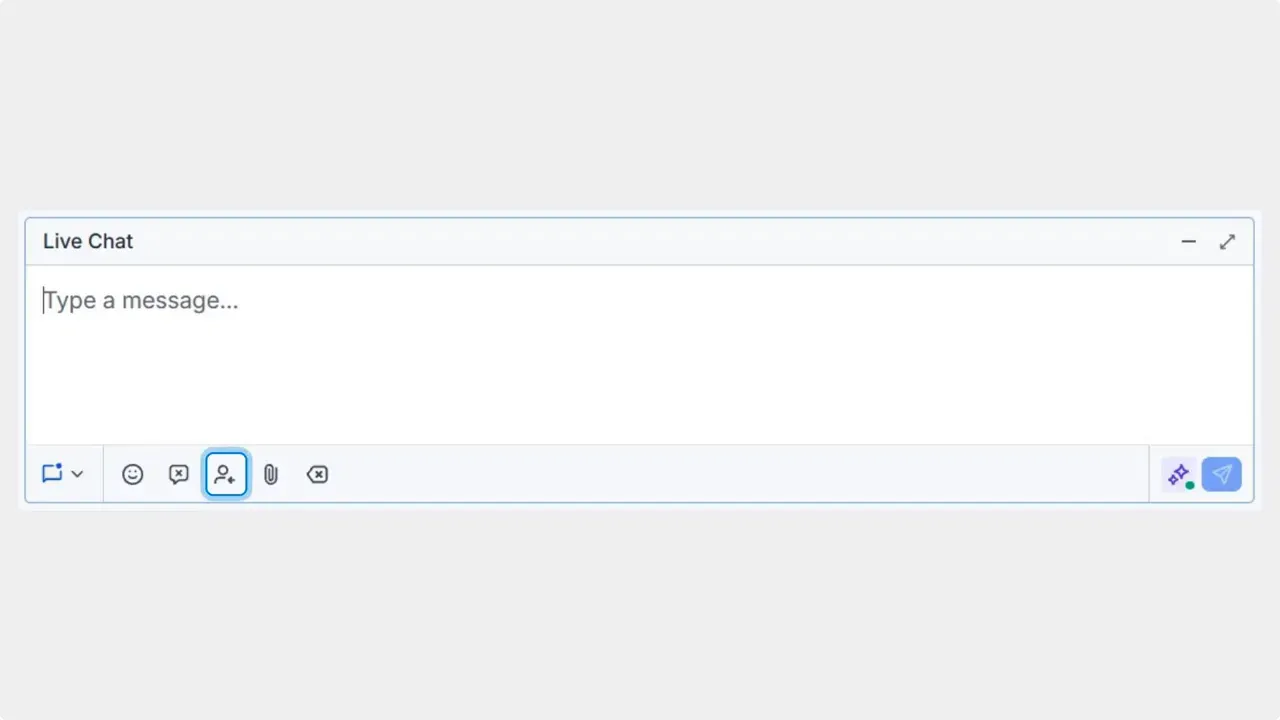
In the messaging panel, click the person-with-arrow icon to request contact details from the user. You can choose to send the form immediately or make it manual so an agent can time the request.
Open the Conversations section and locate a live chat conversation. This is where you control sending the contact form during an active chat.
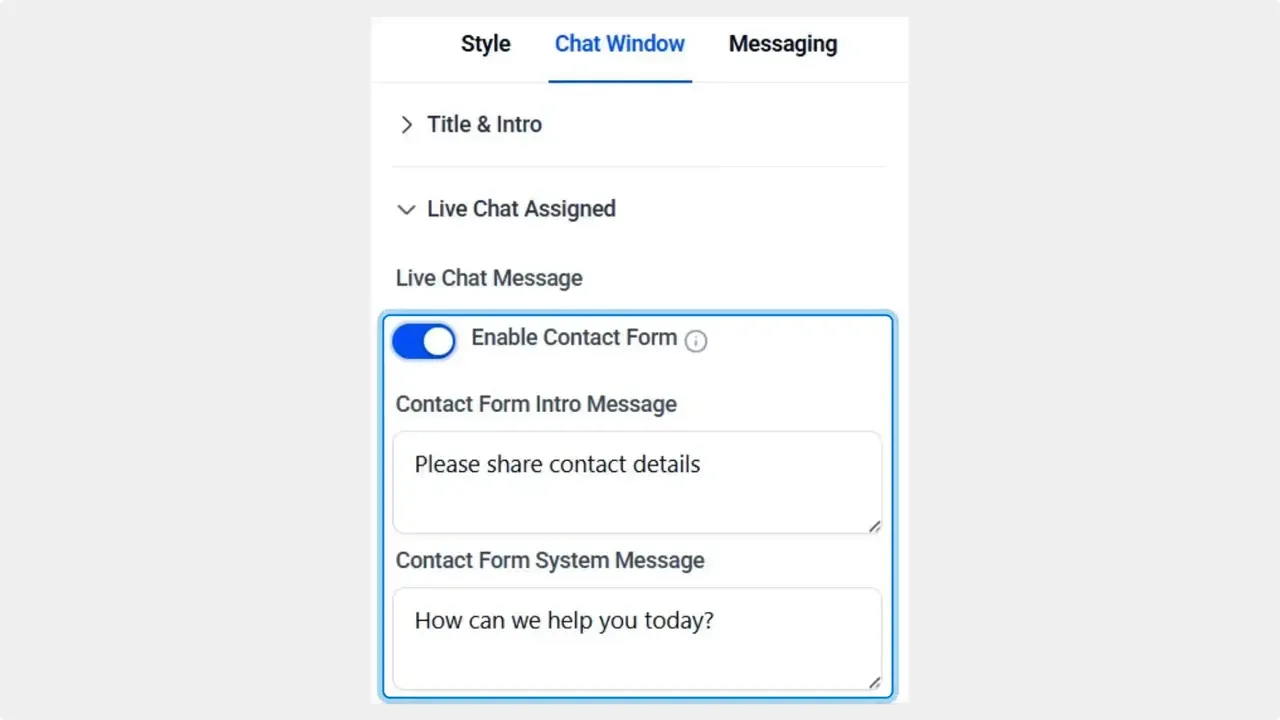
Switch to the Chat Window tab inside the widget settings. Here you can edit the Welcome message and the Form system message. If you prefer not to collect contact details via the widget, you can disable the Contact Form option entirely.
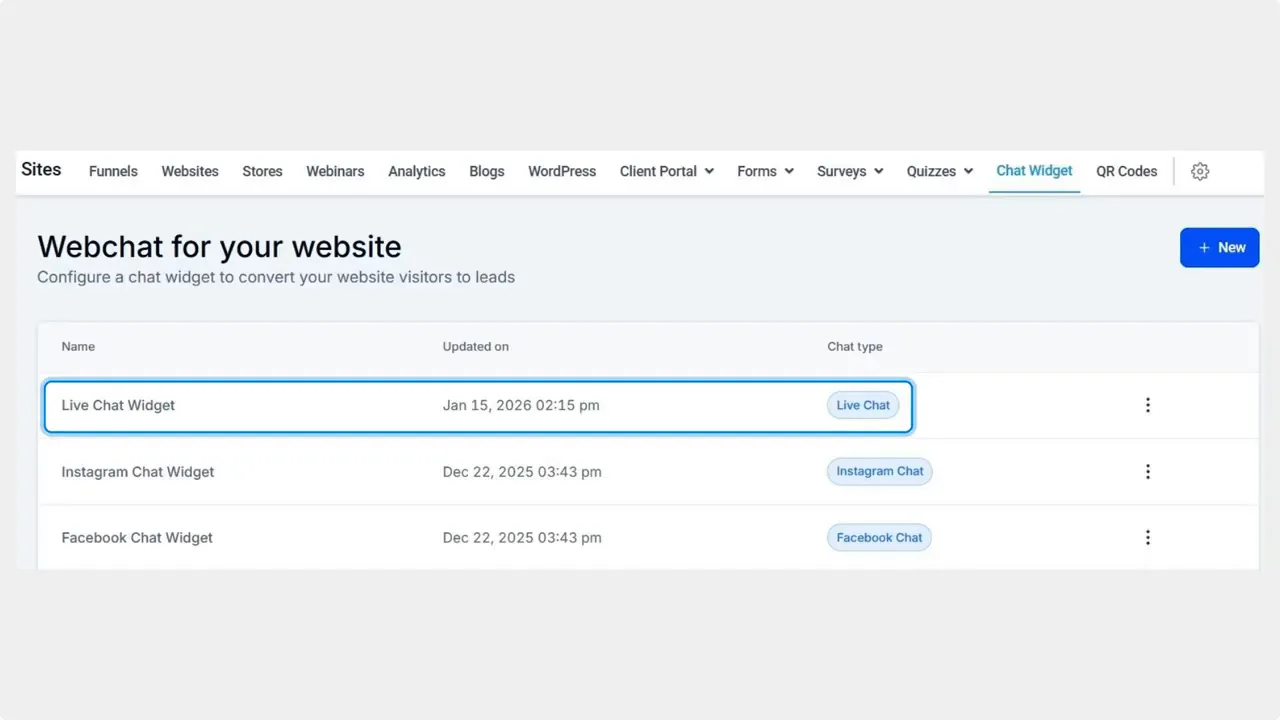
Open the Sites section and select the Chat Widget tab. Create a new live chat or edit an existing All-in-One widget to begin.
Tips for better messaging and timing
- Keep the message simple. People respond better to concise, clear requests.
- Match tone to context. Use professional language for support flows and a warmer tone for sales conversations.
- Use manual sending when a human needs to build rapport first. Use automatic sending for high-volume, low-complexity flows.
- Test different wording and timing, then measure completion rates to find what works best.
- Document standard prompts so all team members use the same voice across widgets.
Common pitfalls to avoid
- Avoid generic, hard-coded prompts that don’t reflect our brand. They create a jarring experience.
- Don’t request contact details too early in the conversation. Wait until there’s context or value exchange.
- Avoid long forms inside the chat widget. Request only the essentials and move complex data collection to follow-up flows.
FAQ
- How do we disable the contact form entirely?
- Go to the Chat Window tab in the widget settings and toggle off the Contact Form option. That prevents the widget from requesting details.
- Can we edit the text that appears when requesting contact details?
- Yes. Customize the Form system message in the Chat Window tab. You can also edit the welcome text to introduce the request with context.
- Should the contact form send automatically or manually?
- Both options are useful. Use manual sending when an agent should first build rapport. Use automatic sending for simple, repeatable flows. Test which approach yields better completion rates.
- Where do we send the collected contact details?
- Contact details are moved into our system (CRM) so teams can follow up. Configure integrations and routing in the Conversations settings to match your workflow.
Closing notes
Editable messaging and timing control are small changes that create a smoother customer experience. By replacing hard-coded prompts with customized text and choosing the right moment to ask, we keep conversations on-brand and improve trust. These adjustments are straightforward to make and can noticeably improve completion rates and customer satisfaction.
We’re here to help if you want examples of wording or testing ideas for different widgets.
This article was created from the video Customizable Contact Form Messages in Chat Widget: Branding & Timing



