
How to Centralize Task Management in HighLevel (GHL) to Speed Up Lead Follow-Up and Team Productivity

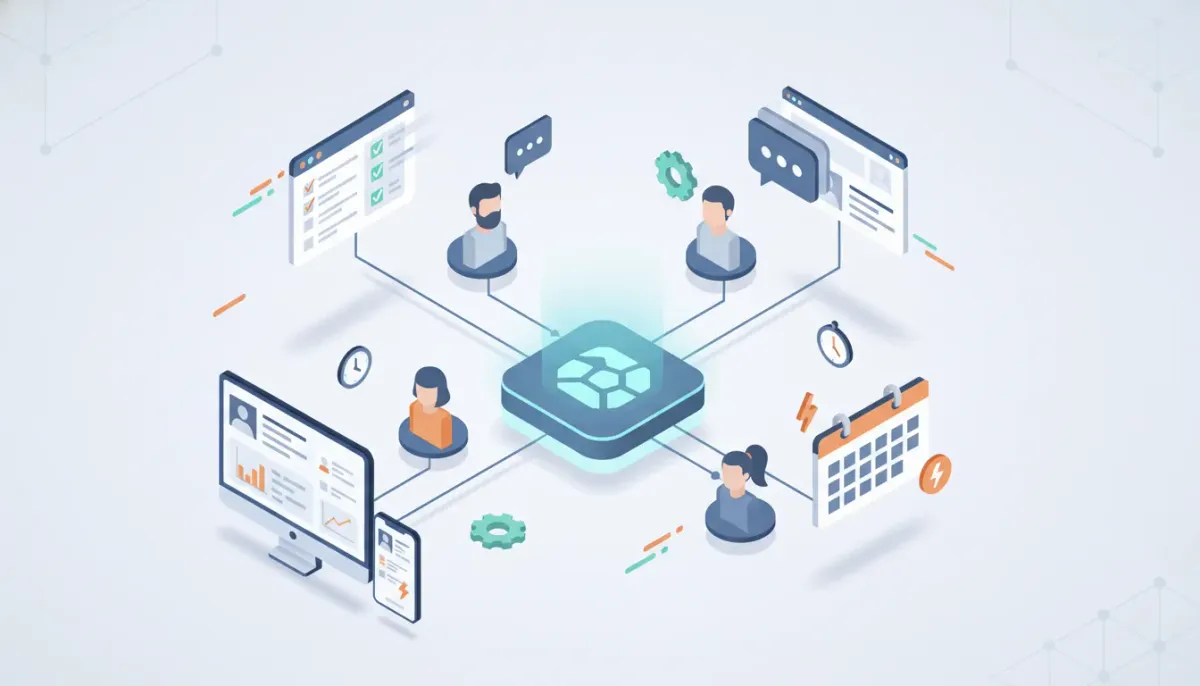
Centralizing task management inside your marketing CRM eliminates fragmented workflows, reduces response time to leads, and keeps teams focused where the action happens. HighLevel (also called GoHighLevel or GHL) includes built-in task features and workflow actions that let agencies and teams create, assign, remind, and automate follow-ups without switching apps. This guide explains what centralized task management looks like in HighLevel, step-by-step setup patterns, real-world examples, common mistakes to avoid, and an implementation checklist you can copy into your agency systems.
What centralized task management in HighLevel means and why it matters
Centralized task management is the practice of creating, assigning, tracking, and automating tasks inside the same platform where leads, conversations, and campaigns live. When tasks are kept inside HighLevel:
- Speed to lead improves because tasks are created automatically as leads engage and are tied to contact records.
- Context is preserved since tasks link to contacts, conversations, and custom objects so staff can act without hunting for information.
- Visibility and accountability increase because task lists, due dates, and reminders are visible per staff member and across the team.
- Fewer apps and fewer handoffs reduce friction and lost opportunities — everything happens inside the CRM and workflows.
Key HighLevel task concepts to understand
- Task — a single action assigned to a staff member that includes title, description, due date/time, and an optional linked contact or custom object.
- Task assignment — tasks can be assigned to a specific staff user, or to the contact-assigned user so responsibility follows the lead owner.
- Task reminders — reminders can trigger notifications or follow-up actions before or after a task due date.
- Workflow task action — an action inside HighLevel workflows that creates a task automatically based on triggers such as a lead reply, form submission, or appointment change.
- Triggers based on task events — workflows can start when a task is added, completed, or when a reminder fires, enabling chained automations.
Where to find tasks in HighLevel and what staff see
Each staff member can view tasks assigned to them from the contact or staff area. Tasks are grouped by status: overdue, due today, or upcoming. When a task is linked to a contact, clicking the task takes the staff member directly to that contact's conversation or profile so they can respond immediately without switching tools.
How to create and assign a task manually (quick steps)
- Open the contact or staff task area where you want to add a task.
- Click Add Task and enter a clear title and short description outlining the expected action.
- Assign the task to a specific staff member or choose contact assigned user to follow owner rules.
- Set a due date and time. Use relative options like Due Now for time-sensitive follow-ups.
- Associate the task with a contact or custom object so the assignee has full context.
Automating task creation inside HighLevel workflows: a practical example
A common use case for agencies is speed-to-lead: when a prospect replies to an initial outreach, create a task immediately for a sales rep to follow up. Here is a practical workflow pattern:
- Trigger: New lead captured via form, funnel, or ad.
- Action: Send initial SMS and email messages to engage the lead.
- Condition: Wait a short period (for example 2 minutes) and check if the lead replied.
- If the lead replies: Add a task action to create a follow-up task assigned to the responsible rep and set the due date to Now.
- Action: Send an internal notification (in-app, email, or SMS) to alert the assigned rep.
- After task completion: Optionally trigger additional automations, such as setting a 30-day reminder or moving the lead down a pipeline stage.
When adding the task action inside a workflow, you can choose fields like task title, description, assignee, and due date. Use dynamic fields to include contact names and context so the assignee sees exactly what action to take.
Examples of task-driven automations for common agency workflows
Speed-to-lead for inbound replies
- Create a task immediately when a lead replies to an outbound SMS or email.
- Assign to the lead owner or a rotating sales rep using assignment rules.
- Set due date to Now and send internal notifications (push, email, or Slack) to the rep.
Long sales cycle follow-up (real estate, high-ticket services)
- Create a task after the first conversation to call back in 30 days for warmer leads who aren’t ready.
- Use the Task Reminder trigger in a workflow to generate follow-up tasks automatically X days after the original task.
- Chain follow-ups: if the lead is still unresponsive, schedule another task 60 or 90 days out with a different messaging approach.
Appointment and onboarding handoffs
- After an appointment is booked, create internal tasks for onboarding steps: send contract, prepare welcome kit, create billing items.
- Assign each task to the relevant team member and set staggered due dates so onboarding flows smoothly.
Task triggers you should use and why
- Task Added — start automations when a new task appears, useful for notifying managers or starting approval workflows.
- Task Completed — kick off next steps after work is finished, like sending a thank-you email or moving a pipeline stage.
- Task Reminder — automate reminders a set number of days before or after the due date to re-engage assignees or spawn follow-ups for long-term nurture.
Best practices for task naming, assignment, and visibility
- Use clear action-oriented titles such as "Call Jane Doe — discuss pricing options" rather than vague labels like "Follow up."
- Include expected outcome and time estimate in the description (for example, "Goal: book a demo; est. 10 minutes").
- Assign ownership consistently — choose either named owners or contact-assigned user rules so tasks don’t float unclaimed.
- Use due date conventions (Now, 24 hours, 3 days) to standardize priority across the team.
- Leverage internal notifications for high-priority tasks so the assignee is alerted immediately.
- Link tasks to custom objects (like deals, opportunities, or properties) so task history becomes part of the record.
Implementation checklist — 10 steps to centralize tasks in HighLevel
- Create a task naming convention document and share with the team.
- Audit current task sources (apps, spreadsheets, Slack) and plan to migrate the most critical ones into HighLevel workflows.
- Configure staff accounts and confirm each user has notification preferences set (push, email, SMS).
- Build a "Speed to Lead" workflow that creates a task on inbound replies and sets due date to Now.
- Set up task-based triggers for follow-up sequences and long-cycle reminders (30/60/90 days as needed).
- Use contact-assigned user where ownership needs to follow the lead; otherwise assign specific reps for manual handoffs.
- Test the workflow with a staging contact and confirm task appears, notification fires, and contact link opens correctly.
- Train the team on the new process, task completion etiquette, and how to mark tasks done or reschedule.
- Monitor task completion rates and average time to first response for two weeks and iterate.
- Document workflow templates and add them to your agency systems or Nexus Hub resources for reuse.
Pitfalls, edge cases, and how to avoid them
Overloading staff with low-value tasks
Problem: Too many low-priority tasks can make reps ignore important notifications. Fix: Use priority flags or only create tasks for qualified actions — let nurture automations handle low-value follow-ups via scheduled messaging.
Unclear ownership or unassigned tasks
Problem: Tasks created without a clear owner end up forgotten. Fix: Enforce assignment rules in workflows. Use the contact-assigned user option or assign to a default queue and rotate ownership if needed.
Tasks without context
Problem: Assignees see a short title but lack the conversation history or objective. Fix: Always link tasks to the contact or custom object and include the exact next steps and time estimate in the description.
Relying only on manual task creation
Problem: Manual creation introduces delays and inconsistent follow-up. Fix: Automate common patterns (reply detected, appointment booked, lead stage changed) so tasks are created consistently and immediately.
Practical templates you can copy
Template: Immediate follow-up for inbound reply
- Trigger: Contact replies to initial outreach.
- Action: Create Task — Title: "Respond to [Contact First Name] — inbound reply". Description: include last message, desired outcome, and contact link.
- Assign: Contact assigned user or specific sales rep.
- Due date: Now.
- Notification: Internal push and email to assignee.
- Follow-up: If task not completed within 1 hour, escalate to manager with another task or notification.
Template: 30-day warm lead follow-up
- Trigger: Lead marked as Warm or Task Completed for initial contact.
- Action: Add Task Reminder to create follow-up task in 30 days.
- Task Title: "30-day check-in with [Contact First Name]". Description: reference prior conversation and next offer.
- Assign: Original owner or assigned team member.
How to measure success after centralizing tasks
Track these metrics to evaluate effectiveness:
- Average time to first response — has it decreased after automating task creation?
- Task completion rate — percentage of tasks completed before due date.
- Lead conversion rate — compare lead-to-customer conversion for leads handled via automated tasks versus manual processes.
- Number of app switches — qualitative measure of how often staff need to leave HighLevel to take action.
When to start a HighLevel free trial or join Nexus Hub
If you want to test centralized task management, starting a trial of HighLevel lets you build workflows, create task actions, and validate speed-to-lead improvements without changing your primary systems. Agencies that want pre-built workflow templates, task strategies, and implementation help can also explore Nexus Hub for templates and community support.
Can tasks created by workflows be assigned to whoever owns the contact?
Yes. When adding the Add Task action inside a workflow you can choose contact assigned user so the task follows the lead owner automatically. This keeps ownership consistent when leads are distributed by routing rules.
Can task creation trigger notifications to staff outside of HighLevel?
HighLevel supports internal notifications (in-app, email, and SMS) and can integrate with external tools via webhooks or third-party connectors. Use notifications inside the workflow to alert staff immediately and use webhooks or integrations to push notifications into Slack or other systems.
How do task reminders work for long sales cycles?
Use the Task Reminder trigger in workflows to run actions a specified number of days before or after a task due date. This is ideal for long sales cycles like real estate: schedule a 30-day reminder to spawn a new follow-up task automatically if the prospect needs more time.
Can tasks be associated with custom objects?
Yes. Tasks can be linked to contacts, opportunities, or other custom objects within your HighLevel account. That association preserves context and allows assignees to open the related record directly from the task.
What are the most common mistakes when centralizing tasks?
The top mistakes are: creating too many low-priority tasks, not assigning clear owners, failing to include context in the task description, and not automating standard triggers. Avoid these by standardizing naming, enforcing assignment rules, and only automating meaningful touchpoints.
Summary and next steps
Centralizing task management inside HighLevel reduces friction, preserves context, and accelerates follow-up. Start by defining naming conventions and ownership rules, then automate high-value touchpoints like inbound replies and long-term follow-ups. Measure time-to-first-response and task completion rates, iterate on your workflows, and collect templates into your agency playbook. If you do not yet have a HighLevel account, consider starting a free trial to prototype these automations and test the templates described above.
For agencies that want template libraries and implementation help, exploring community resources such as Nexus Hub can speed rollout and ensure consistency across client accounts.



