
Bulk Edit Products in a Spreadsheet: Fast, Simple E-commerce Management


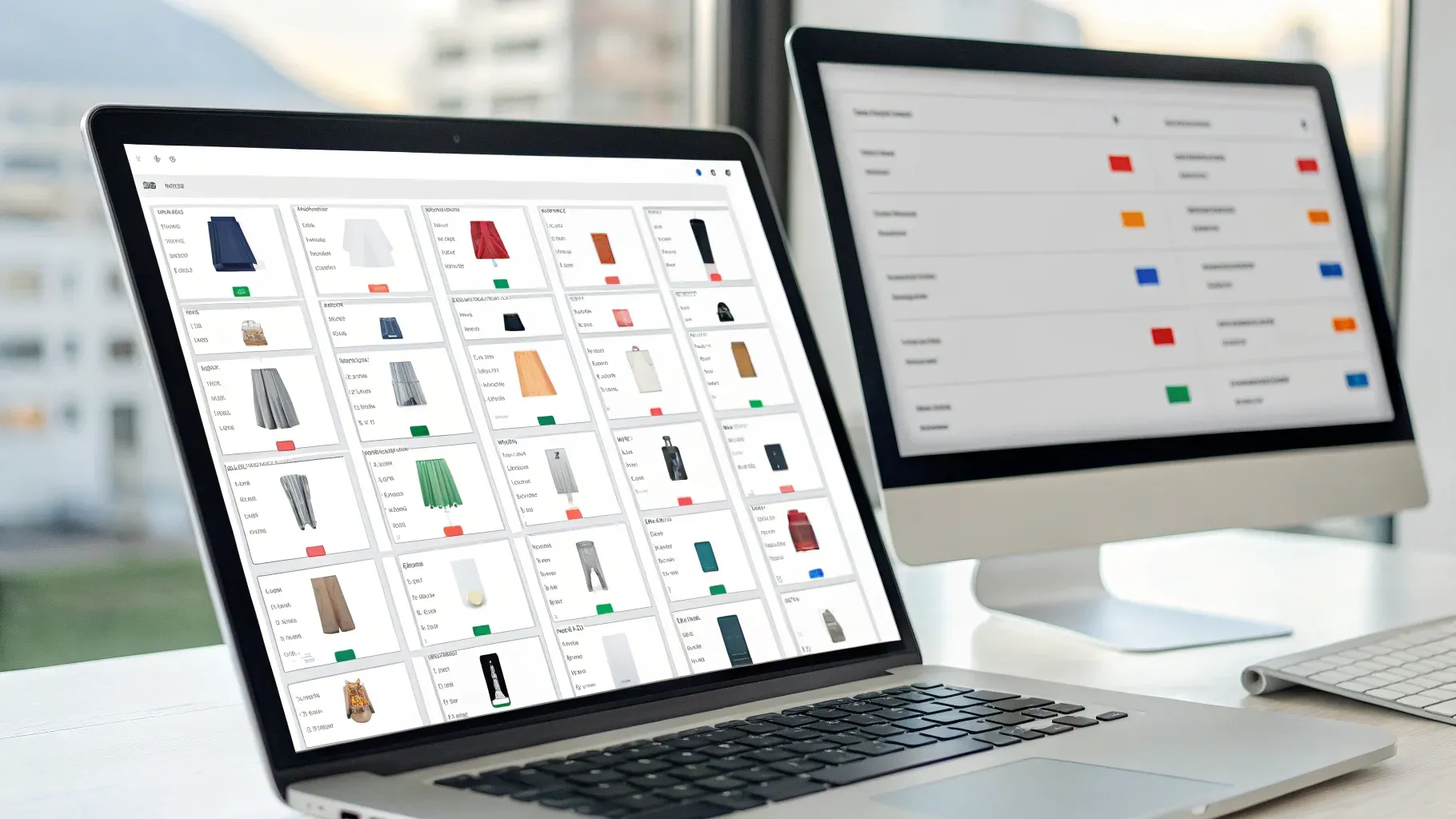
Managing a growing online store often means spending too much time making the same change dozens—or even hundreds—of times. We built and rely on a spreadsheet-style bulk edit tool inside the platform that brings product management into a single table view. This lets us update titles, descriptions, prices, inventory, SEO, and more across many products at once, just like working in Excel. In this guide we’ll walk through how to use that spreadsheet, share best practices, troubleshoot common issues, and give step-by-step workflows that save time and reduce frustration.
Table of Contents
- Why bulk editing matters for growing stores
- Where to find the bulk edit spreadsheet
- Step-by-step: Editing products in the spreadsheet
- Practical examples and scenarios
- Best practices and tips
- Common pitfalls and troubleshooting
- Workflow templates you can use today
- How this approach reduces tech headaches and keeps teams focused
- FAQ
- Conclusion
Why bulk editing matters for growing stores
When we run or support e-commerce businesses, one consistent bottleneck is product management. A single change—like updating a sale price, correcting a typo in a product title, or adding an SEO description—can become a full-day task if done product-by-product. Bulk editing fixes that by:
- Saving time: Make the same change across many products in minutes.
- Reducing manual errors: Editing in a table reduces copy/paste mistakes and inconsistency.
- Improving consistency: Apply naming conventions, categories, and SEO templates across a catalog.
- Scaling workflows: Enables teams to perform catalog-wide updates without complex processes.
Whether we’re running a small shop or supporting a large catalog, bulk editing is one of those features that changes how we operate daily. Now let’s go step-by-step through how to find and use the spreadsheet tool inside the platform.
Where to find the bulk edit spreadsheet
To open the bulk edit table, follow the navigation inside your business software to the area where products are managed. The common flow we use is:
- Open the payments section (or product management area).
- Choose the products tab.
- From the product list, select the products you want to edit. You can select all if you plan a catalog-wide update.
- Click the "Bulk Edit" option to open the spreadsheet-style editor.
Once you click bulk edit, a clean, Excel-like sheet appears. Each row represents a product and each column represents a field you can edit inline—title, description, price, tag, SKU, and more. We prefer this view because it’s familiar and lets us scan and edit quickly without opening product pages one-by-one.
Step-by-step: Editing products in the spreadsheet
Here’s a practical walk-through of what we can edit and how to work with the sheet effectively.
Select products and open the sheet
Start by selecting the products you want to change. You can pick a single product, several, or select all. If you’re unsure, start small with a handful to get comfortable. After selecting, choose the bulk edit action and the spreadsheet opens instantly.
Edit inline like Excel
The sheet lets us click into any cell and type—just like Excel. Common fields we edit:
- Title: Product names are editable inline. Always ensure title changes match your catalog naming conventions.
- Description: Click into the description cell and add or replace copy. This is handy for adding consistent callouts like “free shipping” or warranty details across multiple products.
- Collections/Tags: Assign products to collections or remove them. This is faster than editing categories one-by-one.
- Media: Add or replace product images from the spreadsheet for quick visual updates.
- Amount (Price): Edit the core price directly. We often use this to raise or lower prices across a set of SKUs.
- Include in online store or funnel-only: Choose whether a product is visible in the storefront or only available inside a sales funnel.
- Compare at price: Also known as "crossed out" price—show customers the original price and the savings. For example, set a product price to $1,000 and the compare at price to $1,200 to show a $200 saving.
- SKU: Update stock keeping unit codes for consistency and tracking.
Manage fields (add, remove, reorder)
If you don’t see a field you want, click “Manage Fields” to add it to the sheet. Fields are grouped into clear categories:
- Product information (title, description, type)
- Variant pricing (amount, compare-at price)
- Inventory (SKU, track inventory, available quantity)
- Shipping and delivery (weight, dimensions)
- SEO metadata (SEO title, SEO description, handle)
We can also remove fields we don’t need to reduce clutter. Drag-and-drop allows reordering columns so the most important fields appear first—useful when doing focused updates like pricing or SEO.
SEO metadata at scale
One of the most time-consuming tasks is adding SEO titles and meta descriptions to product pages. The spreadsheet puts SEO title, description, and handle in the same view, which means we can push an SEO update across dozens of products in a single session. Use consistent patterns for SEO titles and meta descriptions to speed this up—for example, “Product Name | Brand or Category | Free Shipping.”
Inventory and shipping
Inventory columns let us toggle whether we track inventory, edit the current available quantity, and set back-in-stock expectations. Shipping fields let us add weight and dimensions which can matter for shipping rates. Editing these in bulk is particularly helpful during inventory audits or seasonal stock changes.
Product type and recurring vs. one-off
We must set product type and whether a product is recurring (subscription) or a one-off sale. These are mandatory fields for saving. If a product is meant to be a subscription but is set as a one-off, it won’t behave correctly at checkout. Always verify type and recurring status before saving.
Save behavior and mandatory fields
There is a single save action for the entire sheet—typically a button in the top-right corner. Important notes:
- Mandatory fields: Title, pricing (amount), and product type must be filled in to save. If any of these are missing, the save button will be disabled.
- Inline validation: Cells missing required values highlight in red. This helps us spot problems before saving.
- No per-cell save: Changes are committed when we click the overall save, so we can safely make many edits and then save everything together.
Example: If we remove a title in a row, the cell turns red and the save button becomes grayed out. We must restore the title before saving. Unchecking fields under Manage Fields does not bypass the mandatory requirement—mandatory fields still must be present and filled before saving.
User permissions and plan limitations
Make sure the user account has the correct permissions to edit products. If editing is unavailable, it’s often a permissions issue. Also note plan-specific limitations: stores set up as subscription-only or agency-style accounts might show dashes in certain columns (collections, description, media, amount), which indicates those fields are not editable from the spreadsheet. In other words, standard e-commerce products are fully editable, while some subscription or specialized product types may not be editable through the bulk sheet.
Practical examples and scenarios
To make this more concrete, here are real-world scenarios where the spreadsheet saves hours of work.
Example 1: Launching a site-wide sale
- Select all products or filter to a specific category.
- Add the compare-at price column and set a pattern: For a 15% discount, set compare-at price equal to the current price, then reduce the amount by 15% in the amount column.
- Verify mandatory fields—every product has a title, price, and type.
- Save changes, then spot-check a few products in the storefront.
This workflow lets us set sale prices across hundreds of items in minutes, rather than clicking into each product page.
Example 2: SEO update for a category
- Filter to the product collection you want to optimize.
- Add SEO title and SEO description columns via Manage Fields.
- Bulk write SEO titles using a consistent pattern: “Product Name – Best [Category] | Free Shipping.”
- Use the handle column to ensure product URLs match the SEO title structure.
- Save and test indexing behavior with a crawl or SEO tool (outside the platform).
Applying SEO across a set of products in one pass helps search engines pick up consistent signals quickly.
Example 3: Inventory audit and restock
- Export or filter to SKUs that need stock updates.
- Update the available quantity column with new counts from your inventory system or physical count.
- Toggle track inventory if you now want the platform to manage stock levels automatically.
- Save and verify low-stock notifications are enabled for critical items.
We prefer to work in the spreadsheet for inventory audits because it’s fast and reduces accidental miscounts from manual edits.
Best practices and tips
To make bulk editing smooth and safe, we follow these best practices:
- Backup first: Before major edits, export a CSV backup of the current product list. This gives us a restore point in case of mistakes.
- Work in batches: Large catalogs are easier to update in chunks (e.g., 50–200 products at a time). This reduces risk and makes it easier to review changes.
- Fill mandatory fields first: Ensure title, price, and type are populated for each product before making other edits to avoid save issues.
- Use consistent naming: Apply standard naming conventions for titles, SKUs, and collections to keep the catalog organized.
- Use drag-and-drop: Reorder columns to match your workflow. Put the columns you’ll edit most at the left to minimize scrolling.
- Check permissions: If editing is unavailable, verify the user role has product edit rights.
- Understand plan restrictions: If you see dashes in columns, that indicates those product types aren’t editable in bulk—adjust expectations accordingly.
- Audit a sample: After saving, spot-check a random sample of updated products in the storefront to ensure changes applied correctly.
- Document changes: Keep a short log of major bulk edits (what changed, who changed it, when). This helps roll back if needed and provides accountability.
Common pitfalls and troubleshooting
Even with a great tool, issues can happen. Here’s what we run into most often and how to fix it:
- Save button is grayed out: This almost always means one of the mandatory fields—title, price, or type—is missing. Look for red-highlighted cells and fill them in.
- Dashes in columns: Dashes mean the field is not editable for that product type or plan. These often appear for subscription-only products or agency-style accounts.
- Unchecking fields doesn’t allow save: Removing a column from the view via Manage Fields doesn’t bypass required data. The system still requires mandatory fields to be present for saving.
- Permission denied: Make sure our user role has permissions to edit products. If not, request the correct access from the account admin.
- Large media changes are slow: Updating images for hundreds of products can be slow. We recommend batching media uploads and confirming that image file sizes are optimized first.
Workflow templates you can use today
Below are simple, repeatable workflows we use to get results fast. Each workflow assumes we have a CSV backup and appropriate permissions.
Workflow: Quick price update for one category
- Filter products to the target category.
- Add compare-at price column (if showing discounts).
- Bulk reduce or increase the amount column by a percentage (use your calculator or spreadsheet first to determine new values, then paste values into the sheet).
- Validate mandatory fields and save.
- Spot-check 10 random products in the storefront.
Workflow: SEO refresh for new collection
- Filter to the collection that needs an SEO update.
- Add SEO title and SEO description columns via Manage Fields.
- Draft a template SEO title and description and paste into each row, customizing the product name token where needed.
- Ensure the handle column is properly formatted for URLs.
- Save and then request a site re-index by your search platform tools (if applicable).
Workflow: Inventory correction after a stocktake
- Export SKUs to a CSV from the platform.
- Update quantities in your external file from the physical count.
- Copy the updated quantity column back into the platform’s bulk edit spreadsheet.
- Toggle track inventory if needed and save.
- Confirm low stock alerts are functioning for reorder points.
How this approach reduces tech headaches and keeps teams focused
Centralizing product edits in a familiar spreadsheet view removes a lot of friction. Here’s how the spreadsheet helps teams work smarter:
- Less context switching: We don’t have to open dozens of pages or jump between interfaces—everything is in one table.
- Faster collaboration: Team members can take ownership of specific columns (pricing, SEO, inventory) and work concurrently in separate batches.
- Clear accountability: Mandatory fields and validation reduce the risk of publishing incomplete products by mistake.
- One source of truth: Keeping product data centralized avoids mismatched information across different tools.
We also value transparency: the platform’s bulk edit feature is straightforward—no hidden fees, and clear permissioning helps us manage who can make changes. When we provide this tool to clients, it reduces the number of support tickets and emails about small catalog fixes, freeing us to focus on growth activities like marketing and product strategy.
FAQ
Can we edit any product field in the spreadsheet?
We can edit most product fields, including title, description, price, SKU, inventory, shipping details, and SEO. However, some product types or account configurations may show dashes in certain columns, indicating those fields are not editable from the bulk sheet. Check your account plan and product type if you see dashes.
What fields are required to save changes?
The mandatory fields are the product title, the product amount (price), and the product type (including whether it’s recurring or one-off). If any of these are missing, the sheet will highlight the issue and the save button will be disabled until they are filled.
Does removing a column via Manage Fields bypass the requirement to fill it?
No. Removing a column from the visible sheet only hides it; it does not override the platform’s validation rules. Required fields still need valid values before the sheet can be saved.
What should we do before making major edits?
Always export a backup CSV of your product data before making large-scale changes. Work in smaller batches for big updates, and maintain a short change log noting what was changed, when, and by whom. This helps if you need to roll back or audit later.
Why do some columns show dashes instead of values?
Dashes indicate that the field is not editable for that product type or under your account configuration. This commonly happens for specialized product setups, such as subscription-only products or agency-style accounts that restrict editing certain fields.
What if the save button is grayed out and we can’t find the problem?
Look for any red-highlighted cells—those show missing required values. If every row appears filled, check for hidden columns via Manage Fields: a required column may be hidden but empty. Also verify user permissions in your account settings.
Can we add images in bulk?
Yes, media can be added from the spreadsheet. However, large image updates can be slow. We recommend optimizing images before upload and doing media updates in smaller batches to avoid performance issues.
Who can use bulk edit? Do we need special permissions?
Bulk edit requires the appropriate product-edit permissions. If editing is not available, ask your account administrator to grant product management rights to your user role.
Conclusion
Bulk editing products in a spreadsheet is one of those features that quickly becomes indispensable. It removes repetitive, manual tasks and helps teams work faster and more accurately. Whether we’re updating prices for a promotion, refreshing SEO across a category, or correcting inventory after a stocktake, the spreadsheet view centralizes these tasks and reduces friction.
We recommend getting comfortable with a small set of products first, always backing up before major changes, and using consistent naming and SEO templates to keep the catalog tidy. With the right permissions and a little planning, bulk editing will save hours of work and let teams focus on growing the business instead of fixing the product catalog.
If you’re managing a large catalog or supporting clients, start by identifying the top three recurring product tasks you do today (pricing updates, SEO, inventory). Practice each one in the spreadsheet on a small batch, then scale up. The time saved compounds quickly, and the reduced tech headaches free us up to focus on the work that really moves the needle.



