
Auto-Save in Workflow Builder: Continuous Draft Saving Keeps You Focused

We added an autosave feature to the workflow builder to keep edits safe while drafting. Edits are written in the background so teams can focus on workflow logic instead of remembering to hit save every few steps.
How auto-save works
Auto-save continuously writes Canvas edits to your draft in real time. This happens silently as you move nodes, connect steps, and adjust logic. Nothing goes live until you choose to publish.
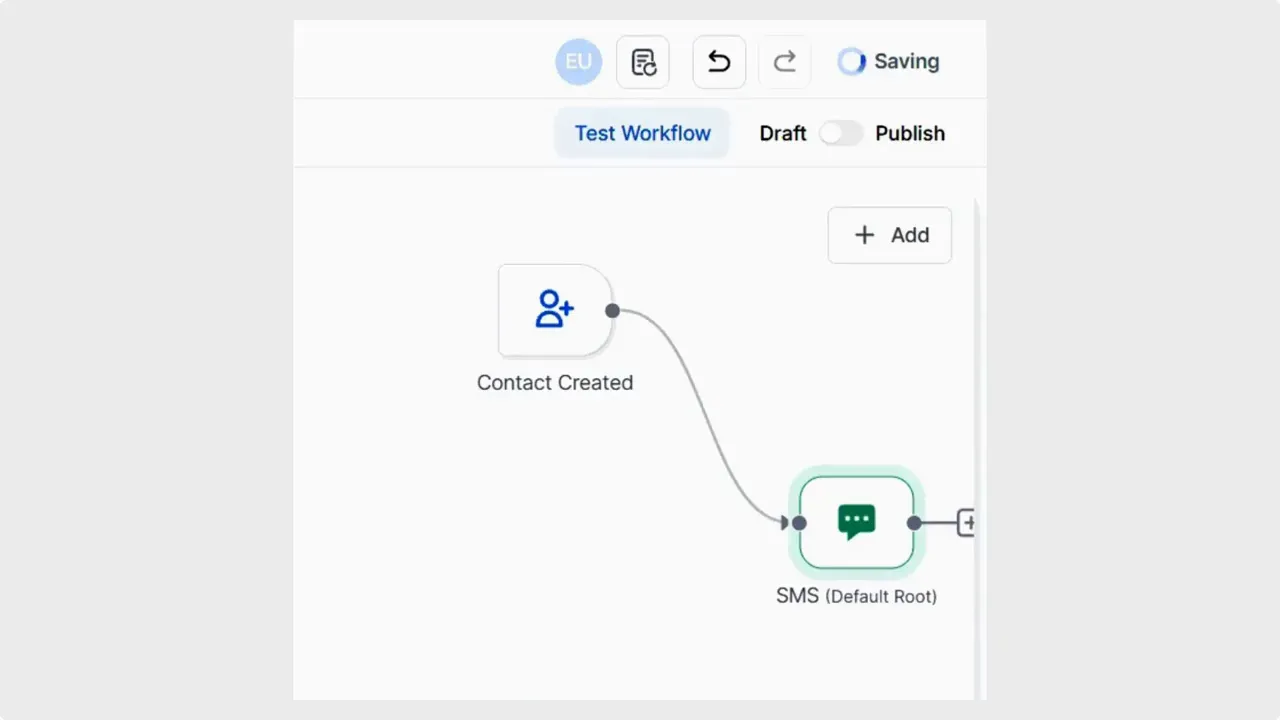
Why that matters: background saving reduces interruptions. It lets us iterate faster and test logic without worrying about lost progress.
Version history and autosave tags
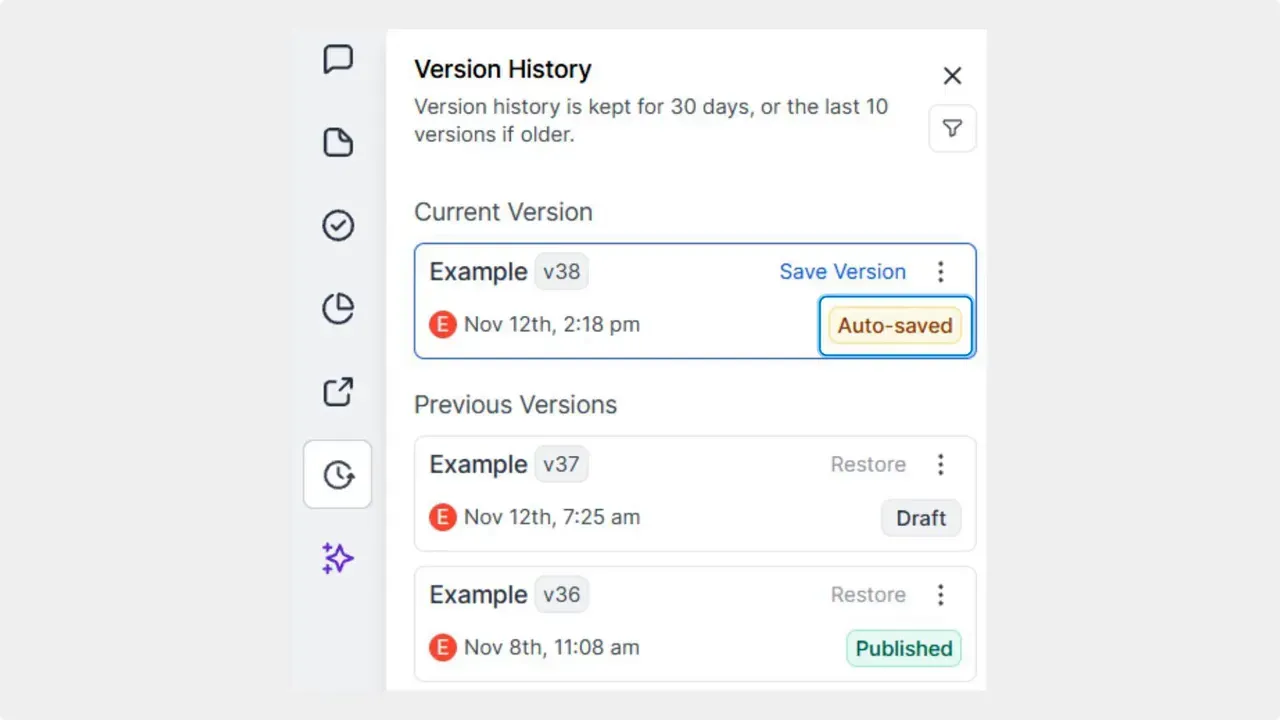
Every autosaved change is tracked. When viewing Version History, autosave entries include a tag so you can easily see which saves were automatic. That makes it simple to roll back or compare edits.
Publishing and manual save
Publishing is a deliberate step. When you publish a workflow, changes must be saved manually to go live. That protects contacts from unexpected changes and gives teams control over when updates are deployed.
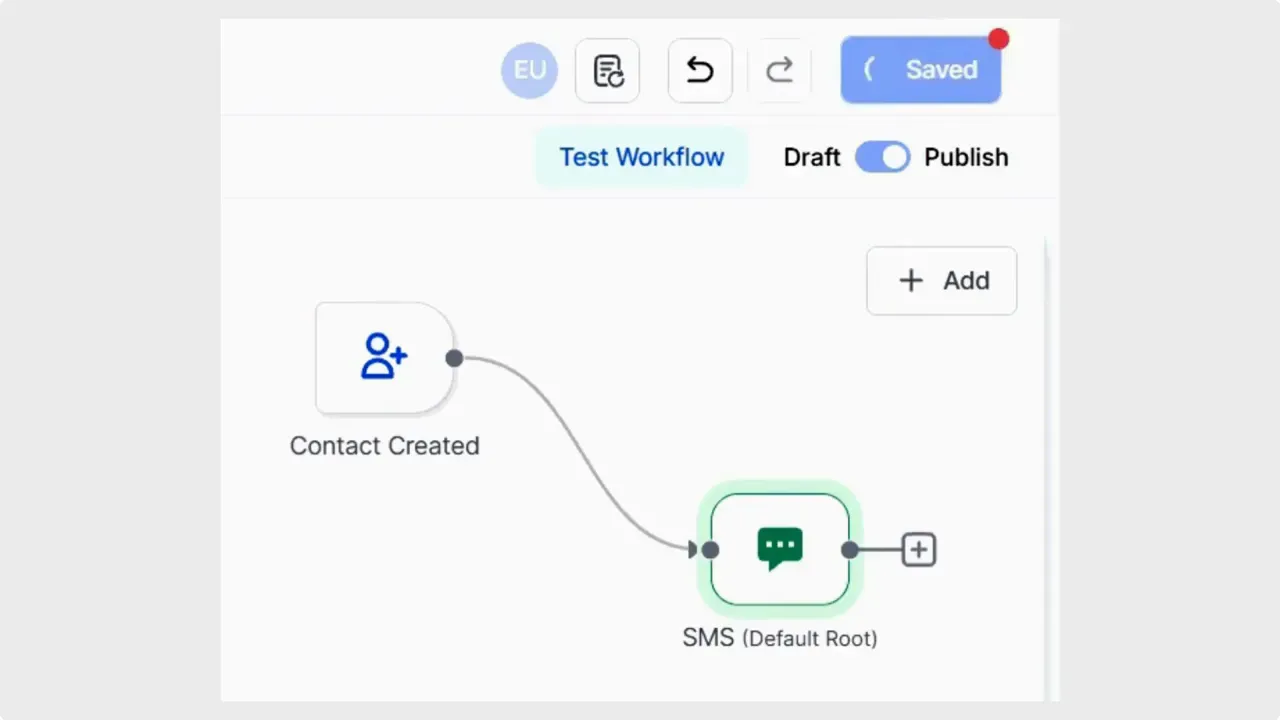
Enable or disable autosave
If you prefer manual saves, you can turn autosave off. Go to Automation in account settings and toggle the autosave option on or off. The control is simple and immediate.
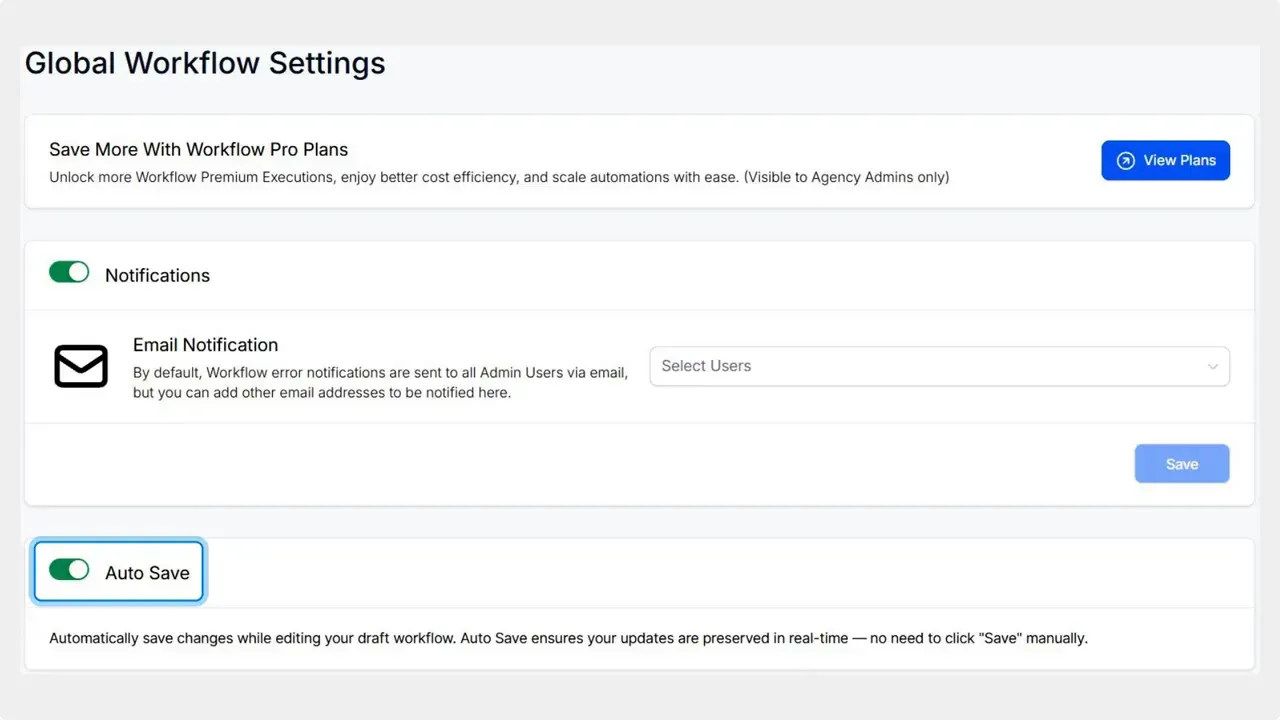
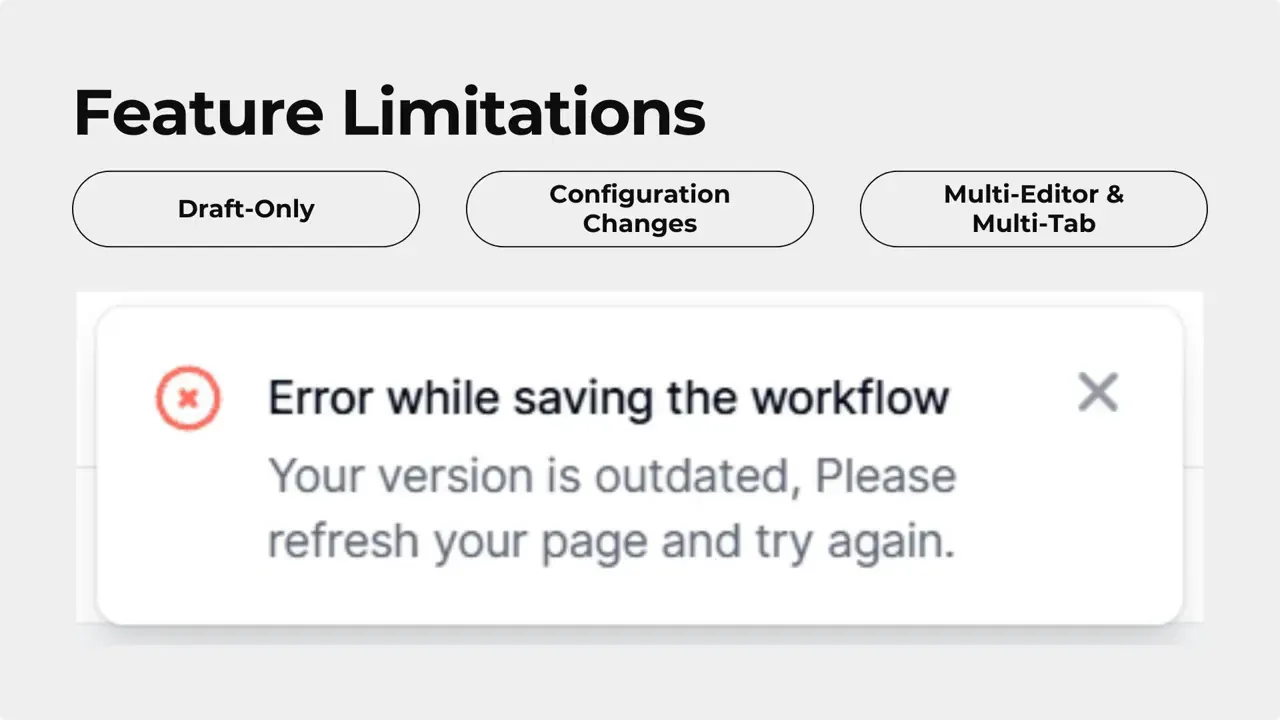
Important limitations to keep in mind
- Works only in Draft. Autosave applies when the workflow is in draft mode. It does not affect published workflows.
- Configuration changes inside actions or triggers are not autosaved. Those settings must be saved manually to be retained.
- Multi-editor conflicts. If multiple users or tabs edit the same workflow, only the most recent autosave becomes the current draft. Version History will show who saved when.
How this improves the workflow experience
Autosave helps eliminate lost work and speeds up iteration. Together with undo, redo, and version history, it makes building workflows smoother and less stressful. The goal is simple: let teams focus on logic, not on saving after every step.
Frequently asked questions
Will autosave publish changes automatically?
No. Autosave writes edits to the draft only. Nothing goes live until you manually save and publish the workflow.
Can we turn autosave off?
Yes. Open Automation in account settings and toggle the autosave option on or off.
Does autosave save form fields and action configuration inside steps?
No. Configuration changes within actions or triggers must be saved manually.
What happens if two people edit the same workflow at once?
Only the most recent autosave will be saved as the current draft. Version History will show who saved when so you can resolve conflicts.
Does autosave work on published workflows?
No. Autosave only operates when the workflow is in draft mode. Published workflows require manual saves to update.
Final notes
Autosave is designed to make workflow building less error prone and more efficient. We recommend keeping it enabled for faster iteration. If a specific workflow or team prefers manual control, the toggle in Automation settings gives that flexibility.
Autosave, undo, redo, and version history together provide a safer, faster way to build workflows.
This article was created from the video Auto-Save in Workflow Builder: Continuous Draft Saving Keeps You Focused



