
Automate Marketing Audit Reports with HighLevel Workflows: A Complete How-To for Agencies
Learn how HighLevel’s Marketing Audit Report workflow action automates audit generation from any trigger. This guide covers setup, use cases, best practices, and tips to scale agency onboarding, lead qualification, and reporting.


Generating consistent, repeatable marketing audits can be a bottleneck for agencies scaling client acquisition and onboarding. HighLevel now offers a workflow action that automatically generates a marketing audit report for any contact or trigger inside your CRM. This guide explains what the action does, why agencies should use it, step-by-step setup instructions, practical use cases, best practices, and troubleshooting tips so you can start automating audit delivery across subaccounts today.
What is the Marketing Audit Report workflow action?
The Marketing Audit Report workflow action is a built-in automation inside HighLevel workflows that creates a marketing audit for a specified subaccount or contact when triggered. Instead of only producing audits from the prospecting tool, you can now launch audits from any workflow trigger, such as form submissions, pipeline movements, tag changes, ad conversions, or manual triggers.
This unlocks automated, context-sensitive audits that can be attached to onboarding sequences, lead qualification flows, ad follow-ups, or monthly reporting processes.
Who should use it and why it matters
- Agencies and consultants — Automate discovery and qualify leads faster by attaching a standardized audit to onboarding messages.
- Growth teams — Run regular diagnostics across multiple clients or campaigns without manual effort.
- Account managers — Provide consistent deliverables and speed up month-to-month audits.
- Sales reps — Use audit reports as a credible deliverable to book meetings and demonstrate value.
Key benefits include time savings, repeatability, consistent reporting standards across subaccounts, and the ability to trigger audits precisely when they are most relevant during the buyer journey.
Core concepts to understand before you start
- Workflows — Automations in HighLevel that react to triggers and run actions.
- Subaccounts — Individual client accounts within your HighLevel agency. Audits are generated per subaccount.
- Workflow action — The new "Generate Marketing Audit Report" action you add to a workflow sequence.
- Triggers and conditions — Any workflow trigger (form, tag, pipeline stage, contact creation, webhooks, etc.) can now launch the audit action.
When to generate audits automatically: common triggers and use cases
Below are practical moments when automating an audit is valuable.
- New lead submission — Run an audit when a lead completes a prospecting form to prep a discovery call.
- Ad conversion — Trigger an audit for leads who convert from a paid campaign to tailor messaging and prioritize outreach.
- Pipeline stage change — Auto-generate an audit when a deal moves to "Proposal" or "Qualified" so the account team has a fresh snapshot.
- Tag applied — Use tags (for example, "audit-request") to kick off an audit for internal or client-initiated requests.
- Scheduled recurring audit — Create a recurring workflow to generate monthly or quarterly audits for retainer clients.
Step-by-step: Add a Marketing Audit Report action to a workflow
Follow these steps to configure automated audits in HighLevel workflows.
- Create or edit a workflow — Choose an existing workflow or start a new one with the trigger that should initiate the audit (form submission, tag added, pipeline stage, webhook, etc.).
- Configure target subaccount — Select which subaccount the audit should be generated for. This is critical when operating across multiple client accounts.
- Optional: Set context variables — Attach contact fields, tags, or custom values that should be included in the audit or used for naming the report.
- Choose delivery method — Decide how the generated audit will be used: attach to an email to the contact, store in the subaccount file manager, or notify internal users with a link or file attachment.
- Test the workflow — Use test contacts or simulate triggers to confirm the audit generates and the correct file is produced. Adjust settings as needed.
- Enable the workflow — Activate the workflow when testing is complete.
Add the action — In the action library, select the "Generate Marketing Audit Report" action and place it where you want the audit to run.
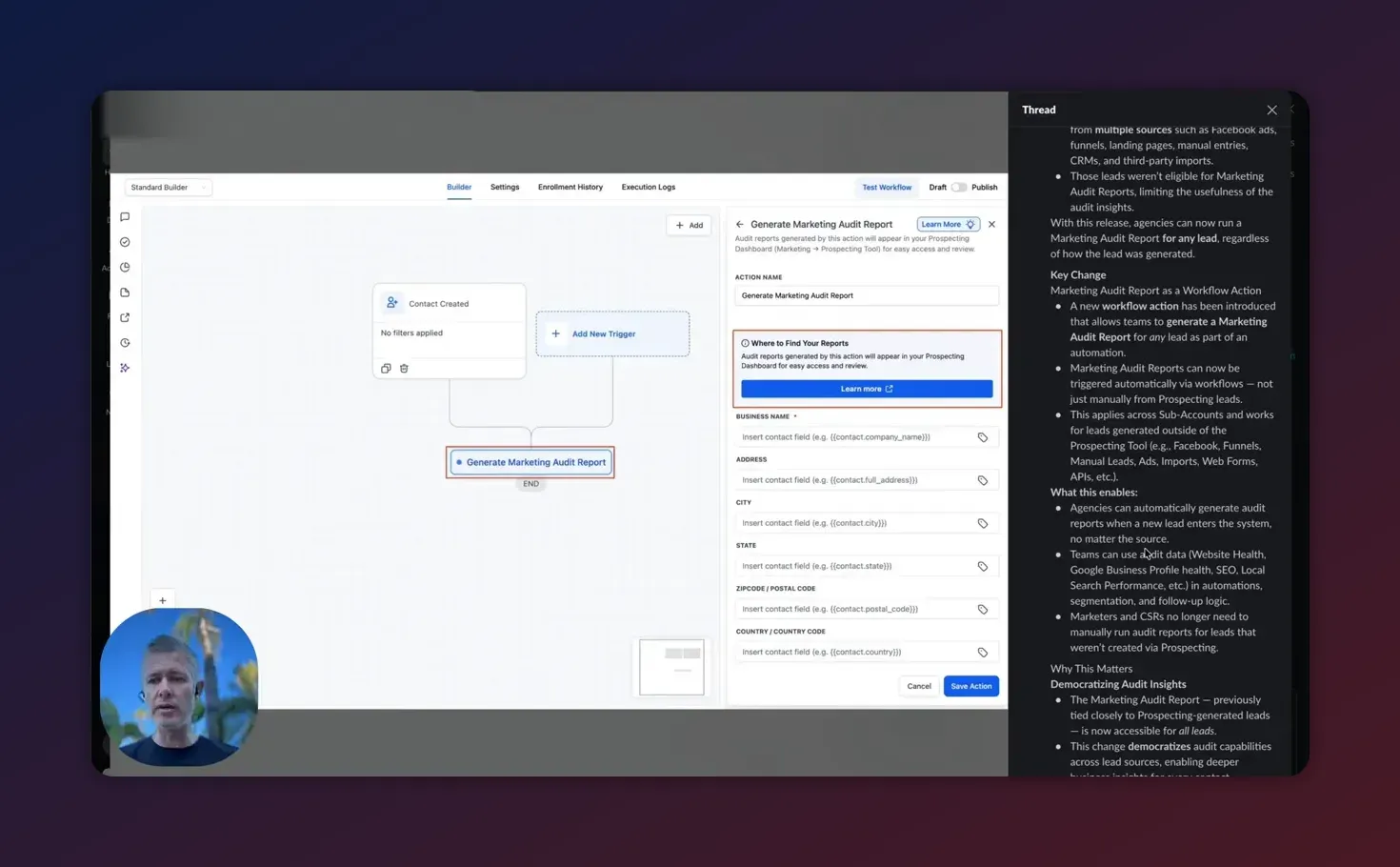
Open the Workflow Builder — Go to the Workflows area in your agency or subaccount where you manage automations.
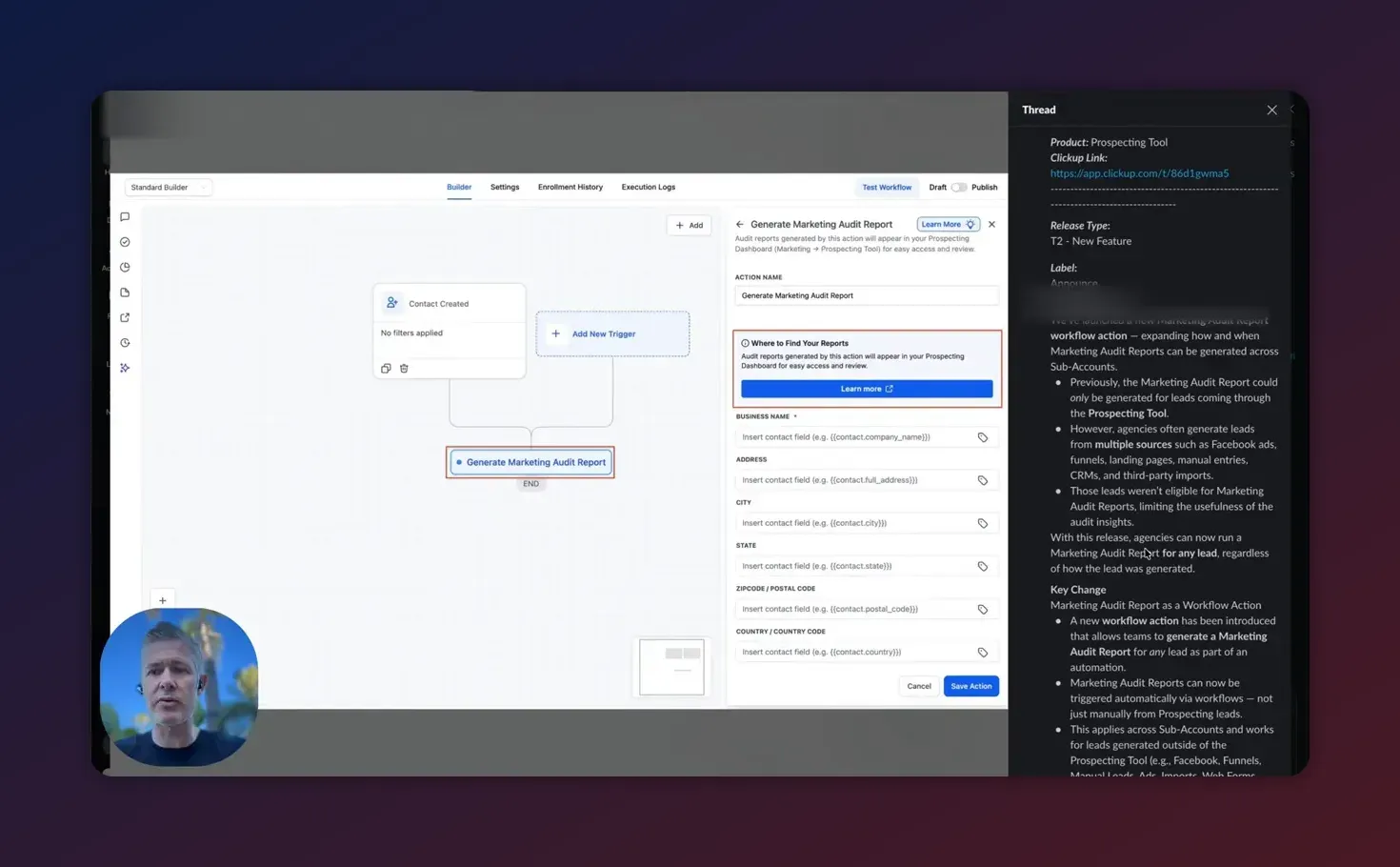
Tip: Use descriptive naming conventions for generated reports (for example, "ClientName - Audit - 2026-02-01") so they are easy to find in subaccount files.
How to use the generated audit in follow-up automations
Once the audit is generated, embed it into processes that add value:
- Automated emails — Attach the audit to a welcome or qualification email that goes to the prospect or client.
- Internal notifications — Send the audit link to sales or onboarding teams via internal SMS, Slack, or task assignments so handoffs are seamless.
- Lead scoring — Use audit data or attached tags to adjust lead scores and prioritize outreach.
- Client portals — Save audits to a client’s file area for review during meetings or reporting cycles.
Example workflow sequences
Below are three practical example sequences that agencies can implement immediately.
1. Prospect qualification sequence
- Trigger: Prospecting form submission.
- Action: Generate Marketing Audit Report for the prospect's subaccount.
- Action: Send automated email to prospect with audit attached and CTA to book discovery call.
- Action: Create task for SDR to call within 24 hours.
2. Ad conversion to audit handoff
- Trigger: Contact created via Facebook ad conversion webhook.
- Action: Add tag "ad-conversion".
- Action: Generate Marketing Audit Report for the contact’s subaccount.
- Action: Notify account manager and upload the report to the client file folder.
3. Monthly retainer health check
- Trigger: Scheduled workflow on the first of the month.
- Action: Loop through client subaccounts or a selected list and generate audit reports.
- Action: Store reports in each client folder and send internal digest to the account team.
Best practices and implementation tips
- Define clear triggers — Avoid generating audits on every small event. Use meaningful trigger conditions to preserve quotas and ensure relevance.
- Combine with tags and pipeline logic — Tags help route the audits to the right process (sales, onboarding, support).
- Standardize report naming and storage — Keep a consistent naming convention and file location policy for easy retrieval.
- Include required assets — Ensure the target subaccount has connected ad accounts, analytics, domain verification, and tracking pixels so the audit can include full diagnostics.
- Use conditional branches — Only run the audit when key conditions are met (e.g., contact has required fields or minimum website traffic).
- Monitor usage and limits — If your account has generation or API limits, track usage to prevent failures from excessive automatic audit runs.
Common pitfalls and how to avoid them
- Generating incomplete audits — Reason: missing integrations, permissions, or verified domains. Solution: verify ad accounts, connect analytics, and confirm access before automating.
- Too many audit triggers — Reason: audit action placed in a high-frequency workflow. Solution: add filters and use tags to limit runs to meaningful events.
- Wrong subaccount selection — Reason: workflow targets the wrong subaccount when run from agency-level automations. Solution: set explicit subaccount selection and test with a sample contact.
- Unclear delivery paths — Reason: audits generated but not delivered to the right stakeholder. Solution: build delivery actions into the workflow (email, task, file save, notifications).
Troubleshooting checklist
If a generated audit fails or is missing data, check the following in order:
- Confirm the workflow executed and the audit action shows as completed in the workflow logs.
- Verify the selected subaccount has the necessary integrations (ad accounts, Google Analytics, Search Console, pixels) and permissions.
- Ensure the contact or lead has required fields populated if the audit action needs context values.
- Check file storage and email actions to confirm the report was saved or attached as expected.
- Review account usage limits or API quota that might block generation.
- Search help.gohighlevel.com for "workflow actions marketing audit report" to access the official documentation and examples.
Checklist: Ready to go live
- Workflow trigger chosen and tested
- Audit action added and subaccount target configured
- Delivery method defined (email, file storage, notification)
- Connected integrations verified in the subaccount
- Test run completed with expected report output
- Enabled monitoring (workflow logs and a recurring review)
Scaling agency operations with automated audits
Automating audit generation is a practical step toward systemizing your agency’s discovery and reporting workflows. When paired with other HighLevel features—pipeline automation, lead scoring, templated emails, and task assignment—automated audits reduce manual work and ensure each lead or client receives the same high-quality diagnostic deliverable.
Start Your HighLevel Trial + Get Instant Nexus Hub Access
Build, scale, and optimize your business with HighLevel. Start a free trial using this link to get automatic access to the Nexus Hub community, templates, and implementation resources.
Start Free TrialUse templates and the Nexus Hub community to find or share workflow templates and audit delivery examples that match your offer. Standardized templates allow account teams to focus on interpretation and recommendations rather than running reports.
When to loop in human review
Audit automation speeds up delivery, but human review remains important for interpreting insights and building strategic recommendations. Use automation to generate the initial diagnostic, then prioritize high-value prospects or clients for senior review based on lead score, deal value, or audit severity flags.
Next steps and resources
- Implement a test workflow with a single, controlled trigger to confirm the audit action works as expected.
- Create an internal playbook that outlines when to run automated audits, who reviews them, and how they are stored.
- Search the HighLevel help docs for "workflow actions marketing audit report" to view the official setup and options.
- Consider starting a HighLevel free trial if you are evaluating the platform or want to test subaccount automations.
- Join Nexus Hub or similar communities for templates, scripts, and implementation support from other agencies.
Summary
HighLevel’s Marketing Audit Report workflow action lets agencies and teams generate diagnostic reports automatically from any workflow trigger and for any subaccount. Use it to speed up lead qualification, standardize onboarding, run scheduled audits, and provide faster value to prospects and clients. Follow the setup steps, apply the best practices, watch for common pitfalls, and add human review where interpretation or high-touch recommendations are required.
Frequently asked questions
Can the audit action create reports for multiple subaccounts in a single workflow?
A single workflow action targets a specific subaccount when it runs. To generate audits across multiple subaccounts, create a workflow that loops over a list of target subaccounts or set up separate workflows per account. Scheduled workflows can be used to run audits for a group of clients on a cadence.
What triggers can be used to start an audit?
Most workflow triggers are valid sources: form submissions, new contact creation, tag additions, pipeline stage changes, ad conversion webhooks, schedule-based triggers, and manual triggers. Use conditions and filters to limit when the audit runs.
Will the audit include analytics and ad account data automatically?
The audit will include data only if the relevant integrations and permissions are connected in the target subaccount. Verify that Google Analytics, Google Search Console, Facebook/Meta ad accounts, and tracking pixels are linked to ensure comprehensive results.
How do I deliver the generated audit to a prospect or client?
Configure delivery within the workflow: attach the report to an automated email, save it to the subaccount files and share the link, or send internal notifications to account managers. Combine actions to both deliver to the prospect and notify internal teams.
Are there limits or quotas for generating audits automatically?
Limitations depend on account plan or API usage policies. Monitor generation volume and usage logs. If you plan to generate large numbers of audits automatically (for example, monthly for many clients), confirm any limits with support or account documentation to avoid interruptions.
Start Your HighLevel Trial + Get Instant Nexus Hub Access
Build, scale, and optimize your business with HighLevel. Start a free trial using this link to get automatic access to the Nexus Hub community, templates, and implementation resources.
Start Free Trial


