
Call Dispositions: Automate Follow-Ups and Improve Call Efficiency



Photo by Baljinnyam Munkhgerel on Unsplash
Call dispositions give teams a simple way to classify calls, trigger follow-up actions, and keep customer experiences consistent. With custom dispositions, we can map the outcome of each call to an automation that runs the next steps without manual work.
What call dispositions do
A disposition is a short label that describes the outcome of a call. Examples include Interested, Left Voicemail, or Need Proposal. Picking a disposition at the end of a call can:
- Start a workflow that sends emails, creates tasks, or updates records.
- Standardize how agents record call results.
- Speed up wrap-up time and reduce manual follow-up errors.
Where to set up custom dispositions
Custom dispositions live in the Voice area of Phone System settings. From there, we can add, edit, and organize the labels that fit our process.
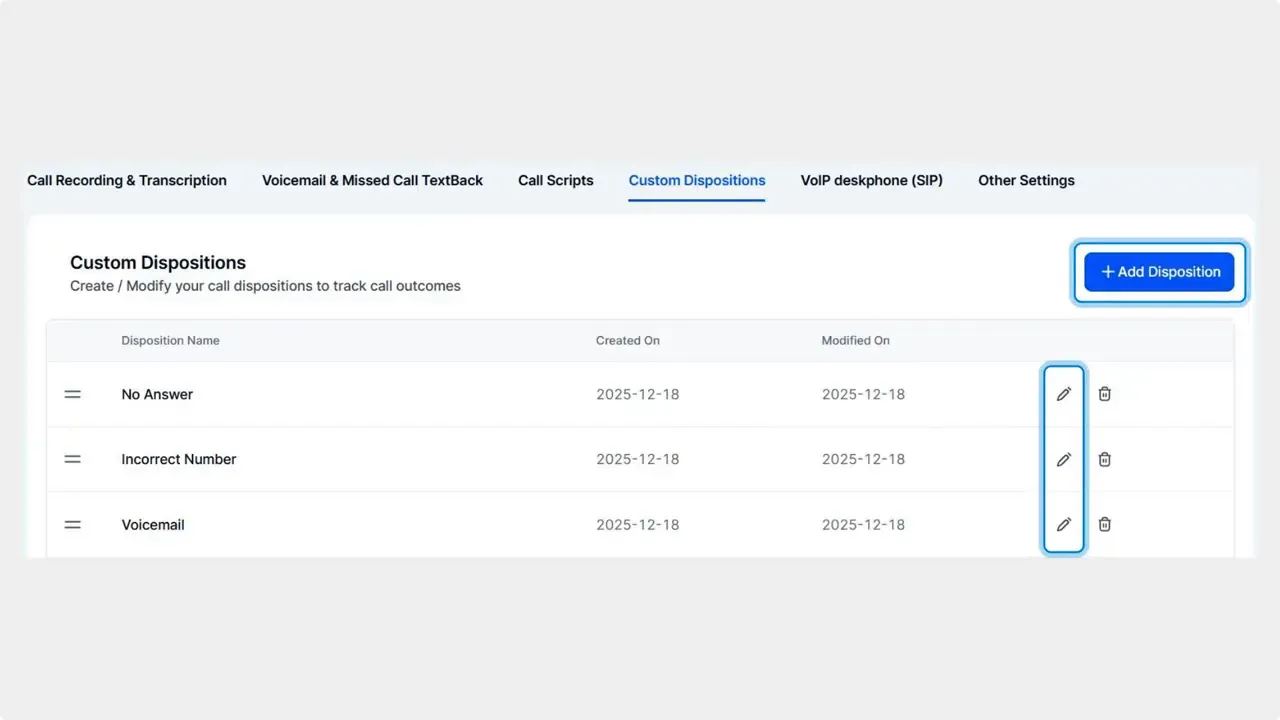
How to create or edit dispositions
- Open the Phone System settings and select the Voice tab. Choose Custom Dispositions.
- Click Add Disposition to create a new entry or click the pencil icon to edit an existing one.
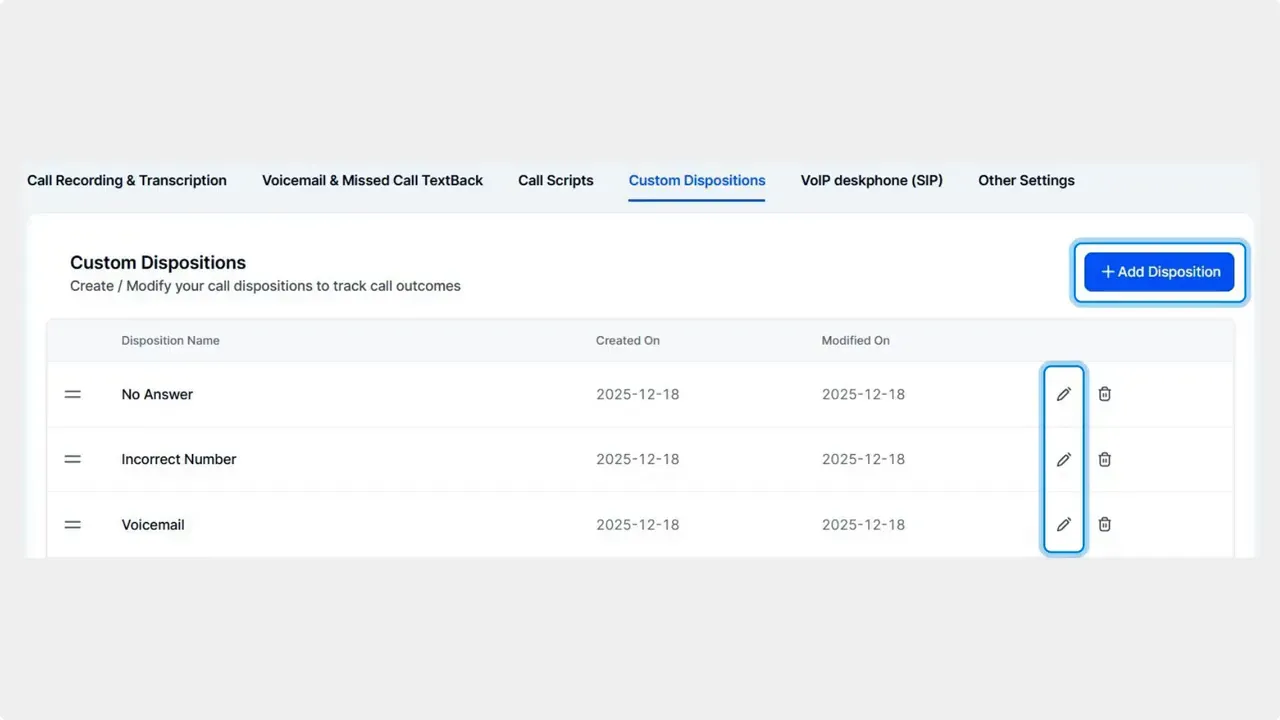
Keep the list focused. Use a few clear categories so agents can choose quickly and automations trigger reliably.
Trigger workflows from dispositions
Dispositions become powerful when paired with workflows. Use the Call Details trigger in your workflows and filter by the custom disposition you created. That filter tells the workflow which automation to run based on the selected label.
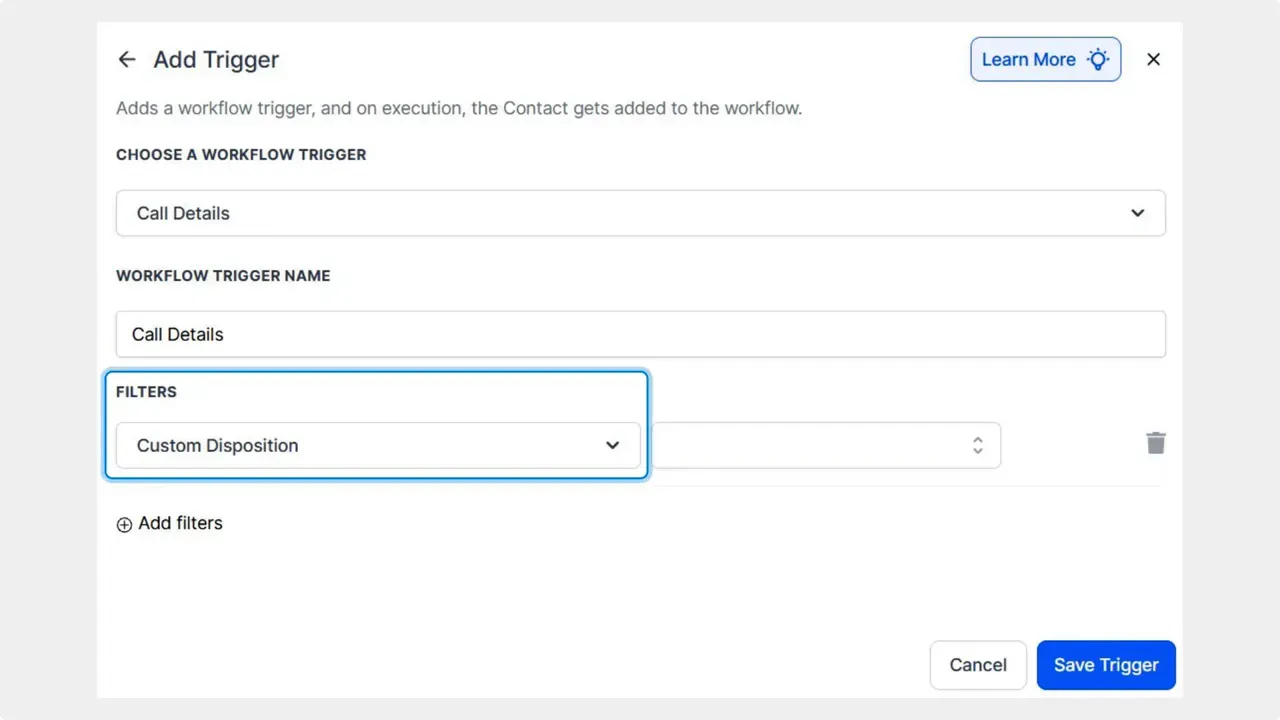
For example, selecting Need Proposal can create a task for the sales rep, add the contact to a proposal pipeline, and send a confirmation email to the prospect.
Using dispositions in the web dialer
When finishing a call in the web dialer, select the appropriate disposition. That selection immediately triggers any connected automation. This removes the need for manual follow-up steps after the call ends.
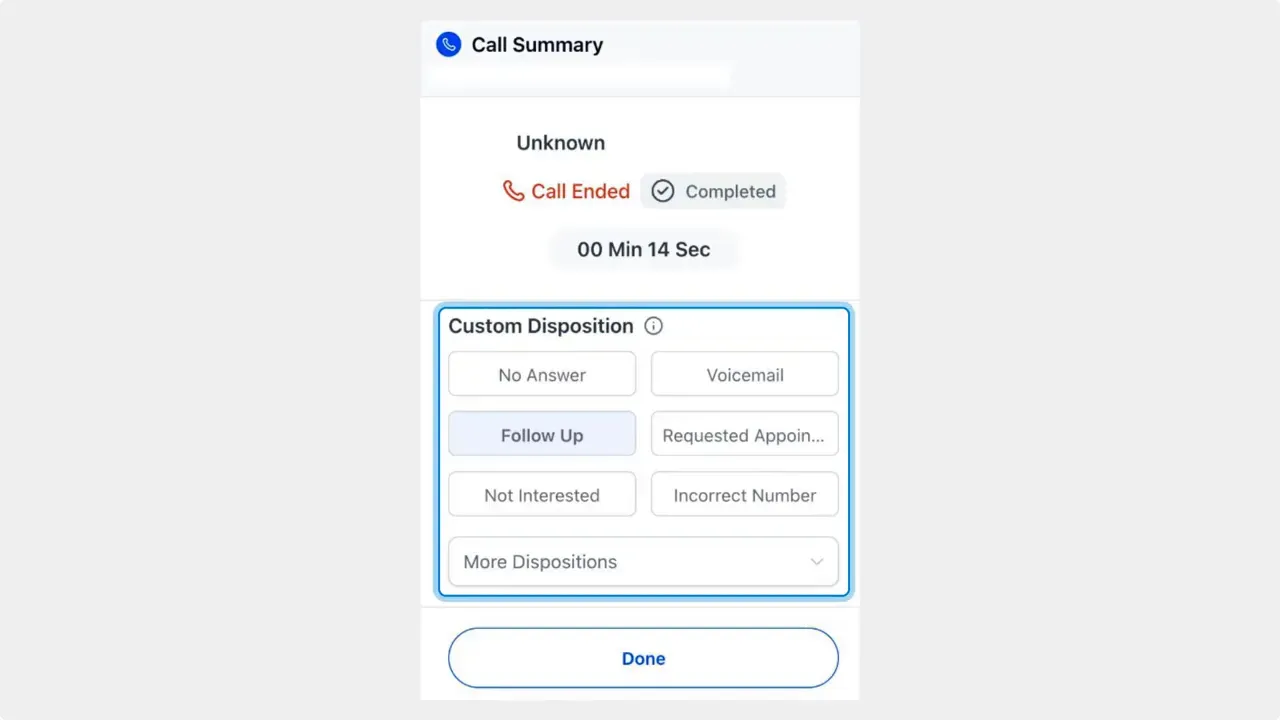
Best practices for call dispositions
- Limit options: Fewer choices speed up wrap-up and keep data clean.
- Use categories: Group similar outcomes to simplify automation rules.
- Name clearly: Use action-oriented labels like Schedule Demo or Send Contract.
- Map to actions: For each disposition, decide what automation should run.
- Review regularly: Audit dispositions and workflows to remove unused items.
Benefits at a glance
- Consistent customer experience: Every call outcome follows the same next step.
- Faster wrap-up: Agents finish calls quicker with a single selection.
- Automated follow-up: Tasks, emails, and updates run without manual effort.
- Better reporting: Structured dispositions make call outcomes easier to analyze.
Quick setup checklist
- Go to Phone System → Voice → Custom Dispositions.
- Add or edit dispositions.
- Create or update workflows using the Call Details trigger and filter by disposition.
- Train agents to select the disposition at call wrap-up in the web dialer.
- Monitor and refine dispositions and automations over time.
Frequently asked questions
What is a call disposition?
A call disposition is a short label that describes the outcome of a call. It is used to categorize calls and trigger follow-up automations.
Where do we create custom dispositions?
Custom dispositions are created in the Phone System settings under the Voice tab. Use Add Disposition to create new entries or the pencil icon to edit existing ones.
Can dispositions trigger workflows automatically?
Yes. Use the Call Details trigger in workflows and add a filter for the custom disposition. When the disposition is selected at call end, the connected automation runs.
How should we name dispositions?
Keep names short and action-oriented. Examples: Schedule Demo, Left Voicemail, Needs Proposal. Clear names make it easier to map automations and train teams.
Can we group dispositions into categories?
Yes. Grouping similar dispositions simplifies workflow filters and helps agents choose the right label faster.
Will using dispositions speed up call wrap-up?
Yes. Selecting a disposition replaces manual follow-up steps, so agents finish calls faster and follow-up happens automatically.
This article was created from the video Call Dispositions: Automate Follow-Ups and Improve Call Efficiency



