
How to Auto-Book Appointments from Instagram Replies Using HighLevel (GoHighLevel)
Stop losing leads to slow response times. Learn how to connect your Instagram account to HighLevel, configure a Conversation AI bot for autopilot booking, and turn casual DMs into confirmed appointments on your calendar—all without manual back-and-forth.

Turning Instagram direct messages into scheduled consultations can transform social engagement into predictable revenue. This guide shows how to connect your Instagram account to HighLevel, configure a Conversation AI appointment-booking bot, troubleshoot common sync issues, and write prompts that convert. The instructions assume you use HighLevel (GoHighLevel) as your CRM and appointment platform.
Why automate appointment booking from Instagram?
Instagram is a high-intent channel for discovery and inbound leads. When someone messages your account, delaying a reply often means losing the opportunity. Automating bookings with HighLevel Conversation AI gives you three advantages:
- Instant response to inbound messages so prospects don’t wait.
- Reduced manual work for your team by letting AI handle scheduling and confirmations.
- Higher conversion from casual DMs to qualified calendar appointments.
This approach is useful for agencies, service providers, local businesses, coaches, and anyone who wants to convert Instagram conversations into booked calls without manual back and forth.
Overview of the process
- Connect Instagram and Facebook pages to HighLevel.
- Create and configure a Conversation AI bot with appointment-booking enabled.
- Test the bot on Instagram messages and fine tune prompts and settings.
Step 1 — Connect Instagram to HighLevel
Before the bot can accept appointments on Instagram, you must link your Instagram Business account (or creator account linked to a Facebook page) to your HighLevel account and give necessary permissions.
Follow these actions in HighLevel:
- Open Settings then Integrations and choose to connect Facebook or Instagram pages.
- When prompted, grant permissions that allow access to pages and messages.
- Select the specific Instagram page and choose a sync type. For most setups select All leads to ensure messages and leads are synchronized.
- Skip form field mapping for now if you are not running Facebook lead ads.
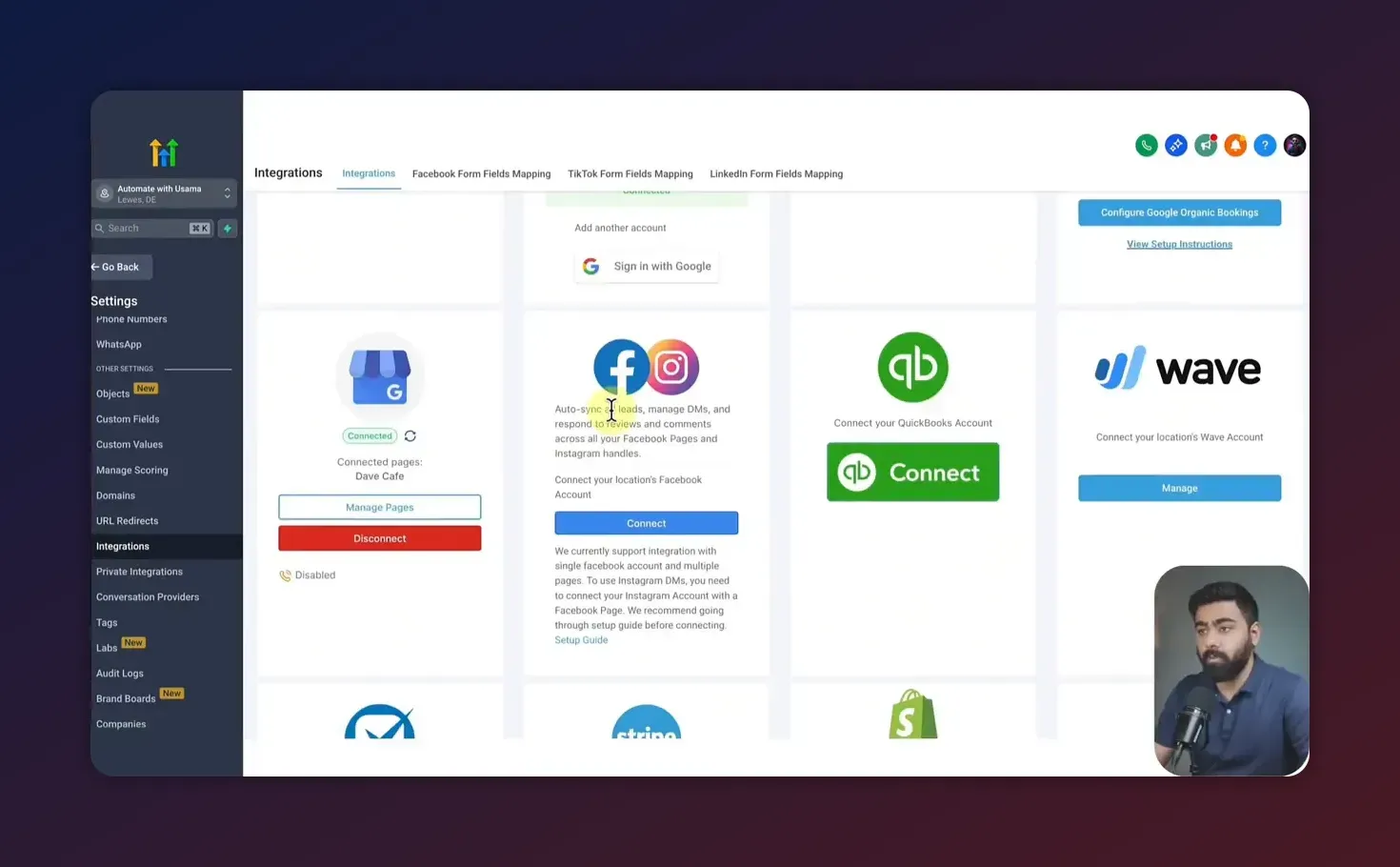
Quick checklist for the connection step:
- Instagram account is a Business or Creator account and linked to a Facebook Page.
- You have admin access to the Facebook Page used to authorize the connection.
- HighLevel has been granted permission to manage page conversations and messages.
Troubleshooting message sync problems
If DMs do not appear in HighLevel after connecting, try these troubleshooting steps in order:
- Confirm Instagram Messenger sync is enabled for the connected account in HighLevel settings.
- In Facebook Business Settings open Business Integrations, find the HighLevel (Lead Connector) app, and click View and Edit. Ensure all permissions are enabled, including the ability to manage and access page conversations or Messenger.
- After adjusting permissions, reconnect the Facebook and Instagram integration in HighLevel.
- Use the HighLevel troubleshooting tool to identify missing permissions or to manually sync leads if required.
Common permission misconfigurations are the top reason messages fail to sync. Always reauthorize and double check the Business Integration settings in Facebook whenever messages stop appearing.
Step 2 — Create and configure an appointment-booking Conversation AI bot
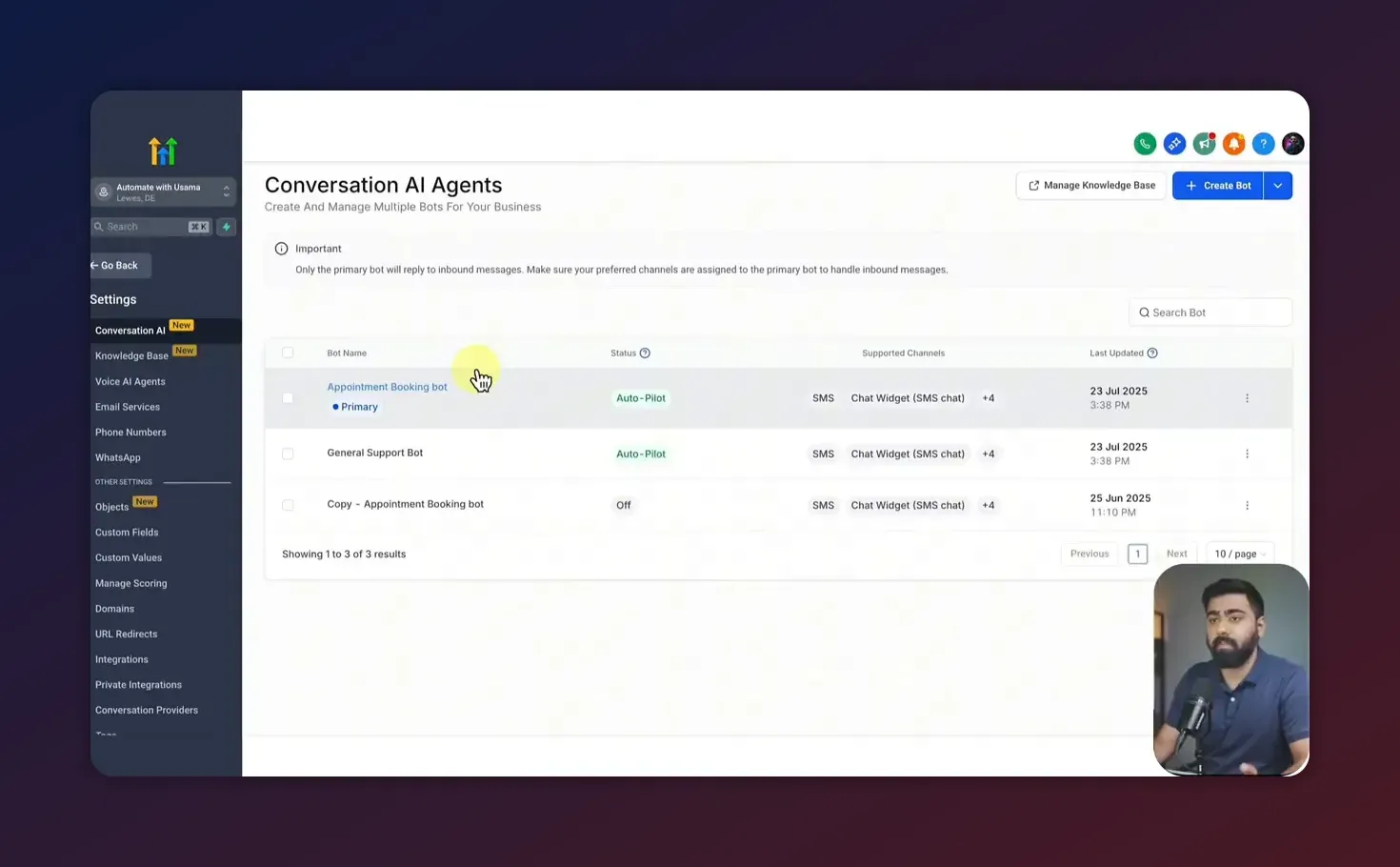
HighLevel Conversation AI can be set to one of two modes: suggestive or autopilot. For immediate, automated replies and booking from Instagram replies you will configure the bot for autopilot.
Key configuration areas to set up:
- Bot name and status - Give the bot a descriptive name and choose Autopilot as the status.
- Supported channels - Enable Instagram as a supported channel. You can enable other channels later.
- Autopilot response timing - Set how long the bot waits before replying. A 5 to 10 second delay feels natural; you can increase to 30 seconds or 60 seconds if desired.
- Maximum messages - Limit how many messages the bot can send before going to sleep to avoid long or looping conversations.
- Knowledge base - Attach a knowledge base with FAQ links or product pages to improve answer accuracy.
- Bot goals and prompt - Define personality, intent, and additional context. Use custom values to personalize replies with the lead's name or other fields.
Enable the appointment booking action
The appointment booking action is the most important switch for this use case. Enable it and map the bot to the calendar you want it to use for scheduling. Typical calendar choices include a sales calendar, demo calendar, or coaching calendar configured in HighLevel.
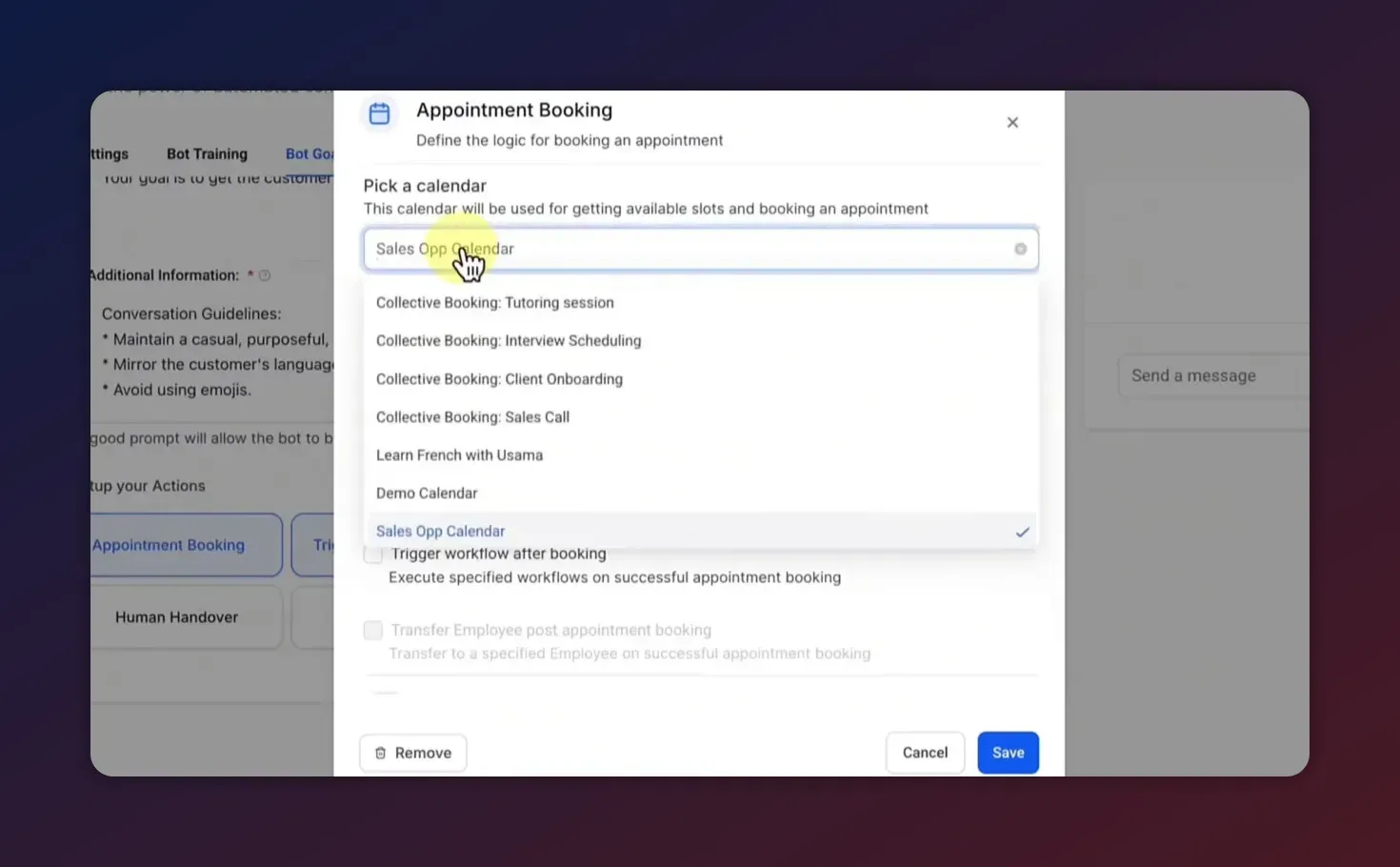
Other appointment-related options to set:
- Pause bot after booking - Temporarily stop the bot for that contact after a booking to avoid repetitive messaging.
- Allow cancellations and reschedules - Toggle whether the bot can cancel or reschedule appointments on behalf of the user. Use caution and consider the impact on no-shows and double bookings.
Bot training and prompts that convert
Training the bot involves two elements: structured knowledge (knowledge base and FAQs) and the bot prompt that tells the AI how to behave.
Use a prompt structure with three parts:
- Personality - Tone and style of replies. Example: friendly, professional, concise.
- Intent - The bot’s primary objective. Example: qualify intent and offer appointment times if the prospect wants to meet.
- Additional context - Business-specific rules, calendar constraints, and instructions for booking, rescheduling, and cancellations.
Prompt notes:
- Avoid wording in the prompt that contradicts configured actions. For example, do not write "I cannot reschedule appointments" if the bot is allowed to reschedule.
- Use custom values and merge fields for personalization, such as first name and lead source.
- Include clear qualifying questions that help determine the correct appointment length or type.
Sample prompt template (editable):
Personality: Friendly, professional, and concise.
Intent: Help visitors book a 30-minute discovery call. Confirm availability and schedule directly into the Sales Calendar.
Rules: Ask one qualifying question about the prospect's main need, then offer three available slots from the Sales Calendar. If none work, ask for preferred days. Confirm booking and send a calendar invite. Use the lead's first name when available.
Start Your HighLevel Trial + Get Instant Nexus Hub Access
Build, scale, and optimize your business with HighLevel. Start a free trial using this link to get automatic access to the Nexus Hub community, templates, and implementation resources.
Start Free TrialStep 3 — Test the booking flow on Instagram
Testing behavior on Instagram is essential. Use a separate Instagram account to DM your business account and follow these test scenarios:
- Quick booking flow: Send a message like "Hi, I want to book" and confirm the bot offers slots and schedules the appointment.
- Ask for a different date: Request a specific date and verify the bot searches the linked calendar and returns options.
- Decline booking: See how the bot responds if the user says not ready to book and whether it captures a follow up preference.
- Reschedule or cancel: If enabled, test reschedule and cancellation flows for correct calendar updates.
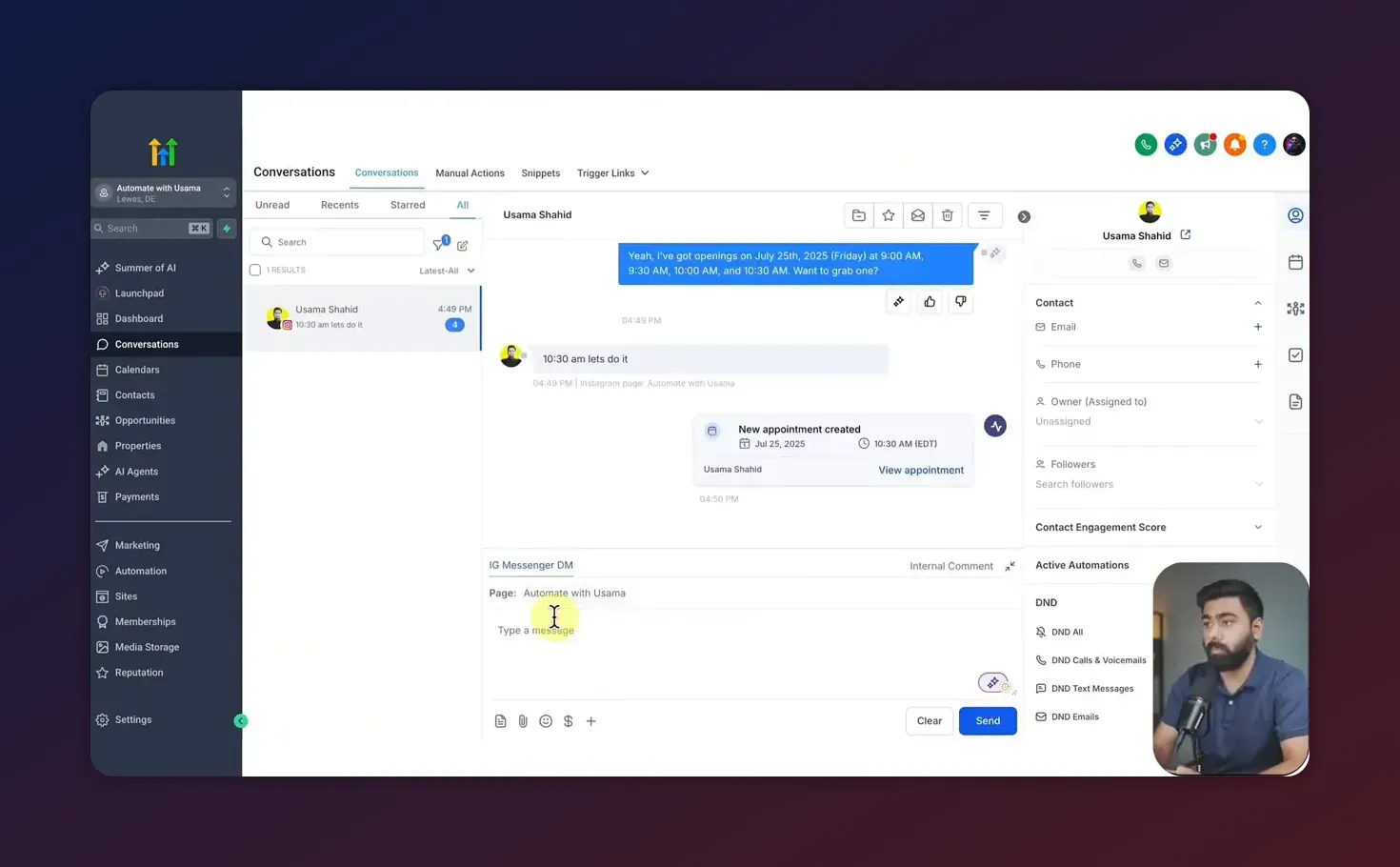
After a booking, confirm the appointment appears in HighLevel under the chosen calendar and that the source shows Conversation AI so you can track the channel. Many teams also set workflows to send reminders, intake forms, and follow-up sequences after a booking.
Practical examples and conversion tips
Here are practical tips to maximize conversion from Instagram DMs to appointments.
- Qualify with one targeted question before offering times. Example: "Is this for a new project or ongoing support?" This helps route to the correct calendar and appointment length.
- Offer limited slots to create urgency. The bot can present 2 or 3 slots rather than a long list.
- Use short, natural language in replies. Prospects respond better to concise, friendly messages that feel human.
- Link intake forms after booking to collect details like budget, goals, or style preferences. Use a HighLevel workflow to send the form automatically.
- Follow up automatically with reminders, confirmations, and reschedule links using HighLevel workflows to reduce no-shows.
Common mistakes and how to avoid them
- Not using a business account - Personal Instagram accounts do not support message API features. Switch to a Business or Creator account linked to a Facebook Page first.
- Insufficient Facebook permissions - If the Lead Connector app lacks permissions, messages will not sync. Always check Business Integrations settings.
- Bot conflicts with prompt - If your prompt says the bot cannot reschedule but the bot has reschedule permission, the AI may ignore booking actions. Keep prompts and settings aligned.
- Unmapped calendar - The bot must be assigned to a calendar in HighLevel. Double check calendar selection and availability rules.
- Overly aggressive automation - Avoid excessive bot messages or immediate booking attempts without qualification. Set sensible message limits and delay timers.
Advanced setup ideas for agencies and teams
Agencies using HighLevel can scale Instagram booking automation across multiple clients and teams by:
- Creating reusable bot templates with standardized prompts and knowledge bases in the Nexus Hub.
- Using HighLevel workflows to route booked leads to the correct salesperson and trigger onboarding sequences.
- Segmenting calendars by appointment type and team member to avoid overlaps.
- Adding tracking UTM parameters and lead sources so appointments booked via Instagram show up in reporting.
HighLevel agency setups benefit from shared templates and community resources. Consider a free trial or the Nexus Hub for templates and implementation support if you manage multiple client accounts.
Checklist: Ready-to-launch audit
- Instagram is Business or Creator account and linked to a Facebook Page.
- HighLevel connected to the correct Facebook Page and Instagram account.
- Business Integration permissions in Facebook allow page message access.
- Conversation AI bot created, set to Autopilot, and Instagram enabled as a channel.
- Appointment booking action enabled and mapped to the correct calendar.
- Bot prompt aligned with permissions and knowledge base attached.
- Autopilot response time and max messages configured.
- Tested core flows: book, request specific date, reschedule, cancel.
- Follow-up workflows and reminders set in HighLevel to reduce no-shows.
FAQ
Do I need a Facebook Page to connect Instagram to HighLevel?
Yes. Instagram Business or Creator accounts must be connected to a Facebook Page to use the messaging API and integrate with HighLevel. Ensure you have admin access to that Facebook Page when authorizing the connection.
What permissions are required for HighLevel to read Instagram messages?
HighLevel requires permissions to manage and access page conversations and Messenger. Grant full permissions in Facebook Business Integrations for the Lead Connector app and reauthorize the integration if messages do not sync.
Can the bot reschedule or cancel appointments automatically?
Yes, but this is optional. You can enable reschedule and cancel actions in the bot settings. Make sure your prompts do not contradict these actions and that you understand the implications for calendar management and no-shows.
How do I make the bot sound more human and convert better?
Use a concise personality in the prompt, one or two qualifying questions, and a small set of available time slots. Personalize messages using custom values such as the prospect's name. Test and iterate on the prompt based on real conversations.
What if Instagram messages still do not appear after setup?
Run the HighLevel troubleshoot tool, manually sync leads, reauthorize the Facebook integration, and check the Business Integrations permissions. Most sync issues are caused by missing permissions or the Instagram account not being properly linked to a Facebook Page.
Summary and next steps
Automating appointment booking from Instagram DMs with HighLevel can dramatically reduce friction in your sales process and increase booked calls. The critical pieces are granting the right Facebook permissions, enabling the appointment action in the Conversation AI bot, mapping to the correct calendar, and writing a clear prompt that aligns with your settings.
If you are new to HighLevel consider starting with a free trial to test integrations and templates. Agencies that manage multiple clients should explore shared bot templates and Nexus Hub resources to speed implementation and maintain consistency.
Use the checklist above to audit your setup and run the test scenarios to confirm bookings are created correctly in your calendar. With the right configuration and a well-crafted prompt you can reliably convert Instagram conversations into scheduled appointments on autopilot.
Start Your HighLevel Trial + Get Instant Nexus Hub Access
Build, scale, and optimize your business with HighLevel. Start a free trial using this link to get automatic access to the Nexus Hub community, templates, and implementation resources.
Start Free Trial


