
How to Set Up and Use Auto AI Follow-Up in HighLevel Flow Builder
Stop losing leads to stalled conversations. Learn how to use Auto AI Follow-Up in HighLevel Flow Builder to automate outbound re-engagement, handle "busy" requests, and increase conversions across SMS, Email, and Messenger—all without manual overhead.


Auto AI follow-up in HighLevel Flow Builder automates outbound re-engagement for stalled or dropped conversations. It schedules follow-ups, cancels them when a contact replies, respects working hours, switches channels when needed, and can use AI-generated or custom messages. This guide explains what the feature does, why it matters for agencies and SaaS operations, and how to configure it inside HighLevel to increase conversions without manual overhead.
What is Auto AI Follow-Up and who should use it?
Auto AI follow-up is an automation layer inside HighLevel Flow Builder that proactively re-engages contacts who stop responding, ask to be followed up later, or explicitly indicate they are busy. It is designed for:
- Agencies managing many leads who need consistent re-engagement without manual work
- Business owners using HighLevel CRM to convert warm leads into appointments or sales
- SaaS teams building intelligent workflows and automations that require follow-through
Benefits include higher reply rates, fewer lost opportunities, time savings for teams, and consistent contact handling across channels such as SMS, Facebook Messenger, and email.
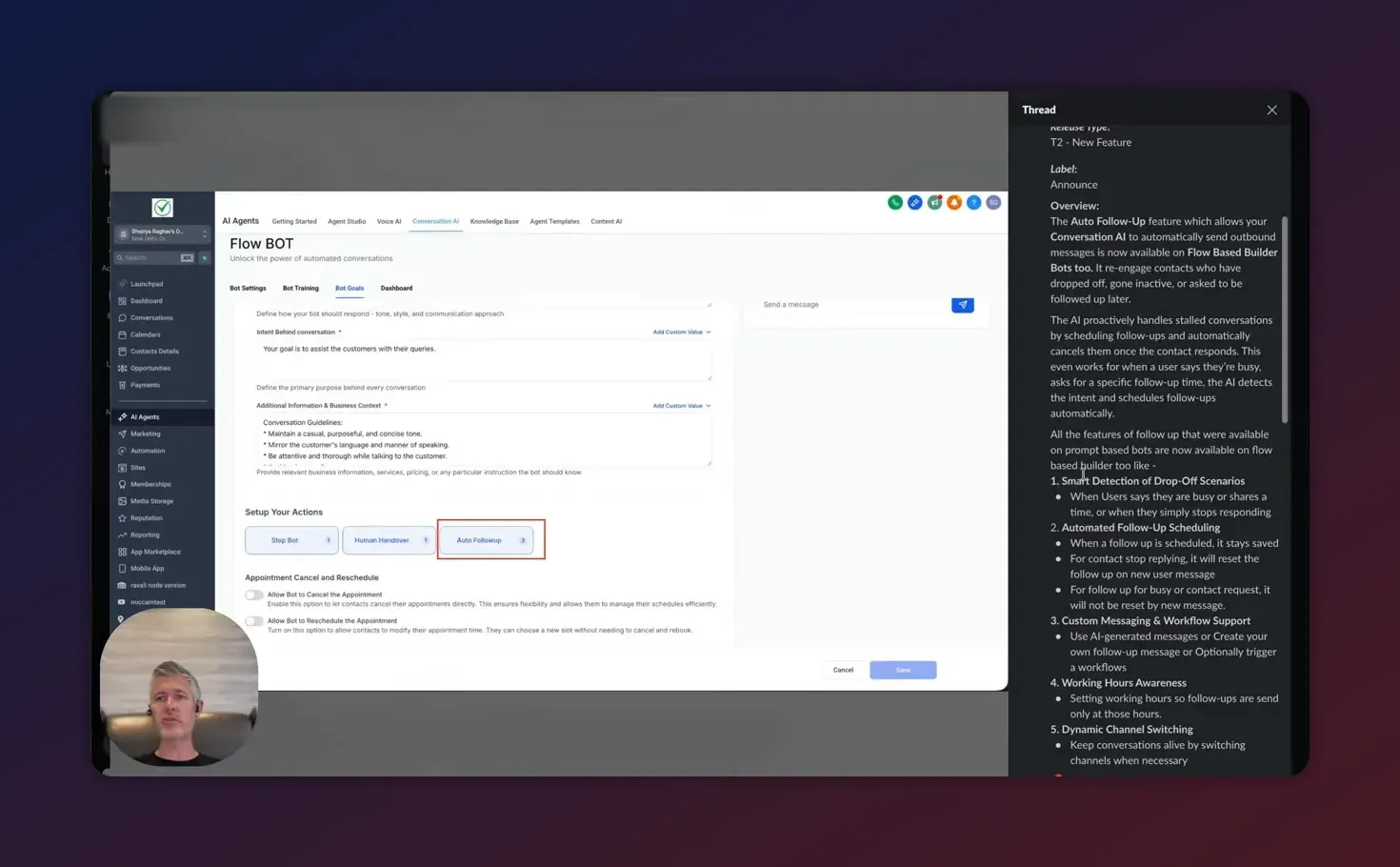
Key capabilities at a glance
- Intent detection: Automatically recognizes phrases like "busy" or "follow up tomorrow" and schedules follow-ups.
- Automated scheduling: Add follow-ups at defined intervals or specific times requested by the contact.
- AI-generated or custom messaging: Use suggested follow-up copy or craft your own templates.
- Working hours awareness: Avoid sending messages outside configured business hours.
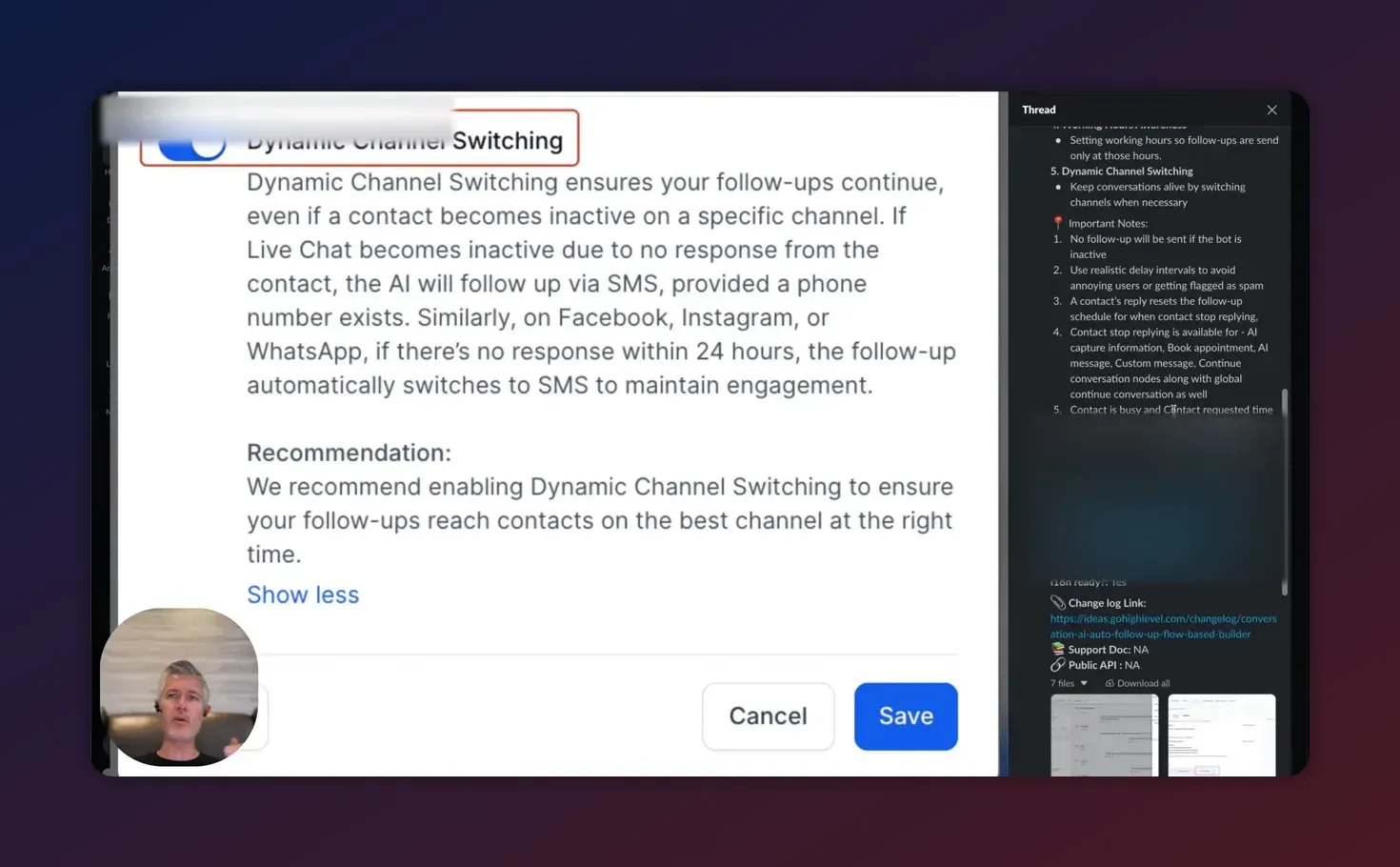
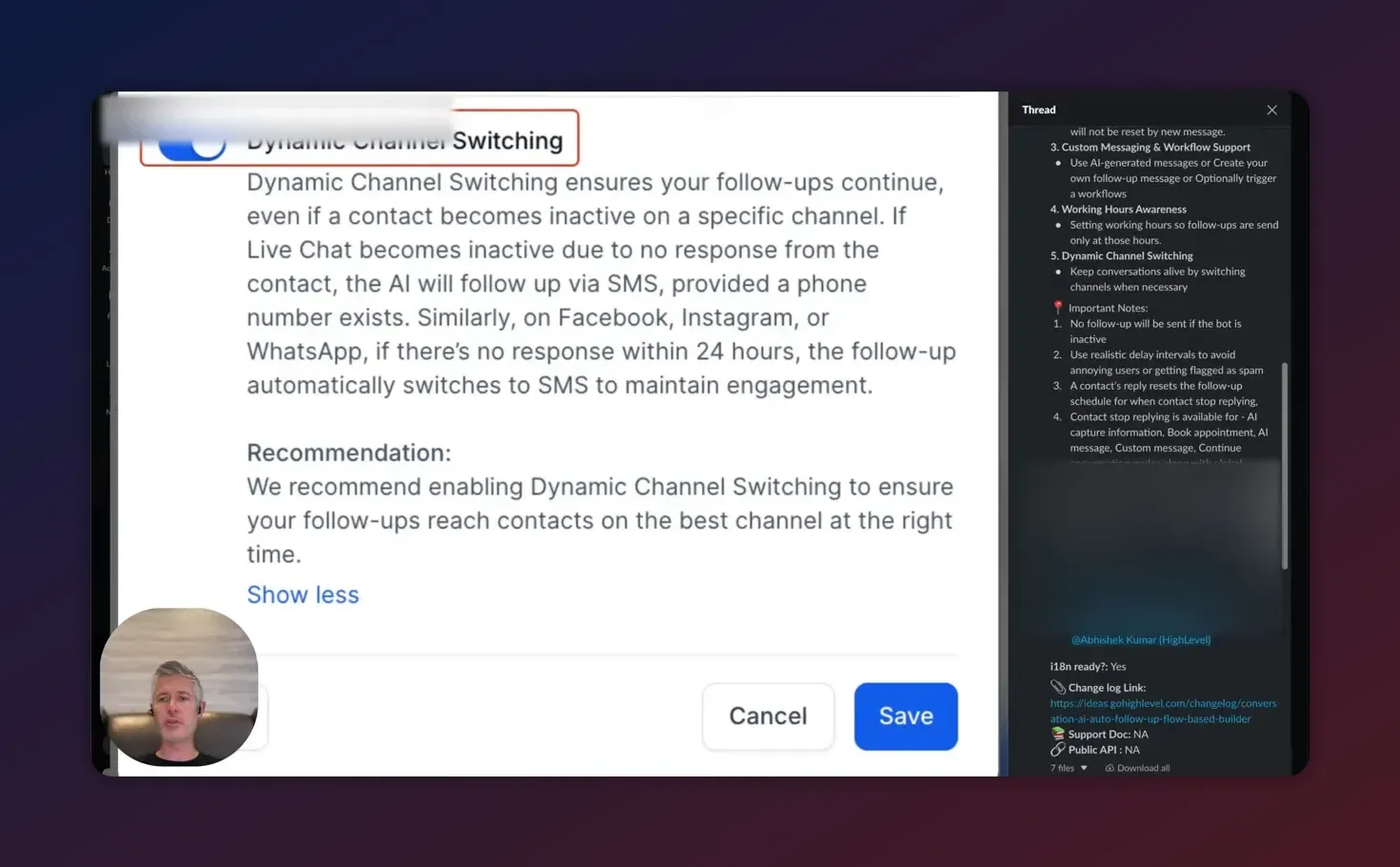
- Dynamic channel switching: Move a conversation between channels (for example, SMS to Messenger) to keep it live.
- Automatic cancellation: If the contact replies before a scheduled follow-up, the follow-up is canceled.
How the Auto AI Follow-Up works (technical overview)
At a high level, Auto AI Follow-Up combines intent recognition, workflow triggers, and the HighLevel messaging engine:
- Flow Builder monitors conversation state and user replies.
- When a contact indicates delay, "busy", or drops off, the AI marks the conversation as stalled.
- The follow-up scheduler creates one or more outbound messages based on timing rules and channel preferences.
- If the contact responds, Webhooks or message listeners trigger cancellation of pending follow-ups.
- If no response arrives, the system dispatches messages according to working hours and channel fallbacks.
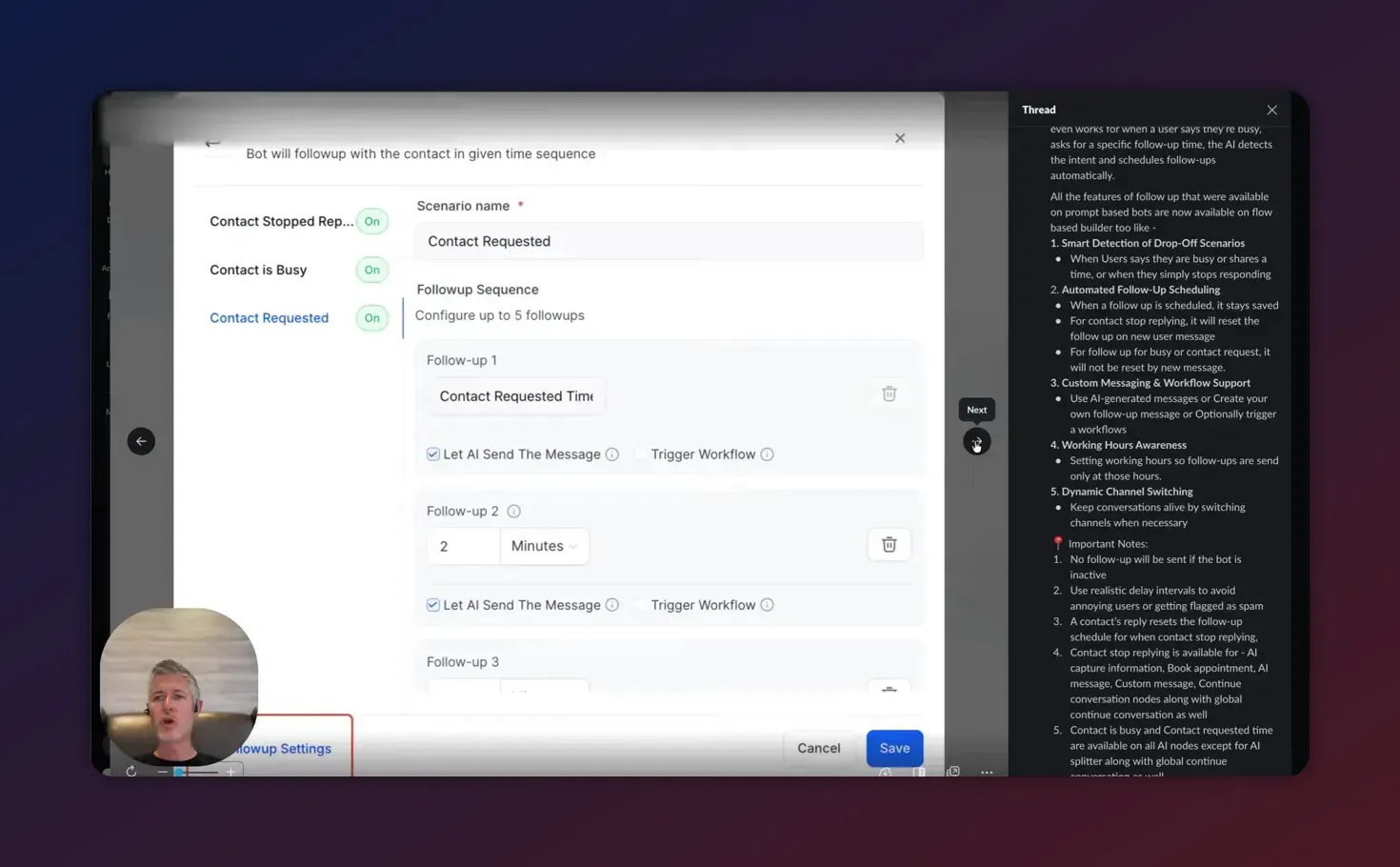
Step-by-step: Configure Auto AI Follow-Up in HighLevel Flow Builder
The following steps outline a practical setup you can implement in your HighLevel account. Use this as a checklist during configuration.
- Create or open a flow. Start in the Flow Builder and select the flow where you want follow-ups. This can be a lead intake, appointment scheduler, or existing conversation flow.
- Add an Auto Follow-Up component. Insert the auto follow-up element where conversations commonly drop off — after qualification questions, appointment offers, or any point where a user might pause.
- Choose AI detection settings. Enable intent detection so the flow can automatically interpret messages like "call me tomorrow" or "busy now" and schedule follow-ups accordingly. You can tune sensitivity if you see false positives.
- Choose channel fallback and switching. Select preferred channels and enable dynamic channel switching. For example, if SMS goes unanswered, attempt Facebook Messenger or email according to your policy and contact permissions.
- Create message templates. Use AI-generated suggestions to save time or write custom follow-up copy. Include personalization tokens like contact name, appointment time, or product interest.
- Test with sample contacts. Simulate common scenarios: contact says "busy", scheduled follow-up triggers, contact replies before follow-up, and channel switching executes. Confirm that pending follow-ups cancel on reply.
Monitor logs and change log. After going live, review the flow run logs and the change log to track behavior and tune rules.
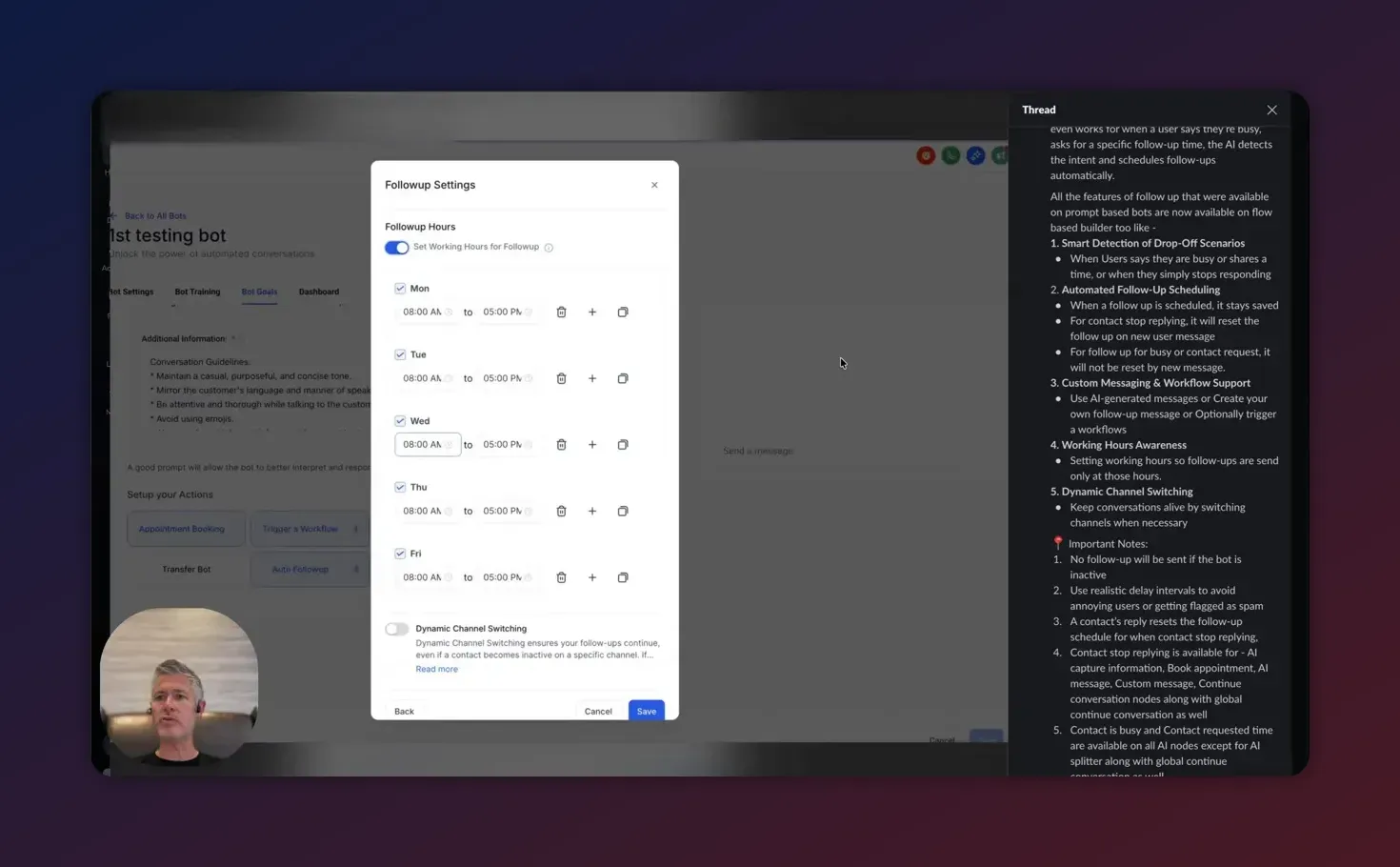
Configure working your business hours so messages only send during appropriate times. This reduces spam complaints and improves response rates.
Set scheduling rules. Define when follow-ups should go out: immediate (X minutes), short-term (24 hours), or long-term (3–7 days). Use specific times if contacts ask for a callback at a certain hour.
Practical follow-up message examples and templates
Below are concise message examples that balance friendliness and clarity. Insert personalization tokens and adapt tone to your brand.
- Appointment confirmation follow-up. "Hi {first_name}, just checking in about your appointment on {appointment_date}. Need to reschedule?"
- Lead re-engagement (after 48 hours). "Hey {first_name}, wanted to follow up on our earlier conversation. Do you have time this week to talk?"
- Busy request follow-up. "No problem — I can follow up tomorrow at 10 AM. Does that work for you?" (AI will schedule if user used similar phrasing)
- Offer reminder. "Reminder: your discount code expires in 48 hours. Reply YES and I'll secure it for you."
Best practices and optimization tips
- Limit follow-up frequency. Prevent over-messaging by capping follow-ups per contact and spacing them logically (for example, 3 follow-ups maximum).
- Respect opt-ins and compliance. Ensure contacts consent to receive messages on each channel. For SMS, follow TCPA regulations and maintain opt-out handling.
- Leverage working hours. Configure working hours per timezone when possible. Failing to do so can cause messages to send at odd hours and reduce response rates.
- Fallback responsibly. If switching channels, ensure the contact has used or consented to the destination channel. Avoid cross-channel duplication.
- Track metrics. Monitor reply rate, conversion rate, and opt-out rate per follow-up template. Use those metrics to iterate on copy and timing.
Use personalization tokens. Messages with names, appointment times, or recent interactions perform better. Keep templates short and actionable.
Start Your HighLevel Trial + Get Instant Nexus Hub Access
Build, scale, and optimize your business with HighLevel. Start a free trial using this link to get automatic access to the Nexus Hub community, templates, and implementation resources.
Start Free TrialCommon pitfalls and how to avoid them
- False intent detection. AI may misinterpret ambiguous phrases. Train the flow by adding explicit intents and review conversations flagged as "busy" or "follow up."
- Working hours misconfiguration. If your working hours are global instead of per-timezone, messages may go out at night for some contacts. Use timezone-aware rules.
- Channel permission issues. Ensure the contact has an associated identifier for the channel you're switching to. For example, switching from SMS to Messenger requires a linkable Messenger ID or prior opt-in.
- Too many follow-ups. High frequency increases opt-outs. Start with conservative cadence (24–72 hours) and test increases only if conversion lifts justify it.
- Not testing cancellation logic. Verify that follow-ups cancel when a contact replies through any channel. Missing this can lead to confusing duplicate messages.
Troubleshooting checklist
If follow-ups are not behaving as expected, run through this checklist.
- Confirm Auto Follow-Up element is correctly placed in the flow and enabled.
- Check working hours and timezone settings for the flow or account.
- Verify channel permissions and contact identifiers for fallback channels.
- Review flow run logs for errors and the change log for recent edits.
- Test with multiple sample contacts to reproduce the issue reliably.
- Adjust AI intent sensitivity or add specific intent phrases to reduce false positives.
How agencies can scale follow-up workflows in HighLevel
Agencies using HighLevel to manage multiple clients can apply these tactics to scale efficiently.
- Template library: Build reusable follow-up templates for common use cases (appointments, demos, invoices) and manage them centrally.
- Client-specific workflows: Duplicate and tweak flows per client to respect brand voice and compliance requirements.
- Automation governance: Maintain a change log and version control for flows so teams can audit changes and roll back if needed.
- Nexus Hub and resources: Use community templates and implementation guides to accelerate setup and follow best practices across clients.
Sample follow-up cadence playbook
A starting cadence many agencies use that balances persistence and respect:
- First follow-up: 1 hour after drop-off — gentle nudge.
- Second follow-up: 24 hours later — add new value or clarification.
- Third follow-up: 72 hours later — urgency or limited-time offer.
- Final follow-up: 7 days later — last check-in and opt-out option.
Measuring success: what to track
Track the following KPIs to evaluate the impact of Auto AI Follow-Up:
- Reply rate — percentage of follow-ups that generate a response.
- Conversion rate — proportion of follow-ups that result in appointments, sales, or desired actions.
- Opt-out rate — unsubscribe or STOP responses per follow-up volume.
- Time-to-response — median time from follow-up to reply.
- Channel performance — effectiveness of SMS vs. Messenger vs. email for re-engagement.
Checklist before enabling Auto AI Follow-Up
- Define the outcomes you expect (appointments, demos, revenue).
- Set working hours and timezones correctly.
- Create and test templates with personalization tokens.
- Confirm compliance for each channel (SMS, Messenger, email).
- Establish a cap on follow-up frequency and total messages per contact.
- Set up monitoring for logs and key performance metrics.
How does the system detect when a follow-up is needed?
The system uses AI-based intent recognition to identify keywords and phrases indicating delay or a request to follow up. It watches for conversation drop-offs where no reply arrives within configured time windows and triggers scheduled follow-ups. You can tune intent patterns and add explicit triggers in the flow.
Will follow-ups stop if the contact replies through a different channel?
Yes. The follow-up engine listens across supported channels and cancels pending follow-ups as soon as a contact responds, preventing duplicate outreach.
Can I use custom messages instead of AI-generated copy?
Absolutely. You can choose AI-assisted templates or craft your own follow-up messages. Use personalization tokens to improve relevance and conversion.
How do working hours affect scheduling?
Working hours prevent follow-ups from sending outside defined business times. If a follow-up is scheduled for an off-hour, it will queue until the next allowable window, improving delivery quality and reducing opt-outs.
Is dynamic channel switching automatic?
Dynamic channel switching can be enabled to attempt alternate contact channels when the primary channel is unsuccessful. Ensure each channel has proper permissions and the contact has opted in where required.
Final thoughts and next steps
Auto AI follow-up inside HighLevel Flow Builder removes a major manual burden from lead nurturing and client communications. When configured with sensible cadence, proper working hours, compliance checks, and clear templates, it can significantly improve reply and conversion rates for agencies and businesses alike.
If you use HighLevel for client operations or agency workflows, consider starting with a conservative follow-up cadence, test across channels, and iterate based on metrics. For quicker deployment, look to shared templates and community resources to accelerate setup.
Ready to try it? Consider starting a HighLevel free trial to experiment with Flow Builder automations and Auto AI follow-up. For ready-made templates and peer support, Nexus Hub offers implementation guides and community-tested flows to speed rollout across client accounts.
Start Your HighLevel Trial + Get Instant Nexus Hub Access
Build, scale, and optimize your business with HighLevel. Start a free trial using this link to get automatic access to the Nexus Hub community, templates, and implementation resources.
Start Free Trial


